Get the Logitech HD Webcam C310 working on your PC by downloading the driver and software package straight from Logitech’s support page, then running the installer before you plug the camera in. This guide walks through the download, the install, and what to do if Windows still shows the camera as “Unknown Device” afterward.
The C310 is one of Logitech’s older but still very common clip-on webcams, sold widely for basic video calls and recording. Most recent Windows builds will detect it using a generic UVC (USB Video Class) driver with no install needed, but you lose the RightLight image correction and the built-in noise-cancelling mic profile unless you install Logitech’s own software package.
Applies To: Logitech HD Webcam C310
Publisher: Logitech Inc.
Driver/Software Date: Latest available on Logitech Support
Version: Logi Tune / Logitech Camera Settings (current release)
File Name: LogiTune_x64_Setup.exe (approx.)
File Size: Roughly 60-120 MB depending on the current build
OS Compatibility: Windows 10, Windows 11 (32-bit and 64-bit)
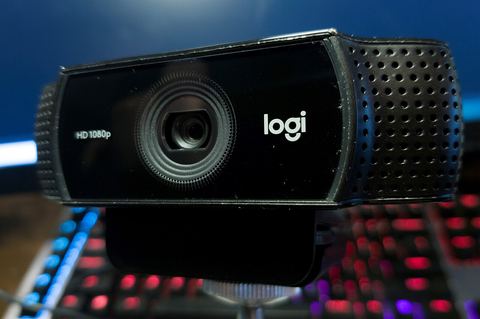
How to Download the Logitech C310 Driver
Logitech stopped shipping a dedicated “C310 driver” file years ago because Windows already includes a built-in UVC driver for standard webcams. What you actually need is the companion app that unlocks the extra settings. Here’s how to get it:
- Open your browser and go to the Logitech Support downloads page and search for “C310”.
- Choose your operating system (Windows 10 or Windows 11) from the dropdown.
- Download the current Logi Tune or Logitech Camera Settings installer listed for the C310.
- Save the file somewhere you can find it, like your Downloads folder or Desktop.
Don’t plug the webcam in yet. Installing the software first lets Windows pair the correct driver profile with the camera the moment it’s detected, which avoids a generic driver getting installed by mistake.
Installing the Driver and Software
Once the installer is downloaded, close any apps that might already be using a camera (Zoom, Teams, Skype), then follow these steps:
- Right-click the installer and choose “Run as administrator.”
- Accept the license agreement and let the wizard finish. It usually takes one to two minutes.
- Restart your PC if prompted. This step matters more than it looks — I’ve seen the software install fine but the camera not get recognized properly until after a reboot.
- Plug the C310 into a USB port directly on the motherboard, not through a hub, especially on your first attempt.
- Windows will show a notification as it installs the device driver automatically. Wait for it to finish before opening any video app.
Open Logi Tune or the camera settings app afterward to confirm the C310 shows up. You should be able to adjust brightness, contrast, and RightLight from there.
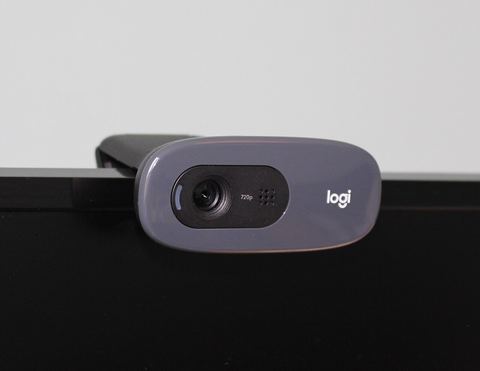
Manual Install via Device Manager
If Windows refuses to load the camera correctly, or you only have the extracted driver files without an installer, you can point Device Manager at them manually:
- Extract the downloaded package to a folder (right-click the .exe or .zip and choose Extract, or run the installer once and cancel at the first screen to drop the files on disk).
- Press Windows + X and select Device Manager.
- Look under “Cameras” or “Imaging devices.” If the C310 shows a yellow warning icon, it’s under “Other devices” instead.
- Right-click the device, choose “Update driver,” then “Browse my computer for drivers.”
- Point it to the folder containing the extracted .inf file and let Windows install from there.
This manual route is really a fallback. In most cases the automatic installer handles everything, but it’s worth knowing when the C310 shows up as an unrecognized USB device on an older Windows install.
Troubleshooting a Failed Install
If the camera isn’t detected, or video shows a black screen, work through these in order:
- Try a different USB port. Rear ports on a desktop tend to be more stable than front-panel or hub ports.
- Uninstall and reinstall. Go to Device Manager, right-click the C310, choose “Uninstall device,” tick “Delete the driver software for this device” if offered, unplug the camera, then reinstall the software fresh and reconnect.
- Check camera privacy settings. On Windows 10 and 11, go to Settings > Privacy & Security > Camera and make sure “Camera access” and “Let apps access your camera” are both turned on.
- Close conflicting apps. Only one application can use the webcam at a time. If Teams has it locked, Zoom won’t be able to open it.
- Check Windows Update. Occasionally a pending update can hold a generic driver in place. Running Windows Update and rebooting resolves this in a lot of cases.
I’ve personally had a C310 get stuck showing a green light but no video feed on a Windows 11 machine after a feature update — a full driver uninstall through Device Manager followed by a fresh install of Logi Tune fixed it in under five minutes. On an older Windows 10 laptop, the same camera worked fine plugged into a rear USB port but wouldn’t get detected at all through a cheap USB hub, which turned out to be a power delivery issue with the hub itself, not the driver.
Per Daniel Ho, who is an IT support technician at a call center in Petaling Jaya, “We still run about a dozen C310 webcams on our helpdesk floor because they’re cheap and reliable. The only time we get support tickets is after a Windows update resets the camera privacy toggle, not because the hardware itself fails.”
Windows 10 vs Windows 11 Differences
The C310 behaves slightly differently depending on which Windows version you’re running:
- On Windows 10, the built-in UVC driver is usually enough for basic use in apps like Skype or the Camera app, without installing anything extra.
- On Windows 11, Microsoft’s camera privacy controls are stricter by default, so more users report the “camera not found” error right after a clean install — it’s almost always the privacy toggle, not the driver.
- Both versions support the Logi Tune software identically, though newer Windows 11 builds sometimes need a manual restart of the “Windows Camera Frame Server” service (search for Services, find it, right-click, Restart) if the feed freezes.
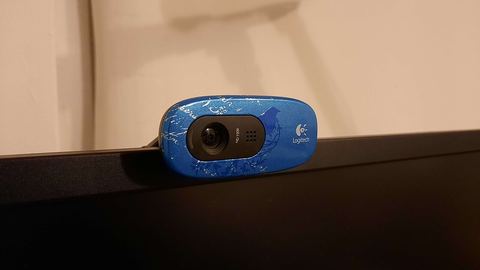
Tips to Keep the C310 Running Smoothly
A few habits keep this webcam trouble-free long term:
- Avoid unplugging the camera mid-call — always close the video app first.
- Keep Logi Tune updated so the RightLight auto-exposure keeps working correctly in low light.
- If you multi-boot or reimage your PC often, keep the downloaded installer saved locally instead of redownloading every time.
- For business use across many PCs, check Microsoft’s Windows support site for group policy notes on camera privacy if devices keep losing access after updates.
If you want a deeper technical breakdown of UVC class drivers in general, How-To Geek has good background reading on how Windows handles USB video devices without vendor drivers.
Frequently Asked Questions
Does the Logitech C310 need a driver on Windows 11?
Not strictly. Windows 11 includes a generic UVC driver that lets the camera work in most apps out of the box. You only need the Logi Tune software if you want RightLight adjustment, zoom control, or custom video settings.
Why does my C310 show a green light but no picture?
This is almost always a permissions or app-conflict issue rather than a hardware fault. Check Windows camera privacy settings first, then confirm no other app already has the camera open.
Can I use the C310 driver software on Windows 7 or 8?
Logitech’s current software builds target Windows 10 and 11. Older operating systems may still work with legacy Logitech webcam software, but you’d need to look for archived older installers since current downloads are no longer built for those systems.
Why isn’t the microphone working even though the camera works?
The C310 has a separate microphone component that Windows treats as its own audio device. Go to Settings > Sound > Input and make sure “Logitech Webcam C310” (or similar) is selected as the default recording device.
Is it safe to download the driver from a site other than Logitech?
Stick to Logitech’s official support page whenever possible. Third-party driver sites sometimes bundle outdated or repackaged installers that can cause more detection problems than they solve.
Conclusion
The Logitech HD Webcam C310 is simple to get running: Windows handles basic detection on its own, and the official Logi Tune software from Logitech’s support page adds the extra controls most people actually want. If it stalls out, a clean uninstall through Device Manager followed by a fresh install almost always clears it up.
Written by Ryan, who holds a degree in Computer Science and has spent over 20 years working hands-on with PC hardware, peripherals, and driver troubleshooting. Questions about your setup? Browse more guides at Software Driver Download.