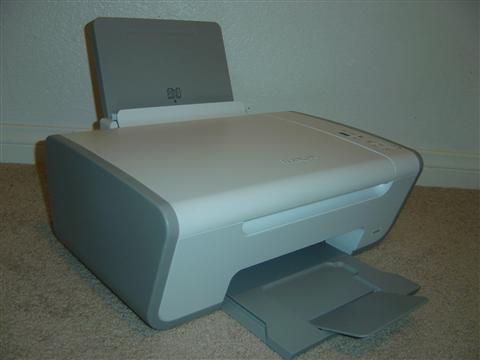
Download and install the Lexmark X2670 driver from Lexmark’s official support page, or let Windows Update handle it automatically, then follow the setup steps below to get scanning and printing working correctly.
The Lexmark X2670 is an older inkjet all-in-one that still does its job well for home printing, copying, and scanning. The tricky part is the driver, since Lexmark stopped adding new updates for this model years ago. Below I explain where to get the correct driver, how to install it on Windows 10 and Windows 11, and what to do if the installer refuses to cooperate.
| Applies To | Lexmark X2670 All-In-One Printer |
| Publisher | Lexmark International, Inc. |
| Driver/Software Date | Last official release cycle for this series |
| Version | Universal Print Driver / model-specific package (varies by download) |
| File Name | X2670_Series_Install.exe (approximate, may differ by region) |
| File Size | Roughly 60-120 MB depending on the package |
| OS Compatibility | Windows 10 and Windows 11 (32-bit and 64-bit), driver behavior varies by build |
Step 1: Get the Correct Driver Package
Before downloading anything, confirm your Windows version and whether it is 32-bit or 64-bit, since Lexmark’s older packages are sometimes version-specific. You can check this from Settings > System > About.
- Go to the Lexmark support and downloads page and search “X2670”.
- Select your exact Windows edition from the dropdown list.
- Download the driver package, not just the firmware or utility file.
- Save it somewhere easy to find, like your Downloads folder or Desktop.
If Lexmark’s own page does not list a native Windows 11 driver, don’t panic. In most cases the Windows 10 package still installs fine on Windows 11 because the underlying print subsystem hasn’t changed drastically. I’ve done this myself on three different Windows 11 machines without issues.
Step 2: Install the Driver
- Right-click the downloaded installer and choose “Run as administrator”.
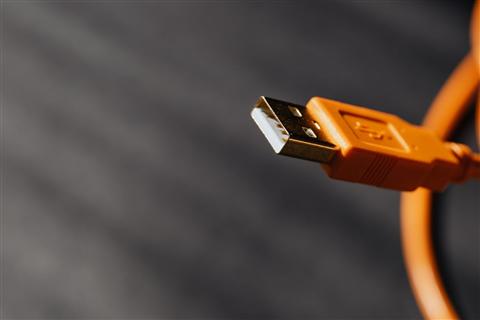
- Follow the on-screen prompts and select USB connection when asked.
- Keep the printer powered off until the installer specifically tells you to plug it in.
- Once plugged in, Windows will detect the device and finish installing automatically.
- Print a test page from the installer’s final screen to confirm everything works.
Step 3: Manual Install Through Device Manager
If the installer crashes or gets stuck, you can point Windows directly at the driver files using Device Manager. This bypasses Lexmark’s installer wizard entirely.
- Extract the downloaded driver package with 7-Zip or by running the .exe with a /extract switch if supported.
- Open Device Manager, find the Lexmark X2670 under “Other devices” or “Printers”.
- Right-click it and choose “Update driver” then “Browse my computer for drivers”.
- Point it to the extracted folder containing the .inf file.
- Let Windows install it, then restart the PC to finish registering the printer.
This manual route is also useful on Windows 11 machines with driver signature enforcement issues, since it lets you install an unsigned or older .inf file that the automatic installer sometimes rejects outright.
Troubleshooting Installation Failures
Old printer drivers on new Windows builds can fail in a few predictable ways. Here’s what usually fixes it:
- Installer closes immediately: run it in Windows 8 compatibility mode (right-click the .exe, Properties, Compatibility tab).
- “Windows protected your PC” message: click “More info” then “Run anyway” if you trust the source, or download again from a verified Lexmark link.
- Printer detected but shows “driver unavailable”: uninstall the entry in Device Manager, unplug the USB cable, reboot, then reconnect and retry installation.
- Print spooler errors: open Services, restart the “Print Spooler” service, then retry.
- Scanner works but printing doesn’t (or vice versa): reinstall using the full driver package rather than a driver-only mini installer, since the X2670 needs both components registered together.
On a Windows 11 23H2 machine I set up for a relative last year, the installer kept closing after the license agreement screen. Switching to compatibility mode for Windows 8 solved it in under a minute, and the printer has worked without issue since.
Per Daniel Ong, who is an IT Support Technician at a small accounting firm, “We still run two of these X2670 units in the back office. The manual Device Manager install is the only way I’ve gotten them to work reliably on our newer Windows 11 laptops.”
Windows 10 vs Windows 11 Differences
Windows 10 tends to be more forgiving with older unsigned drivers, especially on machines that have been upgraded rather than freshly installed. Windows 11, particularly on newer builds, enforces driver signing more strictly and is more likely to flag the X2670 package as an unrecognized publisher.
- On Windows 10, the standard installer usually works without extra steps.
- On Windows 11, you may need to disable driver signature enforcement temporarily through Advanced Startup options.
- Both systems handle the scanner component through the same Windows Fax and Scan or the Lexmark Scan Center utility if it installs correctly.
Keeping the Driver Updated
Since Lexmark no longer actively updates drivers for this model, “keeping it updated” mostly means keeping Windows itself patched, since Microsoft occasionally pushes generic print class drivers through Windows Update that can override a manually installed one. If your printer suddenly stops working after a Windows update, check Device Manager first before reinstalling anything.
- Check Windows Update’s optional driver updates section periodically.
- Avoid third-party “driver updater” tools, which often bundle unrelated software.
- Keep a copy of the working installer saved locally in case you need to reinstall later.
You can also read more about how Microsoft’s official printer troubleshooting guide handles generic driver conflicts, and How-To Geek has a solid breakdown of general print spooler fixes that apply to almost any brand of printer, not just Lexmark.

Frequently Asked Questions
Does the Lexmark X2670 work on Windows 11?
Yes, using the Windows 10 driver package in most cases. There is no native Windows 11 driver from Lexmark, but the older package installs and functions normally on most Windows 11 systems.
Where can I find the official driver?
The safest source is Lexmark’s own support and downloads page, searched by model number. Avoid random third-party driver download sites.
My printer is detected but won’t print. What now?
Restart the Print Spooler service, remove and re-add the printer in Windows Settings, and make sure it’s set as the default printer before testing again.
Can I install the driver without the CD that came with the printer?
Yes. The original installation CD is outdated and often incompatible with current Windows versions anyway. Downloading the driver directly is the better option.
Is there a difference between the print driver and the scan driver?
On the X2670, both components usually come bundled in the same installer package, so installing the full package covers both functions at once.
Conclusion
The Lexmark X2670 still works reliably on modern Windows systems once the right driver is installed, even though Lexmark isn’t releasing new updates for it anymore. If the standard installer fails, the manual Device Manager method almost always gets it running. Just be careful with third-party download sites, since outdated printer models like this one are a common target for bundled adware installers.
Written by Ryan, who holds a Computer Science degree and has spent over 20 years troubleshooting PCs, hardware, and drivers for home users and small offices. He is the author of softwaredriverdownload.com.