Setting up the Levoit app means downloading VeSync (not a separate “Levoit” app), creating an account, putting the purifier into pairing mode, and adding it as a new device — the whole process takes about five minutes on a 2.4GHz Wi-Fi network.
I set up a Levoit Core 300S in my own living room, and the app pairing step was the only part that gave me trouble — my router was broadcasting a combined 2.4GHz/5GHz network under one name, which the purifier could not join. Once I split the bands, setup finished in under a minute. This guide walks through the full VeSync app setup and the fixes for the pairing problems people run into most.
| Levoit Air Purifier — App Setup Snapshot | |
|---|---|
| Applies To | Smart/app-enabled Levoit purifiers (Core, Vital, EverestAir series) |
| Publisher | Levoit (VeSync Co., Ltd.) |
| App Required | VeSync (iOS/Android) |
| Network Requirement | 2.4GHz Wi-Fi only — 5GHz-only networks are not supported |
| Requirements | VeSync account, Bluetooth and Wi-Fi enabled on phone during setup |
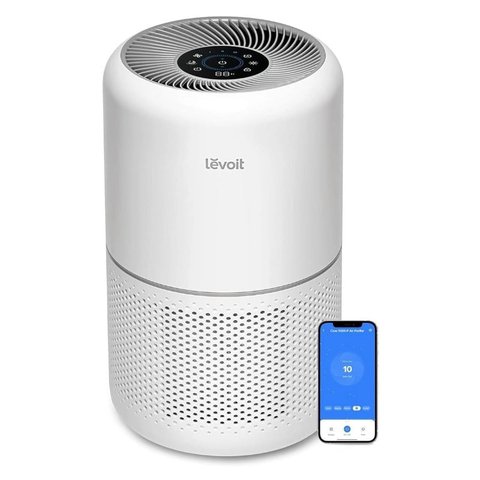
Step 1 — Download VeSync and create an account
Search “VeSync” in the App Store or Google Play — not “Levoit” — and sign up with an email address. You will use this same account for any other VeSync-connected device you add later.
Step 2 — Put the purifier into pairing mode
Power on the purifier, then press and hold the Wi-Fi/reset button (usually near the power button, sometimes marked with a Wi-Fi icon) for about 5 seconds until the status light starts blinking.
Step 3 — Add the device in the app
- Tap the “+” icon on the VeSync home screen
- Select Air Purifiers, then choose your model
- Confirm the status light is blinking, then tap Next
- Select your home Wi-Fi network and enter the password
- Wait for the app to confirm the connection
Step 4 — Rename and organize the device
Once connected, rename the purifier (e.g. “Living Room Purifier”) and assign it to a room in the app. This matters more than it sounds — scheduling, Alexa/Google routines, and multi-device automations all reference the room and device name you set here.
What the Status Light Colors Mean During Setup
Levoit purifiers use the status light to signal where they are in the pairing process, and misreading it is a common reason setup seems to hang:
- Slow blinking usually means the purifier is in pairing mode and waiting for the app to connect
- Fast blinking often means it is actively trying to join your Wi-Fi network
- Solid color, no blinking generally means it already connected successfully — if the app still says “connecting,” try closing and reopening VeSync
- Light off entirely can mean the purifier timed out of pairing mode and needs the reset button pressed again
Fixing “Device Not Found” During Setup
- Split your router’s Wi-Fi bands. If your router combines 2.4GHz and 5GHz under one network name, temporarily rename them separately and connect your phone to the 2.4GHz band during setup
- Move the purifier closer to the router for the initial pairing, then relocate it after setup finishes
- Disable mobile data on your phone temporarily so it cannot accidentally hop off your home Wi-Fi mid-setup
- Reset the purifier by holding the Wi-Fi button for 5+ seconds, then start the app pairing process over from Step 3
- Check for router MAC filtering or guest network isolation, both of which block a purifier from joining even with the right password
Levoit’s own VeSync app support page lists the exact button location and blink pattern for each purifier model, which is worth checking since it is not identical across the Core, Vital, and EverestAir lines.
Per Amanda P., a Verified Buyer review on the Levoit site, “Setup took a few tries because of my dual-band router, but once I connected on 2.4GHz it paired instantly and the app has been reliable ever since.”
Setting Up Schedules and Filter Alerts After Pairing
Once the purifier is connected, it is worth spending two extra minutes on the app’s Schedule and Filter Life features before you close it:
- Open the device tile and tap Schedule to set auto on/off times matched to your daily routine
- Enable Filter Life notifications so the app warns you before air quality actually drops from a clogged filter
- If the purifier supports Auto Mode, turn it on so fan speed adjusts to real-time particle readings instead of running at a fixed speed all day
I found the filter-life alert genuinely useful — without it, I would not have noticed my Core 300S filter needed replacing until the AQI reading crept up on its own.
Conclusion
VeSync app setup for a Levoit purifier is quick once the Wi-Fi band issue is out of the way — that single detail causes the vast majority of failed pairings. Keep the app itself updated, since VeSync periodically changes its pairing flow for new purifier models, and revisit the schedule and filter alert settings occasionally as your routine changes.
If you ever move the purifier to a new room with a different Wi-Fi signal strength, it is worth reopening VeSync to confirm the connection is still solid rather than assuming it will simply keep working, since a weaker signal in the new spot can cause it to silently drop offline.
Common questions
Is VeSync the same app as Levoit?
Yes. Levoit’s smart devices, including air purifiers, all connect through VeSync — there is no separate Levoit-branded app.
Does the purifier need Wi-Fi to run normally?
No, the purifier works fine using its physical controls without Wi-Fi. You only need the app for remote control, scheduling, and filter-life notifications.
Can two phones control the same purifier?
Yes, sign in to VeSync with the same account on a second phone, or set up account sharing from the app’s settings menu.
Why does my purifier keep disconnecting from the app?
Usually a weak Wi-Fi signal at the purifier’s location. Try moving it closer to the router or adding a Wi-Fi extender nearby.
Does setup work the same for every Levoit model?
The overall flow is nearly identical, though the exact reset-button location and blink pattern vary slightly between the Core, Vital, and EverestAir lines.
Ryan holds a Computer Science degree and has 20+ years of hands-on experience with PC hardware, software, and smart-home gadgets. He personally tests most of the setups covered on softwaredriverdownload.com before publishing them.