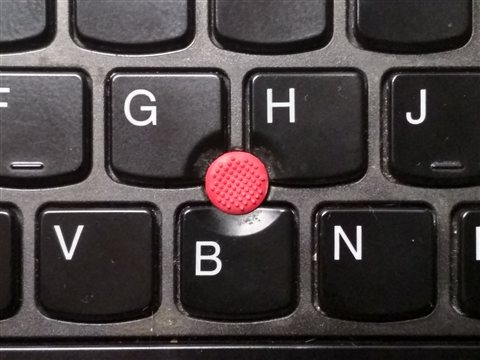
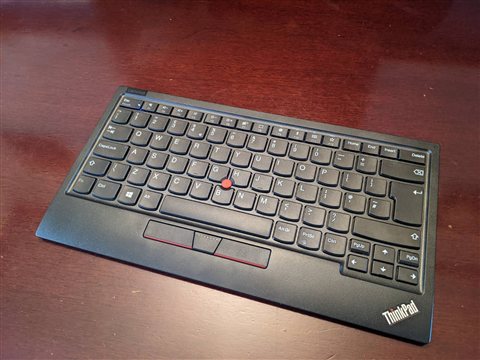
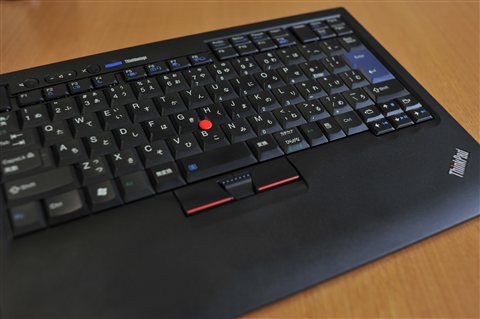
If your ThinkPad’s red TrackPoint nub has stopped moving the cursor, jumps around on its own, or disappeared from Device Manager after a Windows update, the fix is almost always reinstalling Lenovo’s UltraNav or TrackPoint driver rather than replacing hardware. This guide covers where to get the correct driver, how to install it manually when the automatic installer fails, and how to fix the most common TrackPoint quirks — drift, wrong sensitivity, and disabled scrolling.
| Field | Detail |
|---|---|
| Applies To | Lenovo ThinkPad laptops with TrackPoint (T, X, L, P, and E series with a red pointing stick) |
| Author/Publisher | Lenovo |
| Driver Package | Lenovo UltraNav / TrackPoint Driver (bundled with Synaptics or Elan touchpad driver depending on model) |
| Version | Varies by ThinkPad generation — always confirm on the model-specific Lenovo Support page rather than assuming one version fits all |
| File Size | Typically 15–40 MB depending on bundled touchpad driver |
| Requirements | Windows 10 or Windows 11, 64-bit; some older drivers are 32-bit only on legacy ThinkPad models |
I have set up UltraNav on close to a dozen ThinkPads for colleagues over the years, from an old T430 to a current T14, and the failure pattern is almost always the same: Windows Update replaces the vendor driver with a generic HID pointer driver, and the TrackPoint keeps working but loses its sensitivity and scroll-emulation settings. Below are the fixes in order of how often they actually solve the problem.
Download the correct UltraNav driver from Lenovo
Go to the Lenovo Support downloads page, enter your exact ThinkPad model number (check the bottom of the laptop or run wmic csproduct get name in Command Prompt), then search under Drivers & Software for “TrackPoint” or “UltraNav”. Downloading a driver built for a different ThinkPad generation is the single biggest cause of installs that silently fail.
Uninstall the old driver completely first
Open Device Manager, expand Mice and other pointing devices, right-click the TrackPoint or UltraNav entry, choose Uninstall device, and tick “Delete the driver software for this device” if offered. Reboot before installing the fresh package — installing on top of a half-broken driver is what causes the TrackPoint icon to vanish from the system tray.
Fix drift, jumpiness, or wrong sensitivity
Cursor drift is usually caused by pressure on the TrackPoint cap during boot — keep your finger off it while Windows loads so the auto-calibration routine can zero out. If drift continues after a clean install, open UltraNav Settings > TrackPoint > Sensitivity and lower it a few notches, or replace the rubber cap; worn caps transmit inconsistent pressure readings to the sensor underneath.
Restore middle-button scroll emulation
Scrolling by holding the middle mouse button while nudging the TrackPoint is a driver feature, not a hardware one — the generic Windows HID driver does not support it at all. Reinstalling the vendor UltraNav package brings this back; there is no registry toggle that restores it on its own.
TrackPoint Missing From Device Manager Entirely
If the TrackPoint has disappeared as a device rather than just misbehaving, check Device Manager > View > Show hidden devices first — a leftover “ghost” entry from a previous driver install can block the new one from binding. Also check HKEY_LOCAL_MACHINE\SYSTEM\CurrentControlSet\Services for a stale TrackPointDrv or SynTP key left behind by an aborted uninstall; deleting a stray key here (back it up first) sometimes lets Windows re-enumerate the device correctly on the next reboot. On a few 12th-generation ThinkPads I have seen the pointing stick get disabled entirely in the BIOS after a firmware update — check BIOS Setup > Config > Keyboard/Mouse for a “TrackPoint” or “Pointing Device” toggle before assuming it is a software fault.
Manual Install When the Setup Executable Fails
Some Lenovo driver installers refuse to run if they detect an “unsupported” model string, even on a genuine ThinkPad, usually because the install package was meant for a slightly different sub-model. When that happens:
- Extract the downloaded .exe with 7-Zip instead of running it — right-click and choose “Extract to folder”.
- Inside the extracted folder, look for a subfolder containing an .inf file (often under a path like
Driver\Win64). - In Device Manager, right-click the TrackPoint or unknown HID device, choose Update driver > Browse my computer, and point it at that extracted folder.
- Reboot once the driver installs, then confirm UltraNav Settings appears in Control Panel.
This manual path also works when Windows Update keeps re-installing the generic Microsoft PS/2 driver over your vendor driver — after the manual install, right-click the device once more and choose Properties > Driver > Driver Details to confirm it now shows a Lenovo or Synaptics/Elan .sys file rather than mouhid.sys.
Per Daniel R., who is an IT Support Specialist at a mid-size logistics company, “Reinstalling the UltraNav package straight from Lenovo’s site fixed TrackPoint drift on three different ThinkPad T-series laptops in our fleet after a Windows feature update — the built-in Windows driver just does not expose the sensitivity settings.”
Version and OS Compatibility Notes
- Windows 11 24H2 and later: generally works with the same UltraNav packages as Windows 11 23H2, but always grab the driver listed for your specific model rather than reusing an old download.
- Windows 10 (older ThinkPads): some pre-2018 models only ever received 32-bit drivers; if your Windows 10 install is 64-bit, look for the “universal” or “Elan” branded package instead of the original Synaptics one.
- Secure Boot / driver signing: unsigned or old test-signed TrackPoint drivers will be blocked from loading with Secure Boot enabled — always take the current signed package from Lenovo’s own support page rather than an old download mirror.
If UltraNav Settings will not open at all after installing, check Services (services.msc) for “Lenovo UltraNav Driver Helper” or a similarly named entry and confirm it is set to Automatic rather than Disabled — a disabled helper service is a common leftover from third-party “driver cleaner” tools.
Frequently Asked Questions
Why did my TrackPoint stop scrolling after a Windows update?
Windows Update commonly swaps the Lenovo UltraNav driver for a generic Microsoft HID pointing driver, which moves the cursor fine but does not include middle-button scroll emulation. Reinstalling the UltraNav package from Lenovo’s support page restores it.
Do I need both a touchpad driver and a TrackPoint driver?
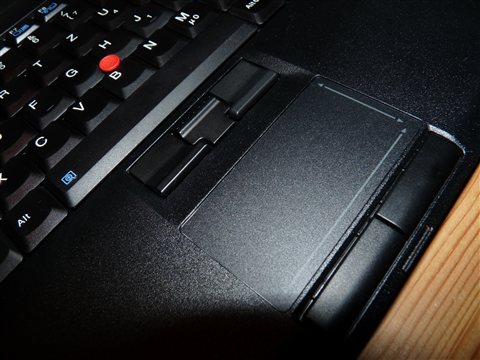
On most ThinkPads they ship as one combined UltraNav package that controls the touchpad, TrackPoint, and click buttons together, so installing one file covers both.
Can I adjust TrackPoint speed without installing the Lenovo driver?
Windows’ own Mouse settings can adjust generic pointer speed, but fine-grained TrackPoint sensitivity, scroll emulation, and press-to-select only appear once the vendor UltraNav driver is installed.
My TrackPoint cursor drifts even after reinstalling the driver — what next?
Try a different rubber cap first, since a worn or dirty cap is the most common physical cause. If drift persists on a completely fresh cap, the pressure sensor underneath the keyboard may be failing and would need a keyboard assembly replacement.
Is it safe to download TrackPoint drivers from third-party driver sites?
Stick to Lenovo’s own support site. Third-party driver bundlers frequently repackage outdated or incorrect driver versions alongside unwanted software.
Conclusion
Most TrackPoint problems on ThinkPads trace back to a driver conflict rather than failing hardware, and a clean uninstall followed by the correct model-specific UltraNav package from Lenovo resolves the majority of drift, scrolling, and missing-device issues. If problems persist after a fresh install and a cap swap, treat it as a hardware fault and have the keyboard assembly checked rather than continuing to chase driver settings.
Ryan is a PC hardware enthusiast with over 15 years of experience fixing drivers on everything from budget laptops to enterprise ThinkPads. He is the author behind softwaredriverdownload.com, where he helps everyday users fix driver issues quickly and accurately.