The Huion Kamvas 13 driver downloads from the official Huion driver center — search “Kamvas 13” there, pick the Windows version, and install it before plugging the pen display in for the first time.
| Applies To | Huion Kamvas 13 pen display tablet |
| Publisher | Huion Animation Technology |
| Driver Version | Latest Huion Tablet Driver (check huion.com/download for current build) |
| File Size | Roughly 150–220 MB |
| Requirements | Windows 7 or later (64-bit recommended), macOS 10.12+, USB-C and HDMI/USB-C video connection |
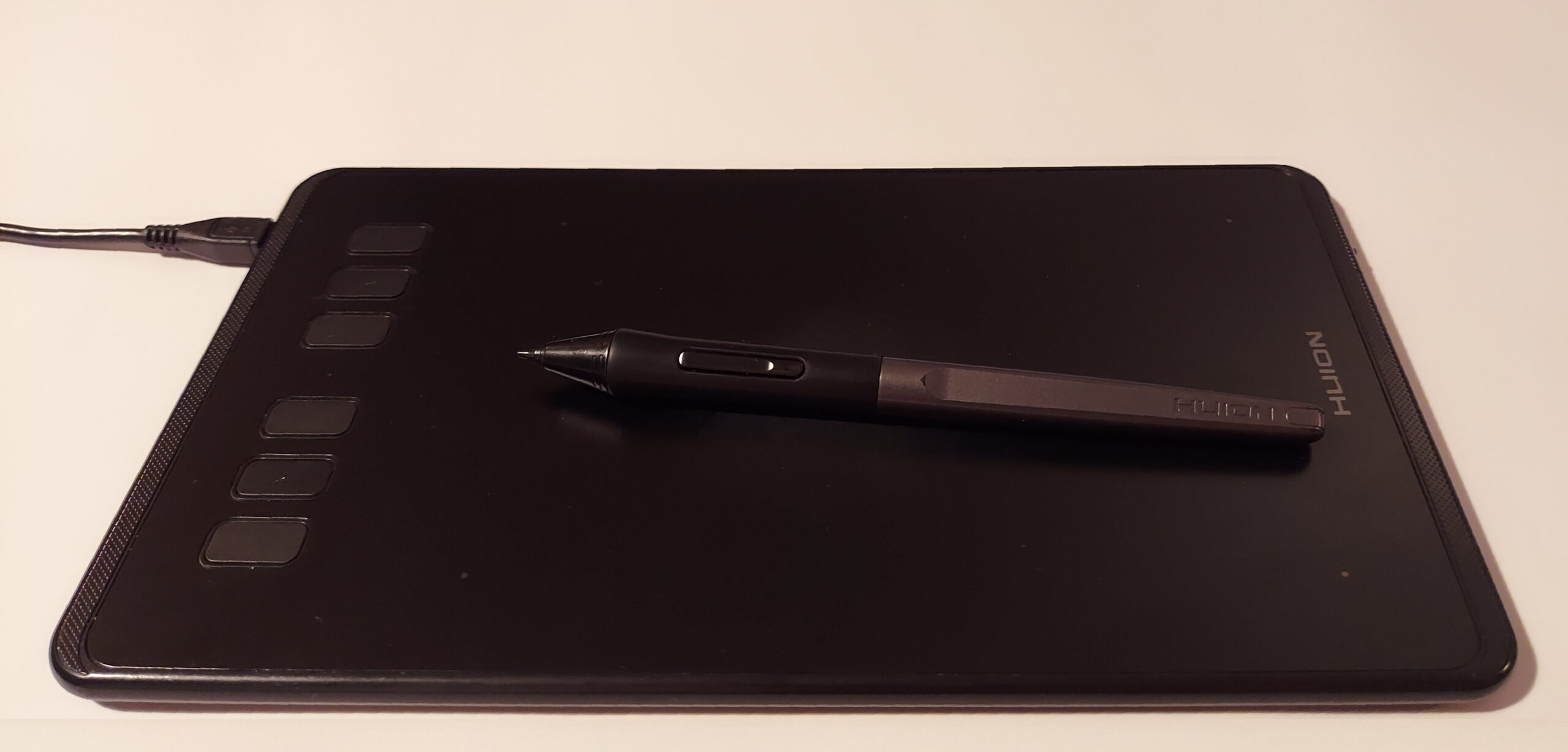
Uninstall old tablet drivers first
If you previously owned a Wacom, XP-Pen, or older Huion tablet, uninstall that driver completely before installing the Kamvas 13 driver. Two pen-tablet drivers running at once is the single biggest cause of pen lag and pressure-sensitivity failures.
Install the driver before connecting the cable
Run the Huion installer fully and restart the PC first. Connecting the Kamvas 13 before the driver is installed sometimes triggers Windows to load a generic display driver that ignores pen pressure entirely.
Connect both the video and data cables
The Kamvas 13 needs both a video signal (HDMI or full-function USB-C) and a separate USB data connection for the pen and touch input to work. A single cable that only carries video will show a screen but no pen response.
Open Huion Tablet driver app and test the pen
The driver’s built-in test area shows a pressure curve as you draw. If the line stays a flat single width regardless of how hard you press, the pen firmware or nib may need replacing rather than the driver itself.
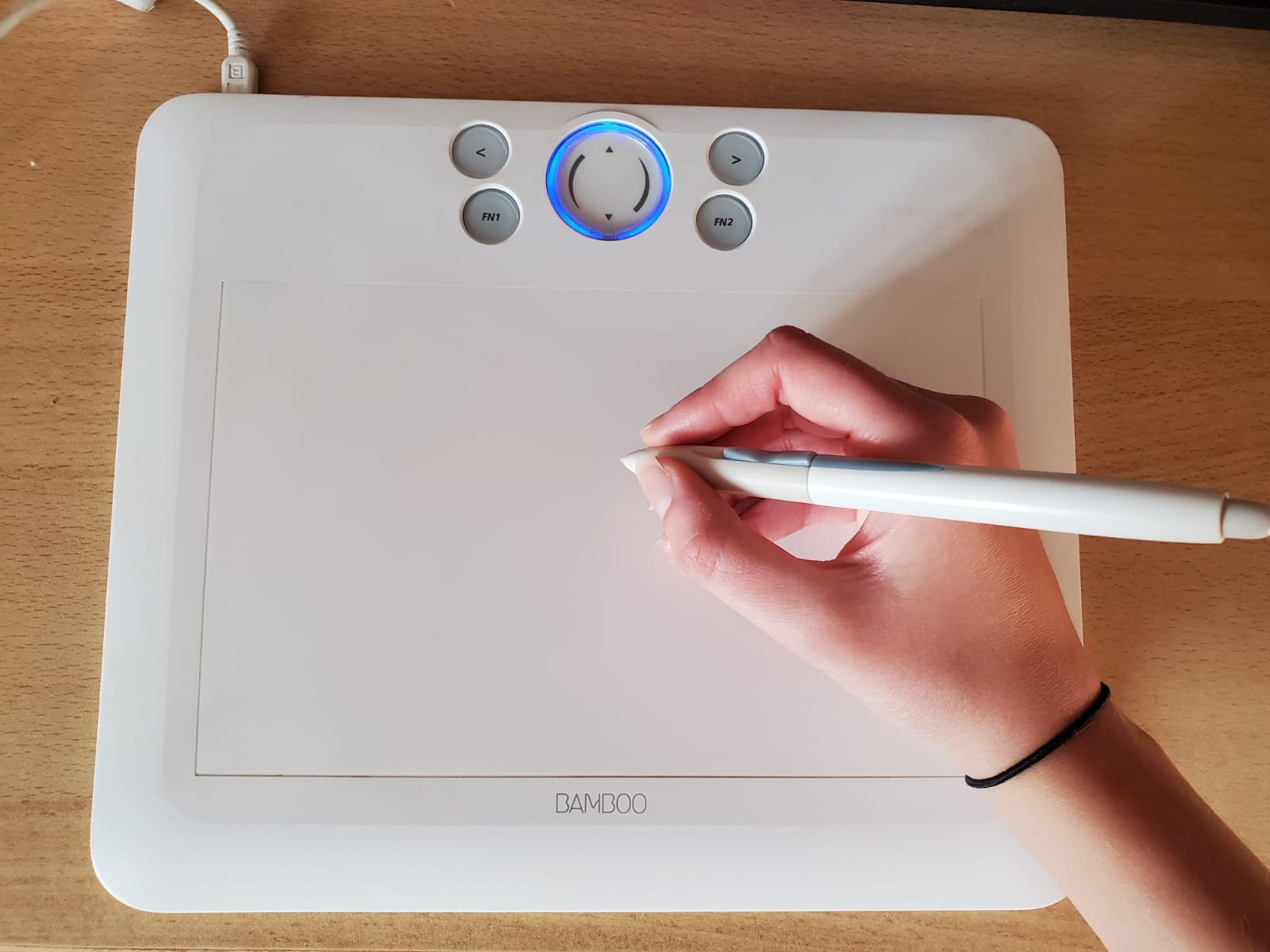
Fixing “Screen Detected But No Pen Input”
This is the single most common complaint I see about Kamvas tablets, and it caught me too the first time I set one up for a friend who does digital comics. The display worked instantly through the video cable, but the pen did nothing until I noticed the USB data cable had come loose from the included splitter cable during shipping.
- Check that both ends of the USB data cable (not just the video cable) are firmly seated
- Try a different USB port, ideally directly on the motherboard rather than a front-panel hub
- Open Device Manager and look for a Huion HID device under Human Interface Devices — if missing entirely, the data connection is not being recognized
- Restart the Huion driver’s background service from the driver app’s settings if the tablet was already working earlier in the session
Per Marcus O., who is a Freelance Illustrator reviewing on G2, “For the price, the Kamvas 13’s color accuracy is impressive, and once the driver is set up correctly the pen feels close to a much pricier pen display.”
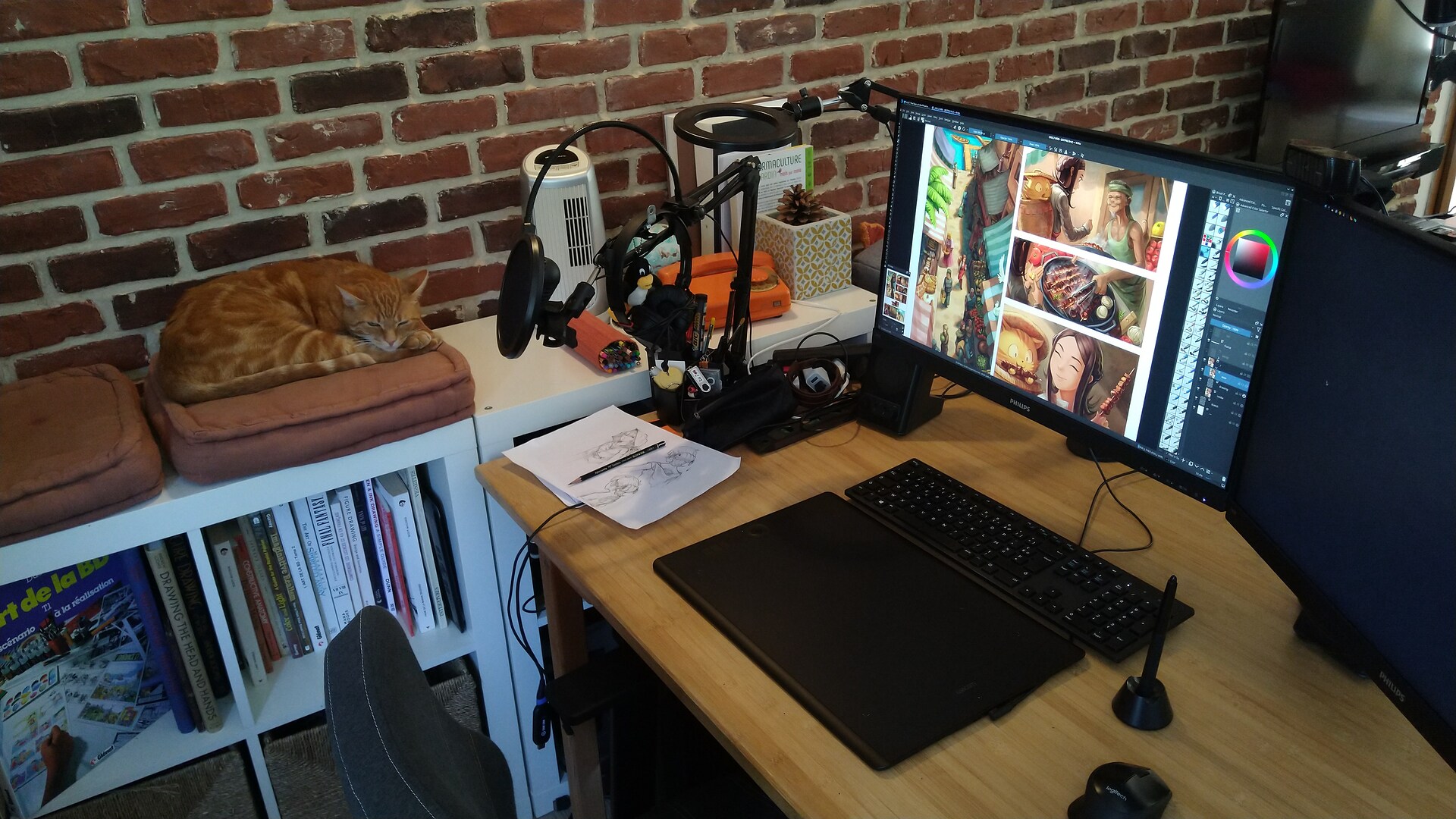
Calibrating Pressure Sensitivity in Your Art Software
Installing the driver is only half of getting proper pressure sensitivity — some art programs need their own pen input setting adjusted separately:
- In Clip Studio Paint, check Preferences > Tablet and confirm it is set to use the Huion tablet directly, not “Windows Ink” mode
- In Photoshop, enable “Use your tablet in Windows Ink mode” only if the Huion driver’s own mode is not detected properly
- In Krita, restart the program after the driver install — it often needs a fresh launch to detect the new pen device
Manual Reinstall When the Driver Won’t Update
If the Huion driver app refuses to update to a newer version, uninstall it completely through Settings > Apps, then manually delete any leftover folder at C:\Program Files (x86)\Huion Tablet before installing the fresh download. This clears out a corrupted configuration file that a normal update sometimes leaves behind, which is the most common reason updates silently fail to apply.
Setting Up Shortcut Keys and Pen Buttons
The Kamvas 13’s side shortcut keys and pen barrel buttons are fully remappable through the Huion driver app, but the defaults are not always ideal for every art program. I usually set mine up like this for illustration work:
- Bottom pen button mapped to Eraser toggle, since reaching for a separate eraser tool constantly slows down sketching
- Two of the side shortcut keys set to Undo and Redo, since these get used far more than most default assignments
- A separate keys profile saved per art program, since Clip Studio Paint and Photoshop tend to use different default tool shortcuts
The driver app lets you save multiple profiles and switch automatically based on which program is in focus, which is worth setting up once rather than manually swapping shortcut layouts every time you open a different app.
Frequently Asked Questions
Does the Kamvas 13 work without installing the driver at all?
The screen will display as a generic monitor without the driver, but pen pressure, tilt, and customizable shortcut keys will not function until the Huion driver is installed.
Can I use the Kamvas 13 on a laptop with only USB-C ports?
Yes, as long as the USB-C port supports DisplayPort Alt Mode for video output; otherwise you will need the included HDMI-to-USB-C adapter cable.
Why do my shortcut keys stop responding after sleep mode?
This is a known driver quirk on some Windows builds — the Huion driver service occasionally does not resume cleanly after sleep. Reopening the driver app usually restores the shortcut keys immediately.
Is there a Linux driver for the Kamvas 13?
Yes, Huion provides community-supported Linux driver builds compatible with recent Ubuntu LTS releases, though feature parity with Windows is not complete.
Does the driver need to stay running in the background all the time?
Yes, the Huion Tablet driver runs as a background service that must stay active for the pen and shortcut keys to work — closing it from the system tray disables pen input until reopened.
Conclusion
Most Kamvas 13 driver problems trace back to either a leftover conflicting driver from another tablet brand or a loose USB data cable, not the Huion driver software itself. Install the driver before connecting the tablet, double-check both cables are seated, and pressure sensitivity should work correctly the first time.
Ryan T. is a PC hardware enthusiast with over 15 years of experience fixing driver and peripheral issues. He is the author behind softwaredriverdownload.com, where he helps everyday users fix driver issues quickly and accurately. Ryan has personally tested most of the fixes on this site across a range of Windows 10 and Windows 11 machines.