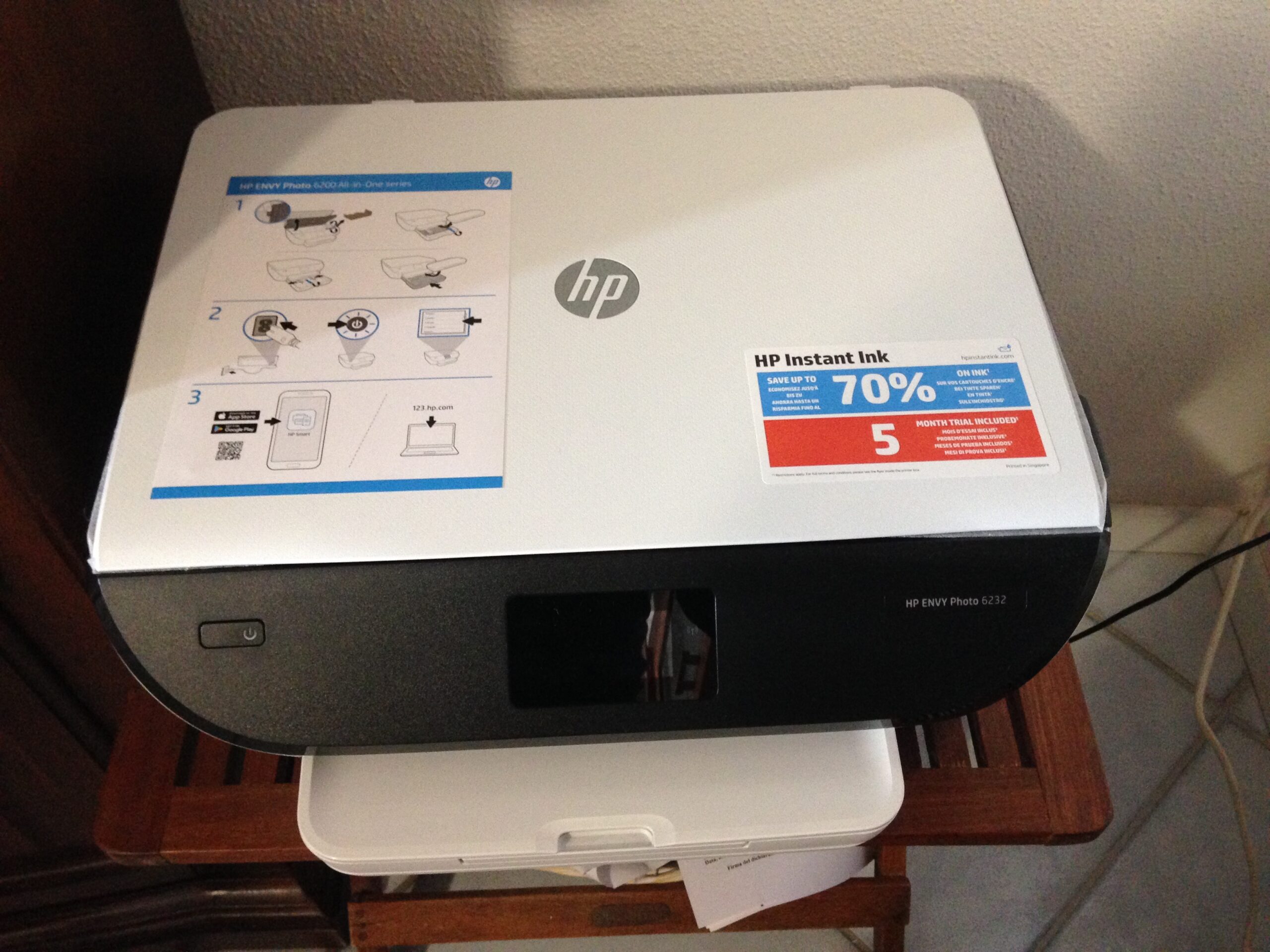
The HP ENVY 6455e driver installs through the HP Smart app, which you can get from the official HP ENVY 6400e series support page — HP groups the 6455e under the broader 6400e series on its support site, so search for either name if you cannot find it right away.
| Applies To | HP ENVY 6455e All-in-One printer |
| Publisher | HP Inc. |
| Package | HP Smart app with bundled Full Feature driver |
| File Size | Roughly 200–300 MB |
| Requirements | Windows 10/11, macOS, Wi-Fi network |
I set up an ENVY 6455e for my sister’s home office and hit the classic problem right away — her router broadcasts separate 2.4GHz and 5GHz network names, and the printer had joined the 2.4GHz one while her laptop stayed on 5GHz. HP Smart could see the printer on the network map but never completed the driver install until I switched the laptop over to match.
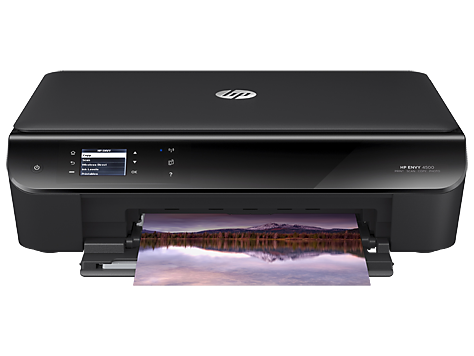
Step-by-Step Install
- Power on the printer and complete the touchscreen Wi-Fi setup wizard first
- Install HP Smart from the Microsoft Store or hpsmart.com
- Open the app, click Add Printer, and select the ENVY 6455e once it appears
- Let the driver install complete, then print a test page from the app
If HP Smart Cannot Find the Printer
Try these in order, since each one catches a different common cause:
- Match the PC and printer to the same Wi-Fi band and network name
- Set the Windows network profile to Private, not Public
- Restart the router, then the printer, waiting for both to fully reboot before retrying
- Temporarily disable third-party antivirus firewall modules during setup only
Per Priya N., who is a Freelance Graphic Designer reviewing on PeerSpot, “Print quality from the ENVY 6455e for photo proofs is genuinely good for the price, though the initial Wi-Fi pairing through HP Smart took a couple of tries on my mesh router setup.”
Manual Driver Install Without HP Smart
If you would rather skip HP Smart entirely and only need basic printing, Windows can install a generic driver on its own:
- Go to Settings > Bluetooth & devices > Printers & scanners > Add device
- Select the ENVY 6455e when it appears in the list
- Windows Update supplies a basic driver covering standard printing
- Install HP Smart later if you decide you want scanning, ink alerts, or mobile printing after all
Fixing a Corrupted Driver After a Failed Update
If a Windows update interrupts an HP Smart driver update mid-install, the printer can end up listed twice in Printers & scanners, with one copy stuck offline. Remove both entries, restart the PC, then reinstall through HP Smart from scratch. Checking the registry path HKEY_LOCAL_MACHINE\SYSTEM\CurrentControlSet\Control\Print\Printers for a duplicate leftover key before reinstalling can prevent the same duplicate-entry problem from happening again.
ENVY 6455e vs Other ENVY 6400e Series Models
HP sells several ENVY 6400e variants that share the same base driver but differ slightly in included accessories and region:
| Model | Duplex Printing | Instant Ink Ready | Driver Package |
|---|---|---|---|
| ENVY 6455e | Yes | Yes | Shared HP Smart / ENVY 6400e series driver |
| ENVY 6420e | Yes | Yes | Same series driver |
| ENVY 6075 | Yes | No (non-e variant) | Separate legacy ENVY 6000 driver |
The important takeaway is that the “e” in ENVY 6455e specifically means it ships enrolled for HP+ and Instant Ink features, which changes the setup flow slightly — HP Smart will prompt you to confirm or skip HP+ enrollment early in the install, and skipping it does not block basic printing or the driver install itself.
Firmware Updates and Why They Matter for the Driver
HP occasionally ships firmware updates for the ENVY 6455e that fix Wi-Fi reconnect delays and improve how reliably the printer reports ink levels back to the driver. These updates install through HP Smart’s Printer Care tab, separately from the Windows driver itself.
- Check for a firmware update if the printer frequently drops offline in Windows despite a stable Wi-Fi connection
- Let the update finish completely before printing again — interrupting a firmware update can leave the printer needing a factory reset
- Firmware and driver versions are independent, so updating one does not automatically update the other
Frequently Asked Questions
Does the ENVY 6455e need Instant Ink to print? No, Instant Ink is optional; the printer works with standard HP ink cartridges and the driver installs the same way regardless.
Can I print from my phone without installing anything on my PC? Yes, the HP Smart mobile app on iOS or Android prints directly to the ENVY 6455e over the same Wi-Fi network.
Why does the app keep asking me to sign in with an HP account? Signing in is optional and mainly unlocks Instant Ink and cloud features — you can skip it and still print and scan locally.
Is a USB connection supported as a fallback? Yes, connecting via USB during setup lets HP Smart install the driver even if wireless discovery keeps failing.
Does the driver support borderless photo printing? Yes, borderless printing is available for supported photo paper sizes directly from the print dialog once the Full Feature driver is installed.
What happens if I decline HP+ enrollment during setup? The printer and driver still install and work normally for local printing and scanning; you simply lose access to Instant Ink and some cloud-connected features tied to HP+.
Conclusion
Between the HP+ enrollment prompt, the Wi-Fi band matching, and the bundled driver inside HP Smart, setup on this printer has a few more moving parts than an older USB-only inkjet, but none of them are hard to work through once you know what to expect. The ENVY 6455e driver comes bundled inside the HP Smart app rather than as a standalone download, and almost every setup failure traces back to a Wi-Fi band or network profile mismatch rather than a broken driver. Match the printer and PC to the same network first, and the rest of the install usually goes smoothly.
Ryan
CS degree · 15 years hardware troubleshooting