Getting the HP DesignJet T630 Driver Installed and Printing Correctly
Download the HP DesignJet T630 driver from HP’s official support page, run it with the printer connected over USB, Ethernet, or Wi-Fi, and let HP’s installer configure the large-format print queue automatically. This guide covers the driver download, connection setup, and the scaling and paper-size errors that most often show up on this printer.
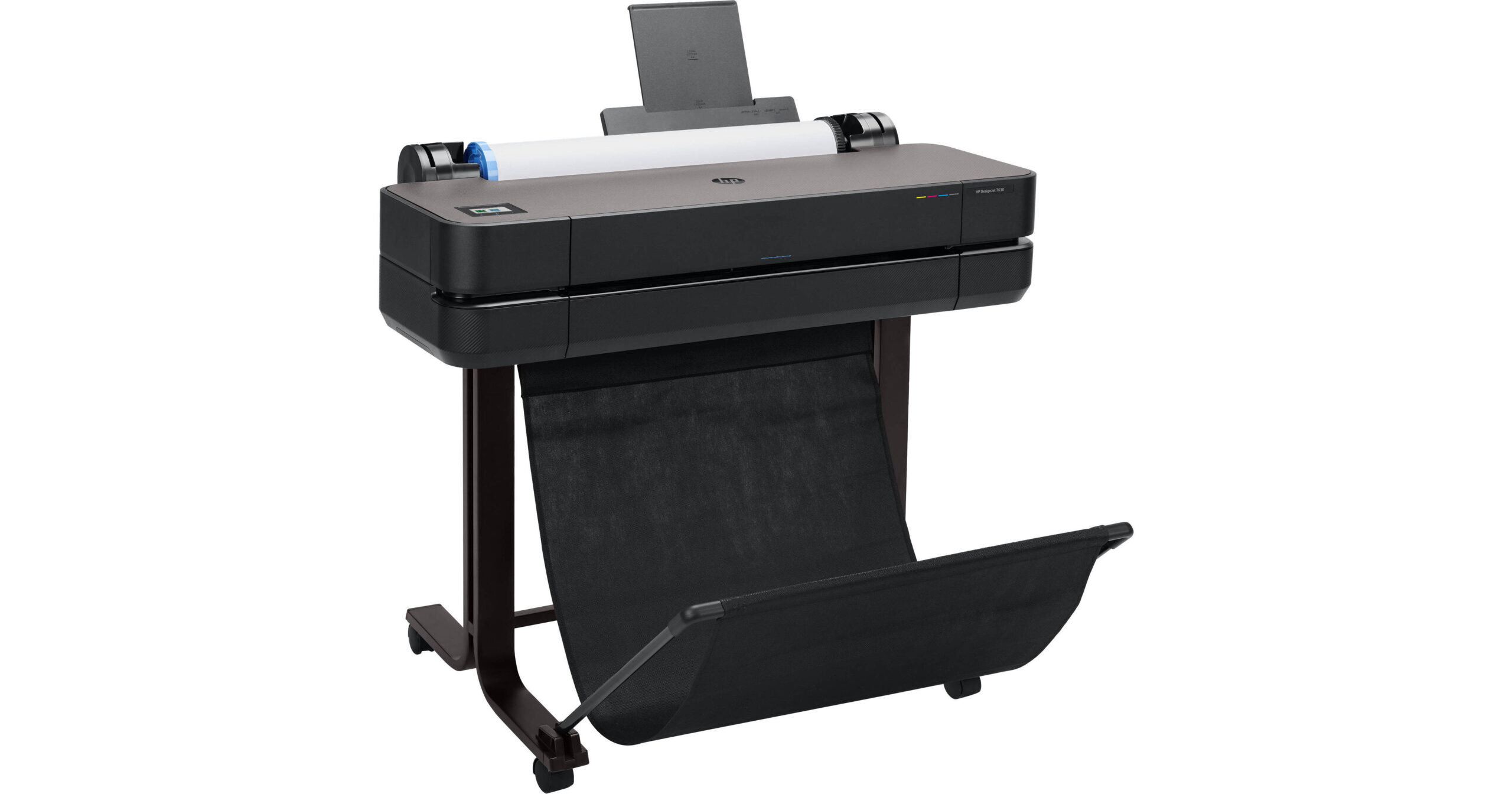
Download the correct driver package
Go to the HP Support site, search “DesignJet T630”, and let it detect your exact printer model (there is a 24-inch and a 36-inch version, and they share the same driver family but different default media settings). Download the full driver package rather than a “basic” driver – the full version includes the HP DesignJet utility used for calibration and ink system checks.
Connect the printer before or during install
HP’s installer supports USB, wired Ethernet, and Wi-Fi. For network installs, note the IP address shown on the printer’s front touchscreen under the network icon – the installer will ask for it if automatic discovery does not find the printer on a larger office network with multiple subnets.

Load paper and calibrate
Load your roll or sheet media, then use the HP DesignJet utility to run “Advanced calibration” once. I have set up two T630 units for architecture students printing large drawings, and skipping this step was the main reason their early prints came out with visible banding across wide areas of flat color.
Fix common driver and print-quality problems
Below are the issues that come up most on this model:
- Print comes out cropped or scaled wrong: in the driver’s print settings, confirm the paper size matches the actual roll width loaded, and check that “Scale to fit” is toggled the way you intend.
- Driver installs but printer shows offline: confirm the printer’s IP has not changed – DesignJets on DHCP networks sometimes get a new address after a router reboot, breaking the saved port in Windows.
- Colors look faded or streaky: run the printhead cleaning routine from the front panel, then re-run the calibration utility rather than reinstalling the driver.
- Driver will not install on a locked-down office PC: use Device Manager’s “Add printer” > “The printer that I want isn’t listed” > “Add a local printer” and point it at the extracted INF file from the downloaded package for basic functionality.
Per Alan K., a CAD Manager on G2, “The T630’s driver is solid once installed properly – our biggest early mistake was not running the calibration step before our first big client print run.”
Keeping print quality consistent over time
Large-format printers like the T630 need a bit more routine care than a desktop printer, since the printhead and ink system sit exposed to more dust in a typical studio or office environment.
- Run the automatic printhead cleaning routine from the front panel monthly, even if print quality looks fine, to prevent dried ink from building up in unused nozzles.
- Keep the driver updated through HP Support Assistant, since HP occasionally releases driver updates that fix scaling or color-matching bugs reported by CAD users.
- Store spare rolls of media flat or upright away from direct sunlight, since curled paper is a common cause of paper jams that get mistakenly blamed on the driver.
- Re-run calibration after replacing a printhead or ink cartridge, not just after the initial setup, since color consistency can drift slightly with new consumables.
On the two units I mentioned earlier, the students only needed to touch the driver settings again when switching between draft mode for quick check prints and best-quality mode for final submissions – both settings are accessible directly from the driver’s print quality tab without needing to reinstall anything.
Frequently Asked Questions
Is the HP DesignJet T630 driver different for the 24-inch and 36-inch models?
They share the same underlying driver, but always download using your exact model number from the printer’s label so default media settings match your specific unit.
Can the T630 print from a USB flash drive without a computer driver?
Yes, it can print supported file types like PDF directly from a USB drive through the front panel, but a computer driver is still needed for full CAD software integration.
Why does my T630 show “roll error” after a driver update?
This is usually a physical paper-loading issue rather than a driver problem – reload the roll, making sure it feeds straight, then clear the error from the front touchscreen.
Does the T630 need a special driver for AutoCAD?
No, the standard HP driver integrates with AutoCAD’s print dialog automatically once installed – just select the T630 as your output device inside AutoCAD’s plot settings.
How often should I run printhead cleaning on the T630?
Roughly once a month under normal use, or immediately if you notice thin white lines running through solid color areas on a print.
Can I install the T630 driver on more than one computer in the same office?
Yes, install the driver separately on each computer that needs to print, and all of them can send jobs to the same printer once it is set up on the network with a stable IP address.
What is the difference between the driver and the HP DesignJet utility?
The driver handles sending print jobs from your software to the printer, while the DesignJet utility is a separate tool for calibration, ink level monitoring, and firmware updates – both are included in the full download from HP’s site.
Can the T630 print directly from a USB drive without a computer?
Yes, supported file formats like PDF can be printed straight from a USB drive through the front touchscreen, which is useful for quick prints away from a workstation.
Conclusion
The T630 is a reliable large-format printer once the driver is installed and the calibration step is not skipped. If print quality looks off after setup, run calibration again before assuming the driver itself is at fault – on this printer, it usually is not.
Ryan
Computer Science grad · long-time hands-on troubleshooter