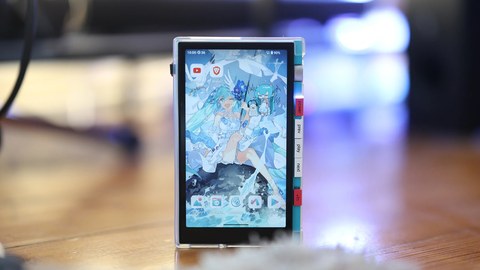
Firmware updates on the M500 tend to be small, frequent, and easy to miss unless you actually go looking for them, since HiByOS does not always push a loud notification the moment a new build lands. This is a straightforward update guide covering the check-for-updates process and a summary of what recent versions actually changed, rather than a hardware review.
Because the M500 runs a full Android-based build of HiByOS rather than a stripped-down firmware image, updates here work a little differently from the simpler OTA process on HiBy’s smaller dongles and entry-level DAPs. There is more going on under the hood — system-level Android security patches, HiByOS-specific tweaks, and app-layer changes to HiByMusic can all land in the same update bundle, which is part of why the changelog entries below cover a mix of battery behaviour, Bluetooth codecs, and UI features rather than just DAC-level fixes.
Quick Facts
| Brand | HiBy |
| Model | M500 Digital Audio Player |
| OS | Android-based HiByOS |
| Update Method | Over WiFi via Settings > System Updates |
| Latest Covered Build | 1.30 (WiFi version) |
| Special Variant | Hatsune Miku edition (separate firmware branch) |
How to update the M500’s firmware
- Connect the M500 to a WiFi network
- Open Settings
- Go to System
- Select System Updates
- Tap Check Version
- If a newer build is listed, follow the on-screen prompt to download and install it
The device needs to stay on WiFi and ideally on charge for the duration of the download and install. Interrupting the process partway through an install is the one thing worth actively avoiding — a stable network connection matters more here than update speed.
It is also worth checking available storage before starting a larger update. Android-based firmware bundles on a device like the M500 can run considerably larger than the tiny update files on a simple dongle DAC, and a nearly-full internal storage partition is a common, avoidable reason an update stalls or fails to apply cleanly.
What recent firmware versions changed
- 1.10 — fixed a standby battery drain issue and a bug where no audio would play after the device woke from standby
- 1.20 — added LDAC Bluetooth codec support, added a touch selection lock for the Fn button, and optimised how quickly FM radio turns on and off
- 1.30 (WiFi version) — added a cassette-playback style UI, an FM-over-Bluetooth output function, and a toggle for a “desktop pet” animated feature
Note that the 1.30 changelog above is specifically documented for the WiFi version of the M500. Owners of the 4G variant should still check their own device’s Check Version screen directly, since data-connectivity-related builds occasionally roll out on a slightly different schedule than the WiFi-only model.
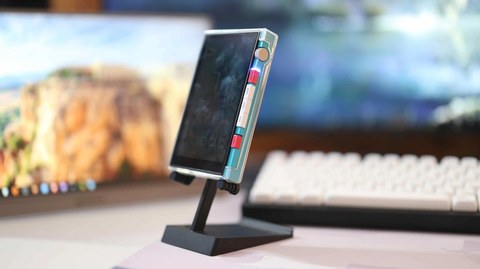
The standby-related fixes in 1.10 are the kind of update worth installing promptly even if the rest of a changelog looks skippable, since battery drain while the device is supposedly asleep directly affects real-world playtime between charges. LDAC support in 1.20 is also a meaningful addition for anyone using wireless headphones or earbuds that support the codec, since it noticeably improves on standard SBC/AAC Bluetooth streaming quality.
The 1.30 update is a good example of HiBy treating the M500 as an ongoing software platform rather than a device that ships once and stops evolving. A cassette-style playback interface and a “desktop pet” toggle are not the kind of features that show up in a typical firmware release for a dedicated audio player — they read more like something out of a phone launcher update, which fits the M500’s broader identity as an Android-based media player rather than a narrowly focused audiophile tool. Whether those additions matter to you personally will depend a lot on whether you see the M500 as a music player first or as a small Android device that happens to sound good.
A note on the Hatsune Miku edition’s firmware track
Worth flagging clearly: the Hatsune Miku edition of the M500 has its own separate firmware branch, tracked independently on HiBy’s own wiki rather than folded into the standard M500 changelog. If you own the Miku edition, check its dedicated firmware page specifically rather than assuming the standard M500 changelog above applies verbatim — the underlying update mechanism (Settings > System > System Updates) is the same, but version numbers and specific fixes can diverge between the two branches.
Where HiBy posts update announcements
- HiBy’s official X/Twitter account
- The HiBy WiKi, which hosts the actual changelog and download links
- HiBy’s official Facebook page
Checking directly on the device via System Updates is still the most reliable path for most owners, since social posts can lag slightly behind when a build is actually live for every region. Regional rollout staggering is fairly normal for Android-based firmware pushes, so seeing a new version mentioned online before it appears on your own unit’s Check Version screen is not necessarily a sign anything is wrong.
Troubleshooting the Update Process
- Problem: Check Version says no update is available even though a new build was just announced. Fix: wait a day or two, since HiBy typically staggers regional rollouts, and re-check rather than assuming the tool is broken.
- Problem: the download starts but stalls partway through. Fix: confirm the WiFi connection is stable and not switching between networks, and free up additional internal storage before retrying, since a nearly-full partition is a common cause of a stalled install.
- Problem: the device won’t boot after an update install. Fix: hold the power button for a longer press than usual to force a restart, and if that fails, keep the unit on charge and try again, since an interrupted install occasionally leaves the system in a half-applied state that a forced reboot resolves.
- Problem: Bluetooth stops pairing correctly after updating. Fix: forget the paired device on both ends and re-pair from scratch, since a firmware update can reset the internal Bluetooth stack’s saved profile list.
- Problem: the update seems to install but the version number doesn’t change. Fix: reboot the device fully and check System Updates again, since the version label sometimes doesn’t refresh until after a full power cycle.
- Problem: new features from the changelog aren’t showing up after updating. Fix: double check you’re not on the 4G or Miku variant if the changelog entry was specifically for the WiFi version, since some features roll out to only one hardware variant at a time.
Should you update immediately or wait?
For most owners, installing an update as soon as it appears is the reasonable default, particularly for anything touching battery or standby behaviour. The one case where waiting a few days makes sense is right after a major version jump with a long changelog, since giving the wider user base a short window to surface any regressions before you install is a low-cost way to avoid being an early adopter of a bug nobody else has hit yet.
Firmware guides on this site are checked against the actual in-device update flow and HiBy’s own published changelogs rather than summarised secondhand from other blogs.