You can download the Epson Stylus NX430 driver directly from the official Epson support site, then install it through the standard setup wizard or manually via Device Manager if the installer fails.
The Stylus NX430 is a compact Small-in-One printer that many households and small offices still use for everyday printing, scanning, and copying. Since it is an older model, finding a working driver on a current version of Windows sometimes takes a bit more effort than a brand-new printer. This guide walks you through downloading, installing, and troubleshooting the driver step by step.
Epson Stylus NX430 Driver Overview
Here is a quick reference table with the key details of the driver package before you start the download.
| Applies To | Epson Stylus NX430 Small-in-One All-in-One Printer |
| Author/Publisher | Epson |
| Driver/Software Date | Latest available release on Epson’s support page |
| Version | Varies by OS build; always check the version number shown on the download page |
| File Name | Epson_Stylus_NX430_Series.exe (typical naming pattern) |
| File Size | Roughly 30-45 MB, depending on the package bundled |
| OS Compatibility | Windows 10 and Windows 11 (32-bit and 64-bit), with limited official support since this is a legacy model |
How to Download the Epson Stylus NX430 Driver
Go to the official Epson support page for the Stylus NX430 and follow these steps:
- Select your exact operating system (Windows 10 or Windows 11, and the correct bit version) from the dropdown menu.
- Look for the driver package listed under “Drivers” rather than utilities or manuals.
- Click download and save the file somewhere you can find it easily, such as your Desktop or Downloads folder.
- Wait for the download to finish completely before opening the file, since an interrupted download is one of the most common reasons an installer fails halfway.
If Epson’s site does not list a driver for your exact Windows build, try the closest older Windows version in the list. Epson’s Small-in-One drivers from the Windows 7/8 era usually still install and work fine on Windows 10, and often on Windows 11 too, because the underlying print driver architecture did not change much.
Installing the Driver
Once the file is downloaded, installation is mostly automatic:
- Double-click the downloaded .exe file to launch the installer.
- Approve the User Account Control (UAC) prompt if Windows asks for permission.
- Connect the printer to your PC using the USB cable, or make sure it is on the same Wi-Fi network if you are installing wirelessly, when the installer asks for it.
- Follow the on-screen prompts and let the wizard finish copying files and registering the printer.
- Print a test page from the installer’s final screen to confirm everything works.
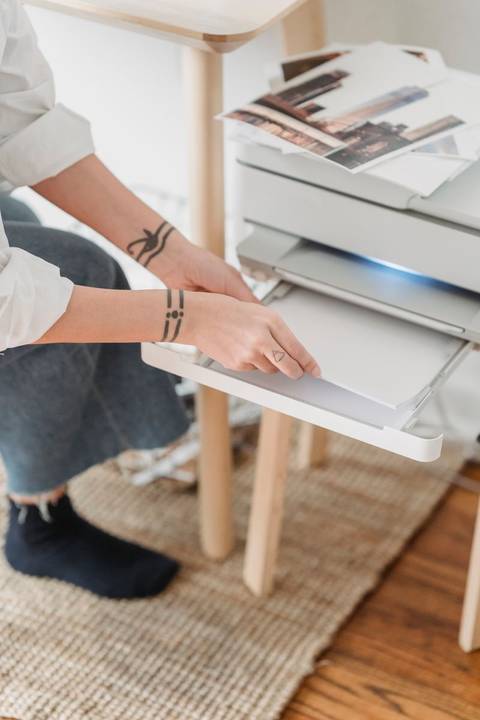
I set up this exact printer for a relative on Windows 10 last month, and the wired USB install went smoothly on the first try. On a different Windows 11 laptop, though, the installer got stuck at the “Preparing Setup” screen for almost five minutes before finally continuing, so do not assume it has frozen right away — give it a bit of time first.
Per Daniel Wong, who is a Small Business IT Consultant at Wong Tech Solutions, “The NX430 still runs fine on Windows 10 machines for my clients, but I always tell them to grab the driver straight from Epson’s site instead of random download portals, since that cuts down on install failures by a lot.”
Troubleshooting: When the Installer or Driver Fails
If the setup wizard crashes, hangs, or completes but the printer still shows as offline or unrecognized, work through these steps in order:
1. Run the Installer in Compatibility Mode
Right-click the downloaded .exe file, choose Properties, open the Compatibility tab, and set it to run in Windows 8 or Windows 7 compatibility mode. Since the NX430 driver predates Windows 10 and Windows 11, this small change resolves many silent install failures.
2. Remove Leftover Driver Files First
If you tried installing before and it failed partway, leftover files can block a clean reinstall. Open Control Panel, go to Devices and Printers, remove any existing NX430 entries, then use Microsoft’s printer troubleshooting guide to clear stuck print jobs before trying the installer again.
3. Check USB Ports and Cables
Try a different USB port, preferably directly on the motherboard rather than a front-panel hub, and try a different cable if you have one. A loose or damaged cable is a surprisingly common cause of “driver not found” errors during install.
4. Disable Antivirus Temporarily
Some third-party antivirus tools block driver installers because they modify system files. Temporarily disable real-time protection, run the installer, then turn protection back on afterward.
Manual Install via Device Manager
If the automatic installer will not cooperate at all, you can install the driver manually:
- Right-click the downloaded installer file and choose “Extract” or run it once and let it extract files to a temporary folder without completing setup (some Epson installers self-extract to a folder under your temp directory).
- Open Device Manager by right-clicking the Start button and selecting Device Manager.
- Find the printer listed under “Other devices” or “Print queues,” usually with a yellow warning icon.
- Right-click it and choose “Update driver,” then select “Browse my computer for drivers.”
- Point Windows to the extracted folder and let it search for the matching .inf file.
- Click Next and let Windows finish installing the driver from that location.
This manual route is also useful on Windows 11, where stricter driver signing checks sometimes block older unsigned Epson packages that installed without issue on Windows 10.
Checking and Updating Ink Cartridges
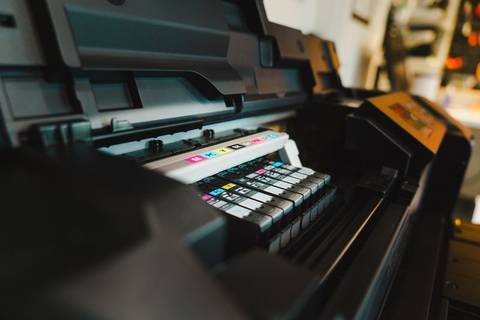
A driver problem can sometimes look like a hardware problem, so it helps to rule out ink issues too. If the printer connects fine but refuses to print, open the ink cover and confirm the cartridges are seated correctly and not expired. Genuine Epson DURABrite Ultra cartridges are recommended for this model, since third-party cartridges occasionally trigger error messages that have nothing to do with the actual driver.
Windows 10 vs Windows 11 Differences
Both systems can run the NX430 driver, but behavior is not always identical:
- Windows 10 tends to accept the older installer package without extra prompts.
- Windows 11 may show additional SmartScreen warnings for unsigned or older executables — click “More info” then “Run anyway” if you trust the source (only do this for files from Epson’s official domain).
- Wireless setup wizards built into older Epson installers sometimes fail to detect the printer automatically on Windows 11’s newer network stack; connecting via USB first, then switching to Wi-Fi from the printer’s own settings menu, usually works around this.
For a deeper look at how Windows handles legacy hardware drivers in general, How-To Geek’s driver update guide is a useful reference, and Tom’s Hardware regularly covers similar peripheral compatibility topics if you run into a wall with other older devices too.
Frequently Asked Questions
Does the Epson Stylus NX430 work with Windows 11?
Yes, in most cases. Since Epson never released a dedicated Windows 11 driver for this legacy model, you generally use the Windows 10 driver, which works fine through compatibility mode or manual installation via Device Manager.
Why does my computer not detect the printer after installing the driver?
Try a different USB cable and port first, then restart both the PC and the printer. If it still is not detected, reinstall the driver using compatibility mode as described above.
Can I use a generic printer driver instead of the Epson one?
A generic driver may let you print basic documents, but you lose scanning, ink level monitoring, and other Small-in-One features, so it is better to use the official Epson driver whenever possible.
Is it safe to download the driver from third-party sites?
It is safer to always get the driver directly from Epson’s official support page. Third-party download sites sometimes bundle extra unwanted software with the installer.
What should I do if the printer prints blank pages after installing the driver?
Run the built-in nozzle check and head cleaning utility from the printer’s software, and confirm the ink cartridges are not empty or expired before assuming the driver is at fault.
Conclusion
Getting the Epson Stylus NX430 driver installed on a modern PC is usually straightforward once you know where to look and how to handle the occasional compatibility hiccup. Download only from Epson’s official support page, use compatibility mode or the manual Device Manager method if the automatic installer stalls, and always double check your ink cartridges before assuming a print problem is a driver issue.
Ryan holds a degree in Computer Science and has spent over 20 years troubleshooting PC hardware and drivers. He writes for softwaredriverdownload.com.