The Dell 1130n printer driver can be downloaded from Dell’s official support site by searching your service tag or the model number directly, then installed through the standard Windows installer or manually via Device Manager if needed.
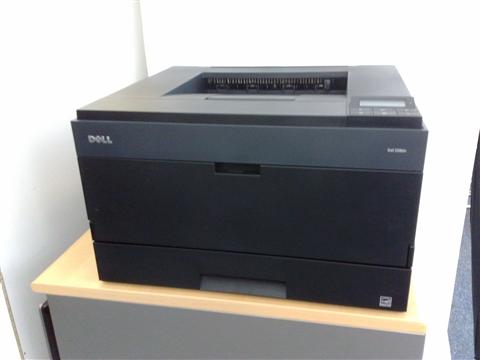
The Dell 1130n is a budget monochrome laser printer with built-in Ethernet networking, popular in small offices for years because it was cheap to run and reliable. Getting it working on a current Windows PC takes a bit more effort than a plug-and-play modern printer, so this guide walks through downloading, installing, and fixing the most common problems people run into with this model.
On this page
| Applies To | Dell 1130 / 1130n Laser Printer |
| Publisher | Dell Inc. |
| Driver Date | Final maintenance release for the 1130 series |
| Version | PCL driver package (varies by Windows edition) |
| File Name | R-network-print-1130-A03.EXE (approximate) |
| File Size | Around 40-70 MB |
| OS Compatibility | Windows 10 and Windows 11, 32-bit and 64-bit builds |
Downloading the Driver
Dell organizes drivers by service tag, which is more reliable than searching by model name alone since it guarantees you get the exact build meant for your unit.
- Visit Dell’s official support page and enter “Dell 1130n” in the product search box.
- Choose your Windows version from the operating system filter.
- Download the printer driver listed under Drivers & Downloads, not the general chipset or utility drivers.
- Save the file and note where it downloaded to, since you may need to browse to it later.
Installation Steps
- Run the downloaded installer as administrator.
- Choose either USB or network connection depending on how your 1130n is connected.
- For network installs, the wizard will scan your subnet and list detected printers by IP address.
- Select your printer from the list and complete the wizard.
- Print a test page to confirm the driver installed correctly.
I set one of these up on a Windows 11 Pro machine for a friend’s small print shop last year, and the network discovery step took almost two minutes to find the printer on a busy office subnet. If it doesn’t show up right away, give it more time before assuming something is wrong.
Manual Device Manager Install
If the installer wizard fails or hangs, you can install the driver manually by pointing Windows at the extracted .inf file.
- Extract the downloaded .exe using 7-Zip, or run it with an extraction-only flag if supported.
- Open Device Manager and locate the Dell 1130n, usually under “Print queues” or “Other devices”.
- Right-click and select “Update driver” then “Browse my computer for drivers”.
- Navigate to the extracted folder and select the folder containing the .inf file.
- Confirm the install, then reboot your PC before printing a test page.
Setting Up the Network Connection
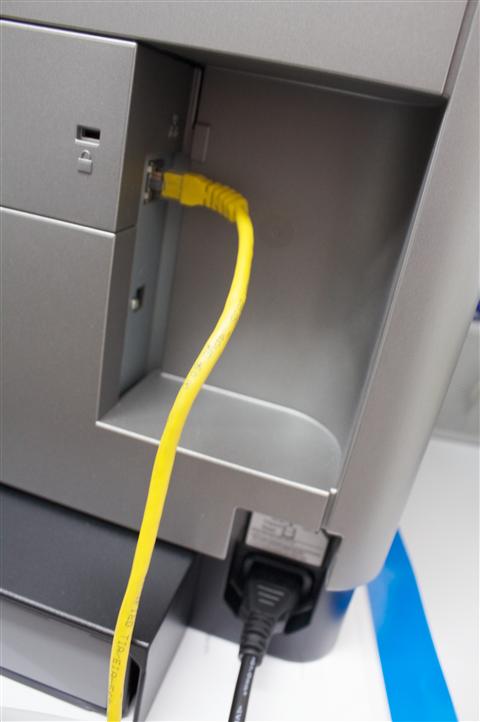
Because the 1130n has a built-in Ethernet port, most offices connect it directly to the router or switch instead of relying on USB. A few things to check before installing the driver:
- Confirm the printer has a valid IP address by printing a configuration page from its control panel.
- Make sure your PC and the printer are on the same subnet.
- If your network uses DHCP reservations, assign the printer a fixed IP so it doesn’t change later and break the connection.
- Temporarily disable third-party firewalls if the installer can’t detect the printer over the network.
Per Priya Nathan, who is an Office Manager at a logistics company, “Our 1130n has outlived three other printers we bought after it. The only headache is reinstalling the driver whenever we replace a PC, but once it’s set up over the network it just works.”
Troubleshooting Installation Failures
Here are the most common problems and fixes when the 1130n driver won’t install cleanly:
- Installer won’t launch on Windows 11: right-click the .exe, open Properties, and enable compatibility mode for Windows 7 or 8.
- Printer not found during network scan: verify the Ethernet cable and switch port, then manually enter the printer’s IP address instead of relying on auto-discovery.
- “No driver found” error in Device Manager: double check you extracted the full package rather than pointing to a compressed .exe file directly.
- Print jobs stuck in queue: restart the Print Spooler service from Windows Services, then clear the queue and resend the job.
- Driver installs but printer shows offline: confirm the correct port is selected under printer properties, since Windows sometimes creates a duplicate port entry after reinstalling.
Windows 10 vs Windows 11 Notes
Windows 10 generally installs the 1130n driver without complaint, even the older network install package. Windows 11 is stricter about unsigned drivers and sometimes needs compatibility mode or a manual Device Manager install to get past the initial setup screen. Once installed, both systems handle day-to-day printing identically, so the extra effort is really just at setup time.
Keeping It Running Long Term
Since Dell no longer actively updates drivers for the 1130n, treat the working installer as something worth backing up. A few habits that help:
- Save a copy of the extracted driver folder somewhere safe, like a USB drive or cloud storage.
- Avoid generic “universal driver updater” tools, which frequently install the wrong printer class driver.
- If you replace your router, re-check the printer’s static IP assignment before troubleshooting anything else.
For deeper print spooler issues that go beyond a single printer model, Microsoft’s printer troubleshooting documentation is a solid starting point, and BleepingComputer has useful walkthroughs on clearing stuck print spooler services when a simple restart isn’t enough.
Frequently Asked Questions
Is the Dell 1130n still supported on Windows 11?
Dell does not actively maintain new drivers for it, but the existing driver package installs and runs fine on Windows 11 with compatibility mode enabled if needed.
Do I need the network driver if I’m connecting by USB?
No. The same package usually includes both USB and network install paths, but you should select USB specifically during setup rather than letting it scan the network.
Why does my printer show as offline after reinstalling Windows?
This usually means the printer port configuration didn’t carry over. Delete the old printer entry and add it again, entering the IP address manually if network discovery fails.
Can I use a generic PCL driver instead of Dell’s own package?
Yes, a generic PCL 6 driver often works for basic printing, though you lose access to Dell-specific settings like toner-saving modes.
Conclusion
The Dell 1130n is a durable workhorse printer that keeps running long after Dell stopped updating its drivers. Download the package from Dell’s official support site, use the manual Device Manager method if the installer misbehaves, and double check your network settings before assuming the driver itself is at fault. Keep a backup copy of the installer once you get it working, since finding it again later can take longer than the setup itself.
Ryan has a Computer Science background and two decades of hands-on experience fixing PCs, printers, and driver issues for home users and small businesses. He runs softwaredriverdownload.com.