The DDPAI Z50 Pro is a 4K dual-channel dash cam with WiFi 6 and optional 4G connectivity. Here’s a complete setup and manual walkthrough covering installation, app pairing, and key settings to configure after unboxing and initial power-on.
| Spec | Detail |
|---|---|
| Model | DDPAI Z50 Pro |
| Front camera | 4K @ 25fps, F1.8, 143° FOV |
| Rear camera | 1080P @ 25fps |
| Connectivity | WiFi 6, BLE 5.1, optional 4G module |
| Positioning | GPS/BDS/GLONASS |
| Display | 3 inch screen |
| Storage | microSD up to 512GB |
| Power backup | Supercapacitor |
| Price tier | Roughly $100–$110 (base camera) |
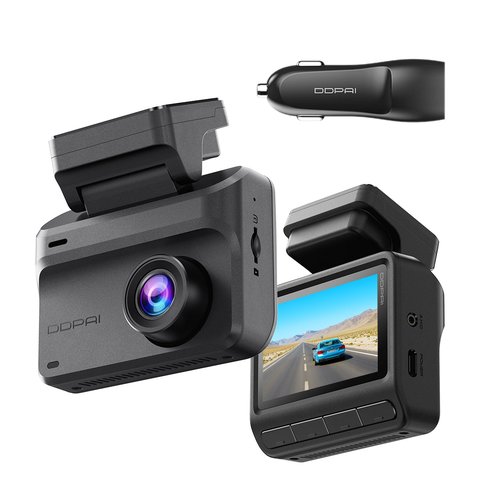
Key Specs
- Model: DDPAI Z50 Pro (dual-channel 4K dash cam)
- Price tier: Roughly $100–$110 for the base camera; the 4G module and hardwire kit are sold separately
- Compatibility: Works over local WiFi 6 with any smartphone running the DDPAI app; 4G remote live-view needs the optional module plus an active data SIM
- 4K front @ 25fps, 1080P rear @ 25fps
- 143° front field of view, F1.8 aperture, 2G4P lens
- 3″ screen, supports up to 512GB microSD
- 5GHz/2.4GHz WiFi 6, BLE 5.1, GPS/BDS/GLONASS support
- NightVIS 2.0 with AI ISP night vision processing
- Supercapacitor power backup
Installing the Z50 Pro Step by Step
- Clean the windshield area behind the rearview mirror before mounting
- Attach the front unit to the adhesive bracket, adjusting the angle before securing
- Route the power cable along the A-pillar and headliner, tucking it into interior trim
- Run the rear camera cable along the opposite headliner side to the back window
- Insert a formatted microSD card (up to 512GB) before powering on for the first time
- Connect the 12V adapter, or install a hardwire kit separately for 48H parking mode
Pairing the DDPAI App Over WiFi 6
Download the DDPAI app, power on the Z50 Pro, and select “Connect Device.” The camera broadcasts its own WiFi 6 network; connect your phone directly to it, then complete pairing within the app. WiFi 6 support means noticeably faster footage transfer compared to older 2.4GHz-only DDPAI models, so downloading large 4K clips to your phone takes meaningfully less time than on entry-level cameras.
Once paired, review the app’s settings menu to configure loop recording length, resolution, and ADAS alert sensitivity to match your preferences before your first real drive.
Setting Up Optional 4G Connectivity
If your Z50 Pro bundle includes the 4G module, insert the included SIM card following the in-box instructions, then activate it through the DDPAI app’s cloud connectivity section. The 4G module unlocks remote live-view and notifications even when you’re away from the vehicle, though it requires an active data plan after any included trial data expires.
Skip the 4G setup entirely if you’re not planning to use remote live-view regularly — the camera records and functions completely normally over local WiFi 6 without it, and the module mainly adds value for fleet use or genuine remote security monitoring needs.
Common Setup Issues and Fixes
- If the app can’t detect the camera, confirm your phone connected to the camera’s own WiFi network, not your home network
- If GPS won’t lock, ensure a clear view of the sky and allow a few minutes on first power-up
- If footage looks dim at night, confirm NightVIS 2.0 is enabled in the video settings menu
For the official manual and firmware downloads, see DDPAI’s official Z50 Pro manual page.
If the app still won’t pair after a few tries, use the manual fallback most DDPAI cameras support: power-cycle the camera by unplugging it for 10 seconds, then delete and re-add the device inside the app rather than just retrying the same connection. This clears a stuck pairing state that a simple retry often doesn’t fix.
Fine-Tuning ADAS and Night Vision After Setup
Once basic pairing is complete, take a few minutes to test drive with the app open to confirm ADAS alerts trigger appropriately for your specific mounting position and vehicle. NightVIS 2.0 settings are also worth revisiting after your first night drive — if footage looks overly bright or washed out under streetlights, dialing back the night vision intensity slightly in settings usually produces more natural, useful results for later review.
Frequently Asked Questions
Is the 4G module included by default?
This varies by bundle; check your specific listing to confirm whether the 4G module and SIM card are included or sold separately.
Does WiFi 6 require a WiFi 6 router at home?
No, the camera creates its own direct WiFi 6 network for your phone to connect to; your home router isn’t involved in the pairing process.
Can I record without a microSD card if I have the 4G module?
No, local recording still requires a microSD card; the 4G module handles connectivity, not primary storage.
How do I update the Z50 Pro’s firmware?
Firmware updates are typically pushed through the DDPAI app’s device settings menu when a new version is available.
What card speed class is recommended?
A UHS-1 or Class 10 rated card is generally recommended to keep up with continuous 4K dual-channel recording.
Does 48H parking mode need a hardwire kit?
Yes, extended parking coverage requires a hardwire kit connected to constant power and the vehicle’s battery-saver circuit.
Can the Z50 Pro run without a rear camera connected?
Yes, the front camera functions independently, though you’ll lose rear channel coverage entirely.
Is a screen protector recommended for the display?
Not required, but a basic screen protector can help prevent scratches from routine cleaning over time.
Can I change the display brightness manually?
Yes, brightness is typically adjustable in the display settings menu, in addition to an auto-brightness option.
Does the Z50 Pro support two-way audio through the app?
Check the current app version, as two-way audio support can vary by firmware and isn’t standard on all dash cams.
Keeping the Camera Maintained After Initial Setup
Once installed, periodic maintenance keeps the Z50 Pro running reliably for years. Wipe the front lens gently every few weeks to prevent dust or windshield residue from affecting clarity, reformat your microSD card through the app every couple of months to clear filesystem fragmentation, and check for firmware updates roughly quarterly to stay current on bug fixes and stability improvements.
Where to Find Help if You Get Stuck
If you run into an issue not covered here, DDPAI’s official manual page includes detailed troubleshooting sections specific to the Z50 Pro, and their support team can typically respond to email inquiries within a few business days. Community forums like DashCamTalk are also a useful resource for troubleshooting tips from other Z50 Pro owners who may have already solved the exact issue you’re facing.
Conclusion
The Z50 Pro’s setup process is straightforward and follows the same general pattern as other DDPAI dual-channel cameras, with WiFi 6 pairing being noticeably faster than older models. Budget about 30 minutes for a complete install, plus a few extra minutes if you’re also activating the optional 4G module.
Ryan T. is a PC hardware enthusiast with 15+ years of experience fixing drivers and testing consumer tech. He writes for softwaredriverdownload.com.