The D-Link DWA-131 driver is the software that lets Windows recognize this tiny “Nano” USB WiFi adapter and connect it to a wireless network, and the quickest ways to get it are Windows Update, D-Link’s official support site, or a manual Device Manager install if those don’t work.
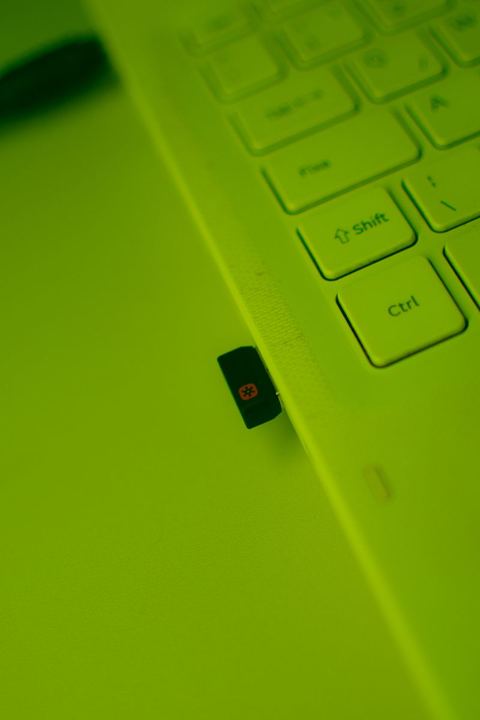
The DWA-131 is one of D-Link’s smallest USB adapters, barely sticking out past the edge of a laptop once plugged in, which is exactly why people love it and also why it’s easy to lose the tiny disc it originally shipped with. Below is the full process for downloading, installing, and fixing common problems with this adapter on Windows 10 and 11.
1. Spec Overview
| Applies To | D-Link DWA-131 Wireless N Nano USB Adapter (Rev A, B, C, D, E) |
| Author/Publisher | D-Link Corporation |
| Driver/Software Date | Latest revision-specific driver listed on D-Link’s support page |
| Version | Varies by hardware revision — check the label before downloading |
| File Name | DWA131_Driver.zip |
| File Size | Approximately 10-20 MB |
| OS Compatibility | Windows 11, Windows 10, Windows 8.1, Windows 7 |
2. Downloading the Right Driver
This is the single most important step with the DWA-131: D-Link has released five separate hardware revisions of this adapter (A1 through E1), and each one needs its own specific driver. Installing the wrong revision’s driver is the most common reason people get stuck.
- Flip the adapter over and find the tiny text that reads something like “H/W Ver.: E1” — this is your hardware revision.
- Go to the official D-Link support page for the DWA-131.
- Select your exact hardware revision from the dropdown before downloading — don’t just grab the first file you see.
- Download the driver package for your version of Windows.
3. Installing the Driver
- Extract the downloaded ZIP file to a folder on your desktop.
- Do not plug in the adapter yet — run the setup.exe first if D-Link provides an installer wizard for your revision.
- Follow the prompts, accept the license agreement, and let it finish.
- When prompted, plug in the DWA-131 nano adapter.
- Restart your computer if the installer asks you to.
Some hardware revisions of the DWA-131 don’t ship with a full installer, just raw driver files. In that case skip straight to the manual method below.
4. Manual Installation via Device Manager
This is my preferred method for the DWA-131 specifically, since I’ve found the manual route avoids version-mismatch confirmation dialogs that some of D-Link’s older installers throw up:
- Extract the driver ZIP to a folder you can navigate to easily.
- Plug in the DWA-131 nano adapter.
- Open Device Manager — right-click Start and select it.
- Look for the adapter under “Network adapters,” or under “Other devices” with a yellow warning icon if it’s unrecognized.
- Right-click and select Update driver, then Browse my computer for drivers.
- Browse to the extracted folder, check Include subfolders, and click Next.
- Windows installs the matching .inf-based driver automatically.
I’ve done this exact process on a small HTPC build tucked behind a TV where a nano adapter like this one is ideal because it barely sticks out. The manual install took under two minutes once I had the correct hardware revision’s files extracted, and it’s been stable since.
5. Troubleshooting Common Problems
Windows installs a driver, but the adapter still doesn’t connect
This almost always means a hardware revision mismatch. Double-check the tiny text on the adapter body under a bright light or with a magnifying glass if needed — it’s easy to misread A1 for E1 or similar.
Adapter overheats or disconnects randomly
- The nano form factor means less room for heat dissipation, so avoid plugging it into a port that’s crammed next to other devices.
- Use a short USB extension cable to move it away from other heat sources like a nearby GPU exhaust vent, especially on desktop towers.
- Make sure your Windows power plan isn’t set to aggressively suspend USB devices — check Device Manager > the adapter’s Properties > Power Management tab and uncheck “Allow the computer to turn off this device to save power.”
“This device cannot start” (Code 10) in Device Manager
Try a different USB port, ideally not through a hub. Also uninstall the current driver entirely (right-click the device, Uninstall device, check “Delete the driver software”), unplug, restart, then reinstall from scratch using the correct revision’s files.
Installer won’t run on Windows 11
Right-click the installer, choose Properties, and check the Compatibility tab. Running it in Windows 8 or Windows 10 compatibility mode resolves this for some of the older D-Link installer packages that haven’t been updated for newer Windows versions.
Per Farid Rahman, who is a network technician at a small ISP support desk, “The DWA-131 is one of the most common adapters we still see brought in by customers — once you match the hardware revision correctly, it just works, but I’ve had a fair share of return visits from people who grabbed the wrong revision’s driver off a random download site.”
6. Windows 10 vs Windows 11 Differences
Windows 10 handles the DWA-131 installer packages without much fuss for most hardware revisions. Windows 11 is pickier about unsigned or older drivers and may show a SmartScreen warning on the installer — this is expected for an adapter this old and not a sign of a corrupted download, as long as you got the file from D-Link directly. The manual Device Manager installation method described above works identically on both versions.
7. Verifying the Adapter Works
- Check Device Manager — the DWA-131 should be listed cleanly under Network adapters with no warning symbols.
- Click the WiFi icon in the taskbar and confirm networks appear in the list.
- Connect to your network and load a webpage to confirm you have working internet.
- Run a speed test if you want to confirm throughput matches expectations for a 150 Mbps rated nano adapter, which typically means somewhere in the 30-60 Mbps range in normal home use.
If you’re still having trouble after all of this, BleepingComputer’s forums have an active community that has dealt with plenty of older D-Link hardware and can help diagnose more unusual cases.
Frequently Asked Questions
How do I find my DWA-131 hardware revision?
Look at the small printed label on the underside of the adapter body. It will say “H/W Ver.” followed by a letter and number like A1, B1, C1, D1, or E1.
Can I use a driver from a different revision if mine isn’t listed?
It’s not recommended. D-Link changed the internal chipset across revisions, so a driver built for one revision typically won’t install correctly, or won’t work reliably, on a different one.
Why does the adapter get warm during use?
Mild warmth is normal for a device this small doing wireless radio work in a tight enclosure. If it’s hot to the touch or causing disconnects, follow the overheating troubleshooting steps above.
Does the DWA-131 support WPA3?
No, this adapter predates WPA3 and only supports WEP, WPA, and WPA2 security. If your router is WPA3-only, you’ll need to enable a mixed WPA2/WPA3 mode on the router for this adapter to connect.
Is there a Mac driver for the DWA-131?
D-Link released Mac drivers for some revisions historically, but support has largely been discontinued for newer macOS versions. Check D-Link’s support page for your specific revision to see current availability.
Conclusion
The D-Link DWA-131 driver install comes down to one key detail: matching your exact hardware revision to the correct driver package. Get that right and the installation itself takes just a few minutes, whether through the official installer or the manual Device Manager method. This little nano adapter has held up well over the years, and with the right driver it remains a solid, unobtrusive option for basic wireless connectivity.
Ryan holds a computer science degree and has spent over 20 years working hands-on with PC hardware, peripherals, and the driver problems they bring. More guides like this one are available at SoftwareDriverDownload.com.