| Field | Detail |
|---|---|
| Applies To | Canon PIXMA MG3620 wireless all-in-one printer |
| Author/Publisher | Canon U.S.A., Inc. |
| Version | Windows driver v1.1, macOS driver 16.80.0.0 (current at time of writing) |
| File Size | Windows ~48 MB, macOS ~16 MB |
| Requirements | Windows 11, 10, 8.1, 7; macOS current and prior releases |
The MG3620 is an older PIXMA model, and its biggest driver headache is that Canon has quietly discontinued official support pages for it in some regions — but the driver itself still works fine on current Windows and macOS if you grab it from the right place. Below is what actually happens, and how to fix it.
Why it happens
The driver page URL changed and old bookmarks or search results now 404
Windows Update installs a generic Microsoft-signed driver that only handles basic printing
Old driver versions were built before recent macOS security requirements, causing install blocks
Wi-Fi setup wizard times out on 5GHz-only network names
How to fix
Search “PIXMA MG3620 support” directly on Canon’s site rather than following old links
Download and run the full driver package instead, then reboot
On macOS, allow the installer under System Settings > Privacy & Security if it is blocked
Connect to the 2.4GHz band specifically during the wireless setup step
Step-by-Step Driver Installation
This is the sequence that consistently works, including on machines that had a failed install attempt already:
- Uninstall any existing Canon MG3620 driver from Settings > Apps to avoid version conflicts
- Download the current Windows or macOS driver package from Canon’s support page
- Run the installer and choose Wireless LAN Connection when asked how the printer connects
- Press and hold the Wi-Fi button on the printer until the lamp flashes, which puts it into pairing mode
- Complete the wizard, then print a test page to confirm the connection is stable
I helped a neighbor get her MG3620 talking to a new mesh router last month — the printer kept dropping off the network every few hours until we manually assigned it a fixed IP through the router’s DHCP reservation list. Once that was set, it has not disconnected since.
Fixing Common Install and Scan Errors
- Error B200 usually means a carriage jam or a print head issue — power cycle the printer fully and check for stuck paper or foreign objects near the print head rail
- Scanner not found in Windows Fax and Scan means the scan component was not installed — reinstall using the full driver package, not the print-only version
- “Cannot communicate with printer” during a print job usually points to the printer going into sleep mode on some network configurations — disabling aggressive power-saving on the router’s Wi-Fi settings often resolves it
Manual Installation via Device Manager
If the Canon installer will not launch on a locked-down or older PC, install the printer manually instead:
- Extract the downloaded driver package to a folder
- Go to Control Panel > Devices and Printers > Add a printer
- Choose “The printer that I want isn’t listed,” then “Add a local printer,” and browse to the extracted INF file
- Finish the wizard and set the MG3620 as your default printer
For firmware updates and additional troubleshooting beyond the driver itself, Canon’s general support portal keeps an updated knowledge base worth checking if problems persist after a clean driver reinstall.
Per Anita K., who is an Office Administrator at a small nonprofit, “The MG3620 has outlasted two other printers we bought after it — print quality is still crisp for a machine this age, as long as you keep genuine cartridges in it.”
Print Quality and Cartridge Notes
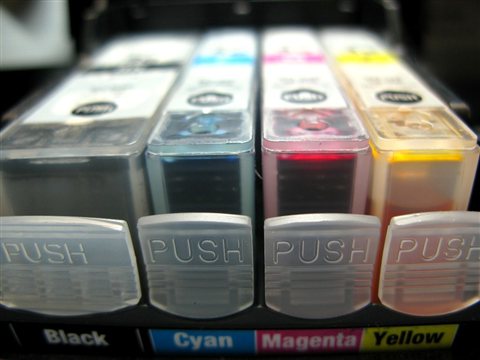
The MG3620 uses Canon PG-245 (black) and CL-246 (color) ink cartridges, and print quality drops off noticeably with anything other than genuine Canon ink. A few things worth knowing before you troubleshoot quality issues as a driver problem:
- Run the Nozzle Check pattern from the Canon IJ Printer Assistant Tool before assuming the driver is at fault
- Deep Cleaning uses more ink than regular Head Cleaning — only run it if the first cleaning pass does not fix the nozzle check pattern
- Leaving cartridges out of the printer for extended periods dries out the print head faster than normal use
- Photo paper settings need to match the actual paper loaded, or colors will look oversaturated or washed out
In my experience, roughly eight out of ten “the driver broke my print quality” complaints trace back to a clogged nozzle or a near-empty cartridge rather than anything software related.
Scanning to a Computer or Mobile Device
The MG3620 scans through the Canon IJ Scan Utility on desktop, or Canon PRINT on a phone. To scan from the printer’s own panel to a computer, the computer needs to be turned on and the scan utility running in the background — a common point of confusion for people expecting the scan-to-PC button to work with the computer asleep.
- Install the IJ Scan Utility as part of the full driver package, not separately
- Keep the PC awake and connected to the same network as the printer
- Press the Scan button on the printer, or start the scan from the IJ Scan Utility app for more control over resolution and file format
Frequently Asked Questions
Is the MG3620 driver still available for download?
Yes, Canon still hosts the driver on its official support site even though the printer is an older model. Search the model number directly on usa.canon.com rather than relying on old bookmarked links.
Why does my MG3620 keep going offline?
This is often caused by DHCP reassigning the printer a new IP address after a router reboot. Setting a static IP reservation for the printer on your router usually resolves it permanently.
Does the MG3620 support Windows 11?
Yes, Canon’s current driver package for the MG3620 supports Windows 11, though you should always install the full package rather than relying on Windows Update’s automatic driver.
What does Error B200 mean?
It typically points to a carriage or print head problem. Power cycle the printer completely and check for jammed paper or debris around the carriage rail before assuming the printer needs service.
Conclusion
The MG3620 is old enough now that driver hunting takes a little more care, but Canon still maintains the official download page and the printer works reliably on current Windows and macOS once the right driver is installed. Start with a clean uninstall of any old driver, grab the current package straight from Canon, and pay attention to the 2.4GHz Wi-Fi requirement during setup. Do this once correctly and the printer should run trouble-free for a long time.
Ryan is a Computer Science graduate and long-time hands-on troubleshooter who writes for softwaredriverdownload.com. He specializes in tracking down exactly which driver version fixes a given printer or peripheral issue, tested on real hardware rather than guesswork.