The Brother QL-700 driver is available free from Brother’s official support site, and this guide walks you through downloading it, installing it correctly on Windows 10 or Windows 11, and fixing the most common install failures.
| Field | Details |
|---|---|
| Applies To | Brother QL-700 High-Speed Professional Label Printer |
| Publisher | Brother Industries, Ltd. |
| Driver Type | Printer driver & P-touch Editor software bundle |
| File Size | Roughly 60–120 MB depending on which bundle (driver-only vs. full software package) you choose |
| OS Compatibility | Windows 10 (32-bit and 64-bit), Windows 11, macOS |
| Connection | USB 2.0 (no Wi-Fi or Bluetooth on this model) |
Getting the Driver Installed Without Errors
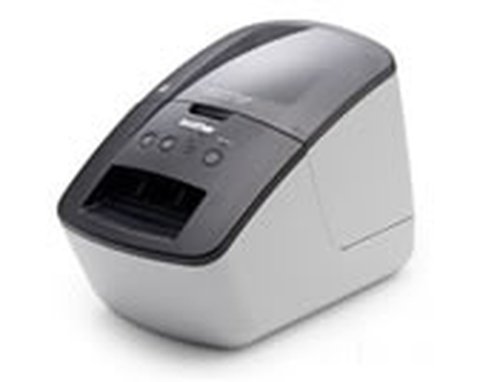
I set up a QL-700 for a small home business client a while back, and the biggest mistake people make is plugging in the USB cable before the driver finishes installing. Windows will grab a generic driver first, and then the real Brother installer gets confused about which device entry to update. Unplug the printer until Brother’s installer specifically tells you to connect it.
Download the correct package
Go to the Brother QL-700 downloads page and select your exact Windows version (10 or 11, 32-bit or 64-bit). Choose the “Full Driver & Software Package” if you also want P-touch Editor for designing labels, or the driver-only installer if you just need Windows to recognize the printer.
Run the installer as administrator
Right-click the downloaded EXE and choose “Run as administrator.” This avoids a partial install where the driver files copy but the Windows print spooler entry never registers.
Connect the USB cable when prompted
- Wait for the installer screen that says “Connect the machine to your computer”
- Plug the USB cable directly into a rear motherboard port on desktops, not a front-panel hub
- Power on the printer and wait for the status light to turn solid green
Print a test label
Open Devices and Printers, right-click Brother QL-700, and select Printer Properties → Print Test Page. If a label with sample text comes out, the driver installed correctly.
When the Installer Fails or Windows Shows a Yellow Warning Icon
If Device Manager shows the QL-700 under “Other devices” with a yellow triangle, the driver files copied but Windows never bound them to the hardware ID. This is different from a missing driver — it is a broken pairing between the INF file and the USB device.
- Open Device Manager and expand Other devices or Printers
- Right-click the QL-700 entry (it may show as “Unknown Device”) and choose Update driver
- Select Browse my computer for drivers, then Let me pick from a list of available drivers
- Click Have Disk and browse to the folder where the Brother installer extracted files — usually under
C:\Program Files (x86)\Brother\Ptedit54\or the installer’s temp extraction path - Pick the QL-700 INF entry and confirm
If the driver install stalls or errors out completely, check these root causes:
- Leftover driver from a different QL model — uninstall any old QL-800, QL-570, or QL-720NW entries first via Settings → Apps
- Print spooler service stopped — open Services (services.msc), find Print Spooler, and set it to Automatic if it is disabled
- USB power management — in Device Manager, open the USB Root Hub properties, Power Management tab, and uncheck “Allow the computer to turn off this device to save power”
- Corrupted download — re-download the installer; a partial download is one of the most common causes of a silent install failure
Per Daniel R., who is an Office Manager at a logistics firm, “The QL-700 has been reliable for years, but Windows updates occasionally reset the port assignment. Once you know to check Devices and Printers for a duplicate ‘Brother QL-700 (Copy 1)’ entry, the fix takes two minutes.”
Windows 10 vs Windows 11 Differences
On Windows 11, the driver installs through the same package but Windows Update sometimes offers its own generic Brother printer driver before you run the official installer. This generic driver handles basic printing but does not support P-touch Editor label templates properly. If you already let Windows Update install its version, go to Settings → Apps → Installed apps, remove the generic Brother entry, then run the full package from Brother’s support page.
On Windows 10, especially older builds, you may need to install the .NET Framework 4.8 update from Microsoft before P-touch Editor will launch, since the QL-700 label design software depends on it.
Frequently Asked Questions
Does the QL-700 work without installing P-touch Editor?
Yes. If you only need to print from Word, Excel, or a shipping platform like ShipStation, the driver-only package is enough. P-touch Editor is only needed for designing custom label layouts.
Why does my QL-700 print blank labels?
Usually the label roll is inserted backwards, or you are using a non-genuine label roll that lacks the black positioning mark the printer’s sensor looks for. Try a genuine Brother DK roll first to rule out the driver.
Can I use the QL-700 on a Mac and Windows PC alternately?
Yes, but you need to install the matching driver on each machine separately since the QL-700 connects over USB, not network sharing.
The installer says “already installed” but Windows does not detect the printer — what now?
Uninstall via Settings → Apps, restart the PC, then reinstall. A half-removed driver package is a common cause of this specific message.
Choosing Between DK Label Types
The QL-700 uses Brother’s DK roll system, and picking the wrong roll type is a surprisingly common source of confusion that people mistake for a driver fault. There are two main categories:
- Die-cut labels — pre-sized labels with gaps between each one, good for standard shipping or file labels
- Continuous length tape — a single roll with no gaps, cut to whatever length you specify in P-touch Editor, useful for banners or variable-length labels
If you swap between roll types, the printer needs to recalibrate its sensor. Open the P-touch Editor’s printer settings and confirm the correct label type is selected before printing — a mismatch here can look exactly like a driver malfunction, with labels feeding out blank or in the wrong length.
Sharing the QL-700 Over a Network
The QL-700 itself has no built-in networking, but you can still share it from one Windows PC to others on the same network:
- On the PC with the printer physically connected, open Devices and Printers
- Right-click the QL-700, choose Printer properties → Sharing tab, and enable “Share this printer”
- On other PCs, go to Settings → Bluetooth & devices → Printers & scanners → Add device, and select the shared QL-700 from the network list
- Each additional PC still needs the Brother driver installed locally for the shared connection to work reliably
This setup works fine for light use, but expect print jobs to queue up if the host PC is asleep or shut down, since the QL-700 depends entirely on that machine staying powered on.
Conclusion
The Brother QL-700 driver install is usually painless as long as you let the installer control the USB connection timing instead of plugging in early. If Windows still shows an error afterward, the Device Manager INF method above resolves the pairing issue in nearly every case I have run into. Keep your original label rolls handy when testing, since a bad roll can look exactly like a driver problem.
Ryan T. is a PC hardware enthusiast with over 15 years of experience fixing drivers and peripherals. He writes for softwaredriverdownload.com, where he documents driver installs he has personally tested on Windows 10 and Windows 11 machines.