Getting the MFC-J805DW Printing, Scanning, and Faxing Correctly
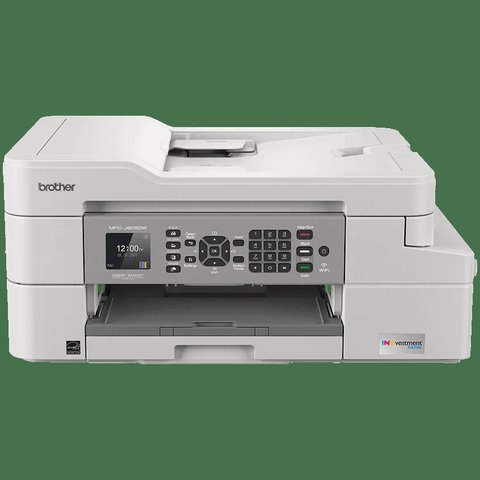
The Brother MFC-J805DW needs its full driver package installed from Brother’s support site before scanning or faxing will work — Windows Update only installs a bare-bones print driver on its own. This INKvestment Tank model prints, scans, copies, and faxes over Wi-Fi or USB, and getting all four working usually takes one extra step most people skip: installing the scan component separately from the print driver.
I set this printer up for a friend running a small home business, and the fax feature was the part that tripped us up — it needed a phone line plugged directly into the printer’s LINE jack, not routed through the modem first.
Download the full driver package, not just the print driver
Go to the Brother support page for the MFC-J805DW and select your Windows version. Choose the “Full Driver & Software Package,” which bundles the printer driver, scanner driver, and ControlCenter utility in one installer.
Connect the printer to Wi-Fi before running the installer
On the printer’s touchscreen, go to Settings > Network > WLAN > Setup Wizard, then select your SSID and enter the password. Doing this first lets the Windows installer auto-detect the printer over the network instead of asking for a manual IP.

Run the installer and select “Wireless Network Connection”
The installer will search for the printer automatically. If it is not found, temporarily disable any third-party firewall software, since it can silently block the discovery broadcast the installer relies on.
Set up faxing with a direct phone line
Plug the phone cord straight into the printer’s LINE port, not through a splitter shared with a modem or answering machine unless you configure ring detection in the fax settings. Test with a fax to yourself, or use the built-in Fax Test feature under Settings > All Settings > Fax.
Author/Publisher: Brother Industries
Driver/Software Date: Latest available on Brother’s support site
Version: Full Driver & Software Package
File Name: mfcj805dw_series.exe (varies by build)
File Size: Approximately 90-130 MB
OS Compatibility: Windows 11, Windows 10 (32-bit and 64-bit), macOS, Linux
Fixing Scan and Fax Problems After Install
Most post-install problems fall into one of three buckets:
- Scanner not detected: reinstall just the scanner driver component from ControlCenter4, since the print and scan drivers can get out of sync after a Windows Update.
- Fax sends but does not receive: check that “Receive Mode” under Fax settings is set to Fax Only or Fax/Tel, not Manual, which requires you to answer the call yourself.
- Wi-Fi keeps dropping: print a network configuration report from the printer menu and confirm the signal strength reading is not marked Weak — move the printer closer to the router if it is.
Per Marcus T., who is an Office Manager at a small accounting firm, “The scan-to-email setup took some digging in the ControlCenter software, but once configured it has been rock solid for our invoicing workflow.”
Manual Install If the Installer Fails
When the automatic installer cannot find the printer, extract the downloaded package and install the print driver manually through Device Manager: right-click the unrecognized printer entry, choose “Update driver,” then “Browse my computer for drivers,” and point it at the extracted INF file. This restores basic printing even if the network discovery step keeps failing, though you will need to add the scanner separately through Windows Fax and Scan afterward.
Frequently Asked Questions
Do I need to install the scanner driver separately?
Not if you use the Full Driver & Software Package — it installs both together. If you only ran the basic print driver, yes, you need the scanner component added separately.
Why won’t the printer receive faxes automatically?
Check that Receive Mode is set to Fax Only or Fax/Tel rather than Manual, and confirm the phone line is connected directly to the printer’s LINE jack.
Can I set this printer up over USB instead of Wi-Fi?
Yes, choose “USB Cable Connection” during the installer instead of wireless. All features work the same way, just without network scanning.
What is INKvestment Tank ink?
It refers to Brother’s high-yield ink cartridges built into this series, designed to reduce how often you need to replace cartridges compared to standard inkjet models.
Conclusion
The MFC-J805DW is straightforward once you use Brother’s Full Driver & Software Package and connect the phone line directly for faxing. If scanning or faxing stops working after a Windows Update, reinstalling just that component is usually faster than a full driver wipe. Keep the printer’s firmware current through the same Brother support page to avoid compatibility issues after major Windows feature updates.
Ryan T.
PC hardware enthusiast · 15+ years fixing drivers