The APC Smart-UPS driver you need is APC’s free PowerChute software, which lets Windows talk to the UPS over USB or serial so it can log power events and shut your PC down safely during an outage.
If you just plugged in an APC Smart-UPS and Windows either does not detect it, or detects it as a generic “USB UPS” with no monitoring software, this guide gets you sorted. I cover the correct download, the manual driver route through Device Manager, and the troubleshooting steps I actually use when a unit refuses to talk to a laptop or desktop.
Author / Publisher: APC by Schneider Electric
Driver / Software: PowerChute Serial Shutdown / PowerChute Network Shutdown
Version: 4.5.1 (varies by model and connection type)
File Name: pcns450.exe / pcss145.exe
File Size: approximately 85-150 MB depending on package
OS Compatibility: Windows 10, Windows 11, Windows Server 2019/2022
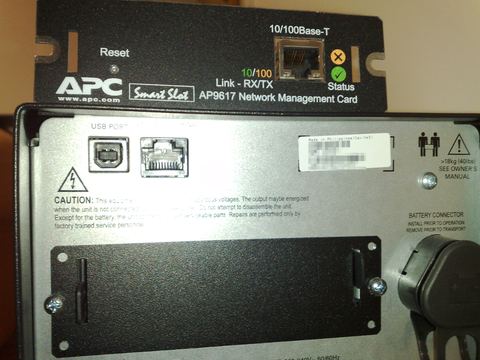
How Windows Sees an APC Smart-UPS
Most Smart-UPS models connect through USB, and Windows 10 and 11 already have a generic HID (Human Interface Device) UPS driver built in. That means the operating system will usually show the device under Batteries in Device Manager even before you install anything. The catch is that this generic driver only tells Windows that a battery exists. It does not give you runtime graphs, event logs, outlet control, or the ability to schedule a clean shutdown. For that, you need APC’s own software.
- USB connection: Windows loads a generic HID UPS driver automatically, no install needed for basic detection.
- Serial (DB9) connection: older Smart-UPS models need the PowerChute Serial Shutdown package specifically.
- Network Management Card: requires PowerChute Network Shutdown instead, since the UPS talks over Ethernet, not USB.
Downloading the Correct PowerChute Package
Go to the official APC by Schneider Electric download center and search using your exact model number, printed on a label on the back or bottom of the unit (for example SMT1500 or SMC1500C). Do not download PowerChute Business Edition unless you are managing a fleet of UPS units from a central console — for one or two units at a desk or in a small server closet, PowerChute Serial Shutdown or PowerChute Network Shutdown is what you want.
- Identify your model number from the rear label.
- Search that exact model on the APC download center.
- Pick the PowerChute package matching your connection type (USB/serial vs network card).
- Download the installer and save it somewhere you can find it, like your Downloads folder.
- Close any antivirus real-time scan warnings that flag the installer — false positives on utility software from smaller vendors are common.
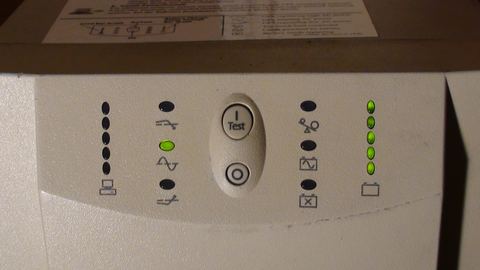
Installing PowerChute Step by Step
- Run the downloaded .exe as administrator (right-click, Run as administrator).
- Accept the license agreement.
- Choose the install directory, or leave the default.
- Let the installer register the Windows service. This is what runs in the background and watches for power events.
- When prompted, connect the UPS USB cable if you have not already, and wait for the “device connected” confirmation.
- Open PowerChute from the Start menu or the web console at
https://127.0.0.1:6547and confirm it shows battery status and runtime.
I run a small APC SMT1500 under my desk for network gear, and the one thing that trips people up is forgetting to reboot after install. PowerChute’s monitoring service sometimes does not fully bind to the USB HID interface until after a restart, even though the installer says it finished successfully.
Manual Driver Install Through Device Manager
If PowerChute installs but still shows “communication lost,” you can force Windows to recognize the UPS at the hardware level first.
Steps
- Press Windows key + X and open Device Manager.
- Expand Batteries or Universal Serial Bus controllers, depending on Windows version.
- Look for an entry labeled “APC” or “USB UPS” — a yellow warning triangle means the driver failed to bind.
- Right-click it and choose Update driver, then Search automatically for drivers.
- If Windows finds nothing, choose Browse my computer for drivers, then Let me pick from a list, and select “USB UPS Device” from the generic list.
- Restart PowerChute after the driver reinstalls.
Troubleshooting a Failed Install
- PowerChute shows “no UPS found”: unplug and replug the USB cable directly into a rear motherboard port, not a front panel header or hub. USB hubs frequently drop the HID handshake a UPS needs.
- Installer hangs at “Registering service”: temporarily disable third-party antivirus, install, then re-enable it.
- Web console won’t load at port 6547: check that the PowerChute service is running in
services.msc, and confirm Windows Firewall is not blocking the local loopback connection. - Battery status stuck at “Unknown”: this usually means the internal battery itself needs replacing, not a driver problem — most Smart-UPS batteries last three to five years.
- Serial models not detected: confirm you installed PowerChute Serial Shutdown, not the network edition, and that you selected the correct COM port during setup.
Per David Ferreira, who is a Network Administrator at a regional credit union, “We run PowerChute Network Shutdown across eight branch closets, and the only real headache is firmware mismatches between the UPS and the management card after a Windows update on the monitoring server. Once those are aligned, it just runs quietly in the background for years.”
Windows 10 vs Windows 11 Behavior
On Windows 10, PowerChute typically installs without issue and the tray icon appears immediately after reboot. On Windows 11, I have noticed the installer occasionally needs a manual restart of the “Schneider Electric PowerChute” service in Task Manager’s Services tab before the tray icon populates correctly, especially on machines that migrated from Windows 10 rather than a clean Windows 11 install. If the icon never appears, check services.msc directly rather than waiting on the tray.
For general UPS troubleshooting concepts that apply across brands, How-To Geek has solid background reading, and Microsoft Support covers generic HID device driver resets if Device Manager keeps failing.

Frequently Asked Questions
Do I actually need to install a driver for an APC Smart-UPS?
Not strictly for Windows to detect the battery — the built-in HID UPS driver handles that. But without PowerChute, you get no automatic shutdown, no event logging, and no way to see load percentage or runtime remaining, so installing it is strongly recommended for any UPS protecting real equipment.
Why does PowerChute say “Communication Lost” even though the UPS has power?
This almost always points to a USB cable or port issue rather than the UPS itself. Try a different USB cable (not just a different port), and avoid USB extension cables or hubs between the PC and the UPS.
Can I use PowerChute Network Shutdown without a Network Management Card?
No. Network Shutdown requires the optional AP96xx series network card installed in the UPS’s SmartSlot. Without that card, you need PowerChute Serial Shutdown connected directly via USB or serial cable instead.
Is it safe to use a generic UPS driver from Windows Update instead of PowerChute?
It is safe in the sense that Windows will still detect battery presence and trigger a basic shutdown at critical battery level, but you lose configurable shutdown delays, load monitoring, and email alerts that PowerChute provides.
How do I check my APC Smart-UPS firmware version?
Open PowerChute, go to the Configuration or About section, and the firmware revision is listed alongside the model and serial number. Compare it against the latest listed on the APC download page for your model.
Conclusion
Getting an APC Smart-UPS fully recognized in Windows comes down to matching the right PowerChute package to your connection type, then letting the installer bind properly before you judge it broken. Most “no driver found” complaints trace back to a bad USB cable or a service that needs a restart, not a genuinely unsupported unit. Once PowerChute is running, the setup is low-maintenance and quietly does its job for years.
Ryan holds a computer science degree and has spent over twenty years working hands-on with PC hardware, drivers, and small-office IT setups, including running APC and Tripp Lite UPS units in his own equipment closet. Read more guides at softwaredriverdownload.com.