Desktop motherboards still ship without built-in Wi-Fi more often than you’d expect, and the ASUS PCE-AC55BT is one of the more common answers to that gap — a PCIe card that adds dual-band wireless and Bluetooth to a machine that only has an Ethernet jack. I installed one in an older build that needed both a wireless uplink and a Bluetooth connection for a keyboard, and it’s worth walking through what it actually does, how to get the drivers installed cleanly, and where it falls short of newer standards.
| Quick Fact | Detail |
|---|---|
| Brand | ASUS |
| Model | PCE-AC55BT |
| Interface | PCIe x1 |
| Wi-Fi standard | Dual-band 802.11ac (AC1200 class) |
| Bluetooth | Version 4.2, backward compatible |
| Antennas | Two external, removable |
What the PCE-AC55BT is
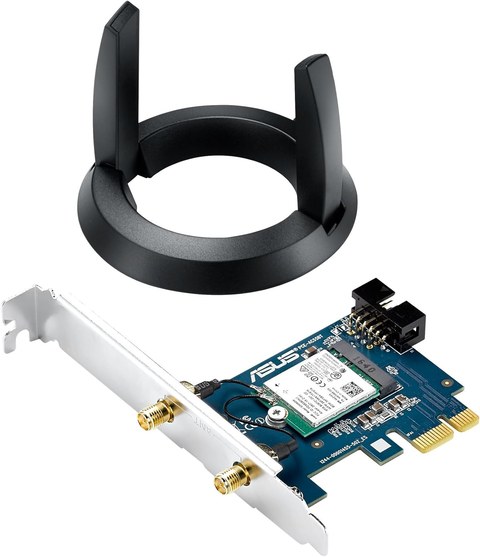
It’s a half-height PCI Express x1 card built around a 2×2 802.11ac chipset, paired with Bluetooth in the same module. The card ships with a low-profile bracket in the box as well as the standard bracket, so it fits full-tower cases and slim desktops alike, and it includes a small stand for the two external antennas so they aren’t just dangling off the back of the case.
- Wi-Fi standard: 802.11a/b/g/n/ac, dual-band 2.4GHz and 5GHz
- Speed: up to 867Mbps on the 5GHz band, up to 400Mbps on 2.4GHz — combined rated as AC1200
- Bluetooth: version 4.2, backward compatible with 4.1, 4.0, 3.0, 2.1, and 2.0 devices
- Interface: PCIe x1, fits any x1/x4/x8/x16 slot
- Antennas: two external, removable, mounted on an included desktop stand or directly on the bracket
This isn’t Wi-Fi 6 and it isn’t going to touch the multi-gigabit speeds of a modern 802.11ax card, but for a household connection running through a typical AC-class router, the real-world throughput is more than enough for streaming, downloads, and online gaming without saturating the link.
Installing the card and drivers
The hardware side is straightforward, but the order of operations matters more than people expect with combo Wi-Fi/Bluetooth cards:
- Power down and unplug the PC before opening the case. Ground yourself before handling the card to avoid static damage to the module.
- Seat the card fully in an open PCIe slot and secure the bracket screw so the card doesn’t shift when you attach antenna cables later.
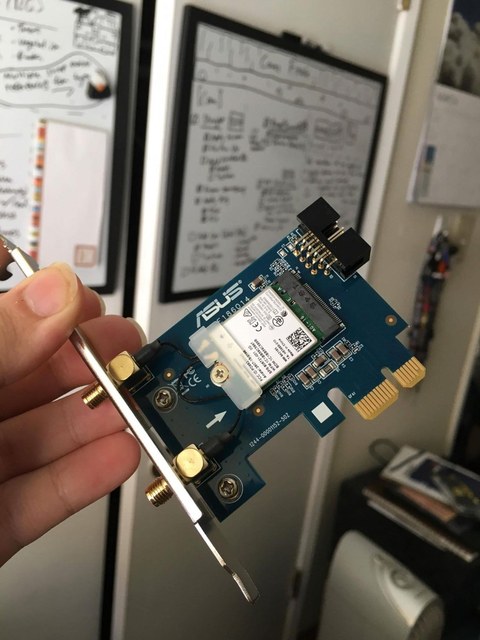
- Connect the internal USB header cable that comes in the box — the Bluetooth half of this card actually runs over an internal USB connection to your motherboard’s USB header, separate from the PCIe lane used for Wi-Fi. Skipping this cable is the single most common reason people report “Bluetooth not detected” after installing the card.
- Attach the antennas to the SMA connectors on the bracket, and mount them on the included stand if you want them positioned away from the case for better reception.
- Boot up and install the driver package from ASUS’s support page for the PCE-AC55BT (or the PCE-AC55BT B1 revision, if that’s what’s printed on your card) rather than relying on whatever Windows Update pulls in automatically — the vendor package installs both the Wi-Fi driver and the Bluetooth stack together in the correct order.
If Windows shows the Wi-Fi adapter working but Bluetooth never appears in Device Manager, the most likely culprit is that internal USB cable not being seated, followed by a driver conflict where a generic Bluetooth driver installed itself before the ASUS package could take over. Uninstalling any generic Bluetooth entries in Device Manager and reinstalling the full driver package from ASUS’s official support page resolves this in most cases.
Real-world performance and reliability
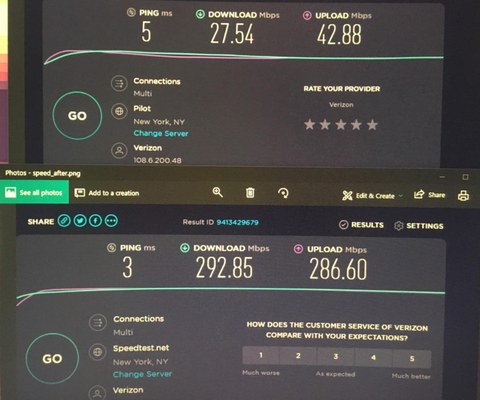
Owners consistently describe the card as working “out of the box with no setup needed” once the driver package is installed correctly, and the antenna stand genuinely helps signal quality compared to leaving antennas flat against a rear I/O panel behind a desk. On a typical home 5GHz network, expect throughput in the several-hundred-Mbps range in practice rather than the theoretical 867Mbps ceiling — that gap between rated and real-world speed is normal for any consumer wireless card and mostly comes down to distance from the router, wall material, and how congested the local 2.4GHz/5GHz spectrum is.
Bluetooth range and stability have also held up well for peripherals like keyboards, mice, and headsets sitting a few feet from the case, which is the more common use case for a desktop Bluetooth adapter than long-range file transfer.
Who this card makes sense for
- Good fit if: you’re building or upgrading a desktop that lacks onboard Wi-Fi and Bluetooth, you have a free PCIe x1 slot and an internal USB header available, and your router tops out around AC-class speeds anyway
- Skip it if: your router and internet plan support Wi-Fi 6 speeds well above 900Mbps, since a Wi-Fi 6-class card would actually let you use that bandwidth; also skip it if your case has no accessible internal USB header, since that limits the Bluetooth half of the card
For most home offices and living-room PCs, though, this remains a low-cost, low-hassle way to get a desktop off Ethernet-only networking without needing a USB dongle hanging out the back of the case.
Common Problems and Fixes
- Problem: Bluetooth never appears in Device Manager after installing drivers. Check that the internal USB header cable included in the box is actually connected between the card and the motherboard, since Bluetooth runs over that connection rather than the PCIe lane.
- Problem: Wi-Fi signal is weak or drops frequently. Reposition the antenna stand away from the case and any metal obstructions, and check whether the card is seated in a slot that’s physically blocked by a graphics card, which can shield the antennas.
- Problem: Windows installs a generic driver instead of the ASUS package. Uninstall the generic entries in Device Manager first, then install the full driver package directly from ASUS’s support page rather than letting Windows Update handle it.
- Problem: Bluetooth peripherals pair but disconnect randomly. Update to the latest driver package, and check for interference from other 2.4GHz devices sitting close to the card’s antennas, since Bluetooth and 2.4GHz Wi-Fi share the same band.
- Problem: The card isn’t detected at all after installation. Reseat the card fully in the PCIe slot with the PC powered off, and try a different slot if your motherboard has more than one open x1 or larger slot available.
FAQ
Why isn’t Bluetooth showing up after I installed the Wi-Fi driver?
Check that the internal USB header cable included in the box is connected between the card and your motherboard — Bluetooth on this card runs over that internal USB connection, not the PCIe lane, and it’s easy to miss during installation.
Is this card Wi-Fi 6 (802.11ax)?
No, it’s an 802.11ac (Wi-Fi 5) card rated AC1200. It will connect to Wi-Fi 6 routers, but only at Wi-Fi 5 speeds.
Does it need external power?
No, it draws power entirely from the PCIe slot, same as most PCIe network cards.
Can I use just one antenna?
You can, but both antennas are meant to be connected for the 2×2 MIMO configuration to reach its rated speeds — running with one antenna will reduce throughput.
Where do I get the latest driver instead of an outdated one from a third-party site?
Always pull the driver package from ASUS’s own support page for the PCE-AC55BT rather than a mirror site, since third-party driver hosts are frequently out of date or bundle unrelated software.
I’ve built and repaired enough desktop PCs over the years to have gone through this exact Wi-Fi-card-plus-Bluetooth-header installation more than once, and this piece is based on hands-on setup work alongside the vendor’s own documentation and user-reported results.