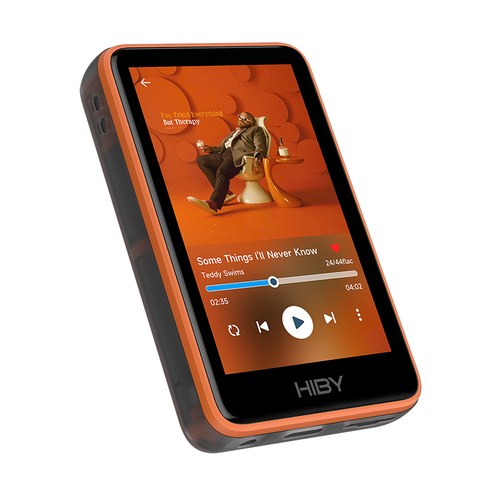
This guide covers HiBy’s own official firmware releases for the R1, delivered over the air through the device’s built-in update system. It does not cover the separate custom/modded firmware scene built by the community — that is a different topic with its own trade-offs, worth reading about on its own terms rather than mixed in here. What follows is strictly the official OTA update path and a summary of what HiBy’s recent releases have actually changed.
Keeping official and community firmware clearly separated matters more than it might seem. The R1’s low price and touchscreen-driven HiByOS interface have made it a popular base for community modding, and it is genuinely easy to land on a forum thread or GitHub repository while searching for “R1 firmware update” without realising you have wandered from HiBy’s own supported release channel into a third-party project. Everything below is strictly the official path — the version numbers, changelog entries, and update mechanism HiBy itself ships and documents.
| DAC Chip | Cirrus Logic CS43131, native DSD256, up to 32bit/384kHz PCM |
| Processor | X1600E SoC |
| Display | 3-inch IPS touchscreen, 800×480 |
| Connectivity | Bluetooth 5.1 (LDAC, aptX), WiFi, USB-C DAC mode |
| Storage | microSD, up to 2TB |
| Battery Life | Up to 15 hours continuous playback |
| Weight | 70 grams |
| Streaming Support | TIDAL and Qobuz via WiFi |
How to update the R1’s official firmware
- Insert a microSD card into the R1, since the OTA process uses it as part of the update flow
- Connect the R1 to a WiFi network
- Open System in the settings menu
- Select Firmware Update
- Choose Via OTA
- Follow the on-screen prompts to download and install the update
Keep the device connected to WiFi and avoid removing the microSD card until the process reports as finished. As with any firmware update on portable hardware, an interruption partway through the install is the main thing to avoid.
The microSD card requirement is worth explaining rather than just following blindly — on a budget DAP like the R1, using the inserted card as staging space during an OTA update is a practical way to handle a firmware image without needing much dedicated internal storage set aside purely for updates. If you swap microSD cards between a music-only card and a spare card, it is worth confirming a card is actually inserted before starting the update rather than assuming internal storage alone will cover it.
What recent official versions changed
- V1.2 — added a most-played list, added an EQ function, added Tidal sound-quality options, and fixed a MacOS USB read issue
- V1.3 — added a dark theme UI option, added a screen-capture function accessible via Developer Options, and added a “HiByLink” function
- V1.6 — added play-button function customisation, added lyrics colour settings, fixed a WAV metadata garbling issue, sped up the indicator light toggle response, fixed incomplete song scanning, and fixed a Qobuz playlist display bug
The fixes bundled into V1.6 stand out as the most broadly useful of the three for day-to-day reliability — incomplete song scanning and garbled WAV metadata are the kind of quiet annoyances that make a library feel unreliable even when the hardware itself is working fine, so that release is worth prioritising if you have been putting off an update.
V1.2’s Tidal sound-quality options and V1.3’s HiByLink function are worth calling out too, for different reasons. The Tidal addition matters most if you actually stream rather than play local files, since being able to see and control the quality tier directly on the device avoids relying on the phone app’s settings syncing correctly. HiByLink, meanwhile, is the kind of connectivity feature that only pays off once you know it exists — it is easy to update straight past a changelog entry like that without realising it unlocked a new way to control or pair the device.
Step-by-step: confirming the update actually applied
- After the device restarts, go back into System > Firmware Update
- Confirm the version number listed matches the release you just installed
- Open HiByMusic and check that your library and settings carried over correctly
- If something looks wrong, check HiBy’s WiKi for that specific version’s known issues before assuming a fresh factory reset is necessary
It is easy to skip this confirmation step entirely, but it takes under a minute and saves the guesswork of wondering later whether a bug you are seeing is a known issue in the version you meant to install, or a sign the update did not actually apply the way you expected. A five-second version check now is cheaper than troubleshooting blind later.
Where HiBy posts official firmware releases
- HiBy Music’s official X/Twitter account
- The HiBy WiKi, which hosts the changelog and any direct download files alongside the OTA system
Checking the WiKi directly before an update, not just after, is a reasonable habit for anyone who wants to know what a release actually contains before committing to install it. The in-device OTA prompt tends to be brief, while the WiKi entry for the same version usually spells out the full list of fixes and additions in more detail.
Troubleshooting common R1 firmware update problems
- Firmware Update menu shows no new version available: Confirm the R1 is actually connected to WiFi rather than just showing a saved network in range; the OTA checker needs an active internet connection to reach HiBy’s servers, not just a local WiFi signal.
- Update download stalls partway through: Switch to a stronger WiFi network if possible, and confirm the inserted microSD card has enough free space, since a nearly full card can cause the staged download to fail silently.
- Device won’t boot after an update: Do not repeatedly power-cycle it. Check the HiBy WiKi for that firmware version’s known issues first, since a black screen after an update sometimes resolves itself after a longer-than-usual first boot.
- Library appears empty or scanning seems incomplete after updating: Go into HiByMusic’s settings and manually trigger a library rescan; this is one of the quirks V1.6 specifically addressed, so updating to that version or later if you have not already can prevent it from recurring.
- Bluetooth pairing stops working after a firmware update: Forget the R1 in your phone or headphone’s Bluetooth settings and re-pair from scratch, since a firmware update can occasionally reset the device’s internal Bluetooth pairing table.
Frequently asked questions
Do I need a microSD card to update the R1’s firmware?
Yes, the official OTA process on the R1 uses an inserted microSD card as part of the update flow, so make sure one is in the slot before starting.
Is this the same as installing custom firmware?
No. This guide covers HiBy’s own official OTA releases only. Custom and community-modded firmware for the R1 is a separate topic with different installation steps and different risk considerations.
What should I do if an update seems to hang?
Keep the device on WiFi and do not remove the microSD card. If it genuinely appears stuck rather than just slow, check the HiBy WiKi for that firmware version’s known issues before restarting the process.
Will updating the R1 delete my music library?
No, official firmware updates do not touch files on the microSD card or internal storage, though backing up anything important before a major version jump is still sensible practice.
How often does HiBy release official firmware for the R1?
There is no fixed schedule. Based on the version history above, updates arrive periodically rather than on a strict monthly or quarterly cadence, which is why checking manually via Firmware Update rather than waiting for a notification is the more reliable habit.
This update guide is based on actually running the OTA process on the device and cross-checking the resulting version number against HiBy’s own published release notes.