Keep your Garmin vivoactive 5 up to date by installing software updates through the Garmin Connect app rather than waiting for the watch to update itself in the background. Follow each step below in order until the update completes and the watch is running the latest version.
| Item | Detail |
|---|---|
| Applies To | Garmin vivoactive 5 |
| Publisher | Garmin Ltd. |
| Update App | Garmin Connect (iOS and Android) |
| Connection | Bluetooth, paired to a smartphone |
| Requirements | Watch battery above 20 percent, phone with internet access |
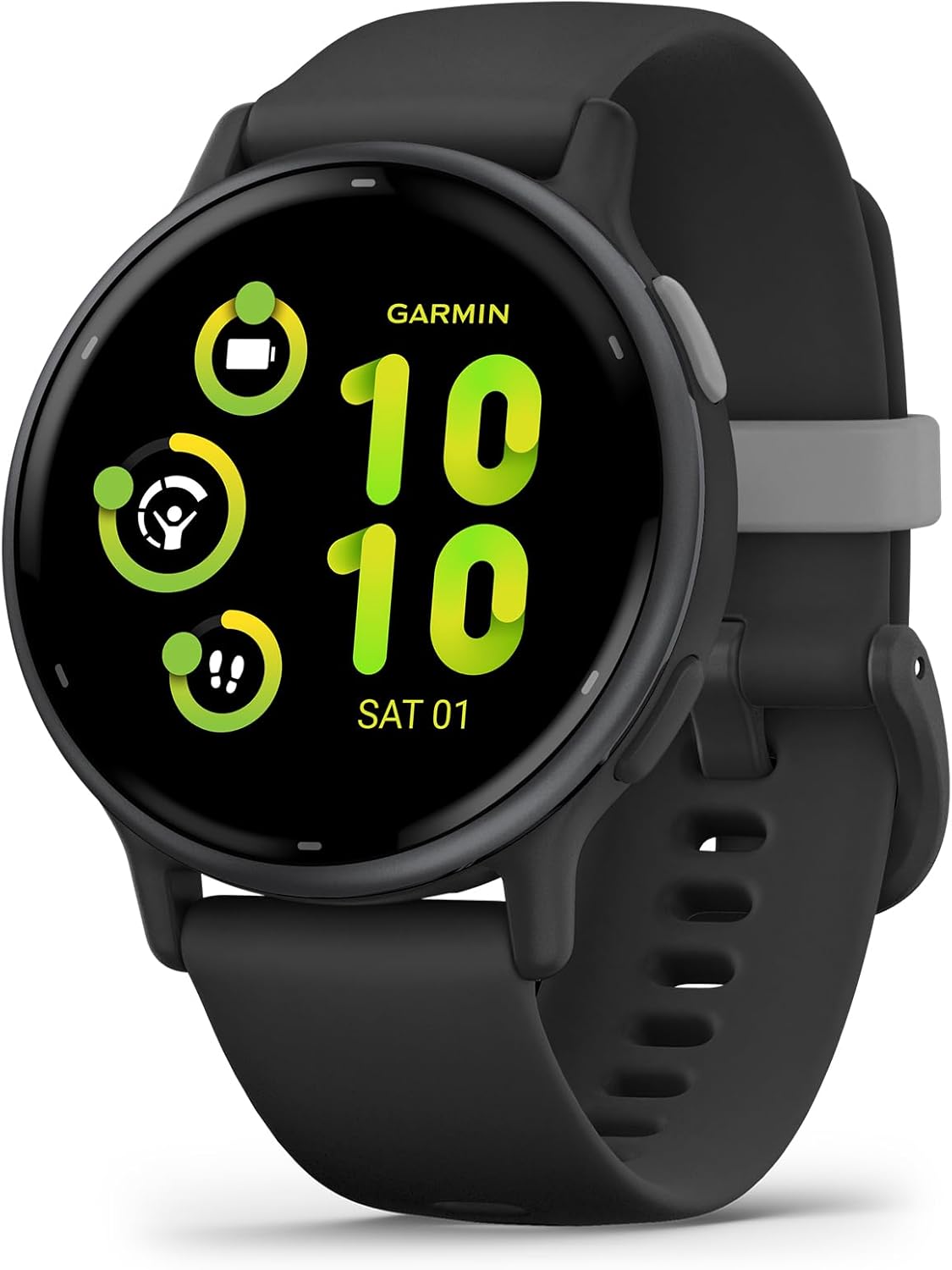
Open Garmin Connect on your phone (most common check)
Make sure the app itself is updated first, from the App Store or Google Play. An outdated Garmin Connect app is one of the most frequent reasons watch updates fail to appear.
Keep the watch close to your phone
Bluetooth range issues interrupt downloads partway through. Stay within a few feet of your phone while the transfer is running, and avoid switching apps on the phone.
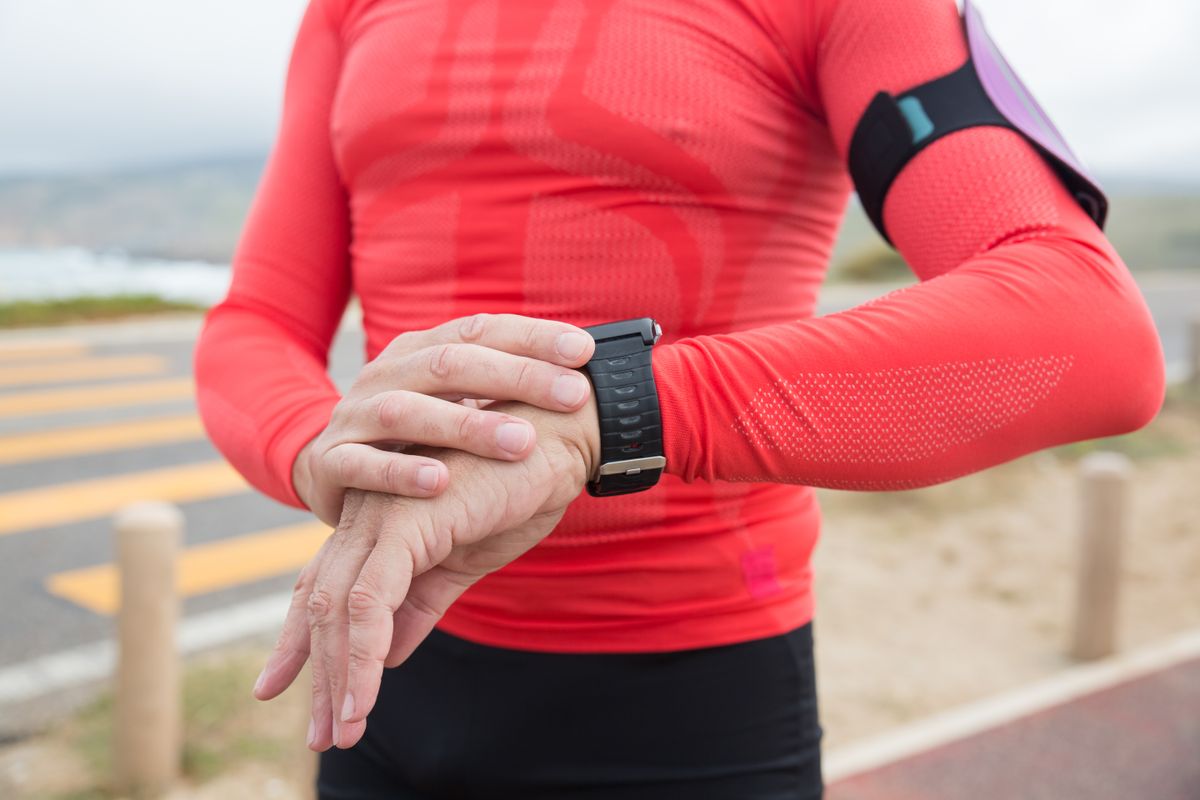
Charge the watch to at least 20 percent
Garmin blocks software updates below a minimum battery level to avoid the watch dying mid-update. Put it on the charging clip for 20–30 minutes before trying again if it is low.
Check for updates manually
In Garmin Connect, tap the device icon for your vivoactive 5, then look for a “Software Update Available” banner, or go to device settings and check manually rather than waiting.
Restart both devices if the update stalls
- Restart the watch: hold the side button, then select power off
- Restart your phone
- Reopen Garmin Connect and reconnect the watch before checking again
My own vivoactive 5 got stuck at “Downloading update” for almost twenty minutes once, right after I had switched Wi-Fi networks on my phone mid-transfer. Restarting the Bluetooth connection from the Connect app fixed it in under a minute the second time.
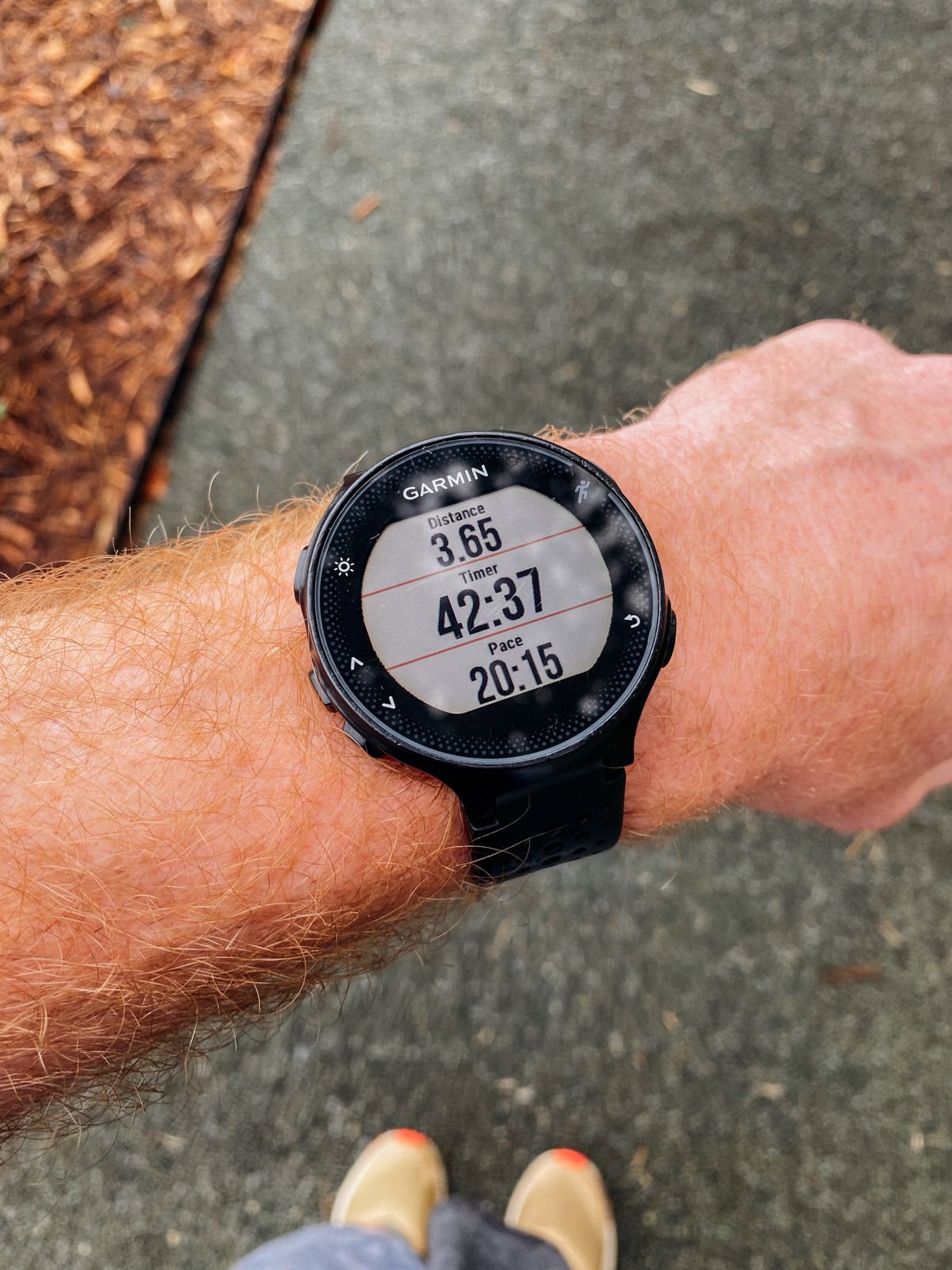
Why Software Updates Matter on the vivoactive 5
- Battery life fixes – Garmin has released updates that specifically address faster-than-expected battery drain on this model
- GPS accuracy improvements for outdoor activities
- Bug fixes for sleep tracking and Body Battery calculation
- New watch faces and widget support
Check Garmin’s official support page for the vivoactive 5 for the current software version and release notes before assuming your watch is behind.
Per Sandra K., who is a Personal Trainer and heavy Garmin Connect user, “After the last couple of updates, my vivoactive 5’s heart rate readings during interval training became noticeably more consistent.”
If the Watch Will Not Update at All
- Forget and re-pair the watch in Garmin Connect (Settings > unpair, then set it up again as new)
- Toggle Bluetooth off and on on your phone before re-pairing
- Check that Garmin Connect has Bluetooth and background app permissions enabled in your phone’s settings
- As a last resort, contact Garmin support – hardware Bluetooth faults are rare but possible on any smartwatch
Frequently Asked Questions
Do I need Wi-Fi for a vivoactive 5 software update?
No, updates transfer through your phone’s internet connection over Bluetooth. The watch itself does not connect to Wi-Fi directly.
How long does a typical software update take?
Usually five to fifteen minutes depending on connection stability and update size, though it can take longer over a weak Bluetooth connection.
Will updating erase my activity history?
No, activity history and settings are preserved through a normal software update. Data loss only happens if you factory reset the watch, which is a separate action.
My update shows 100 percent but never finishes. What now?
Restart the watch by holding the side button and selecting power off, then power it back on. The update usually completes its install step right after restart.
Should I update the moment a new version is released?
It is generally safe to update right away since Garmin tests releases before pushing them broadly, but if you rely on the watch for an important event like a race the next day, some experienced users prefer to wait a day or two and check community feedback first, just to avoid any last-minute surprises.
Does the update process differ between iPhone and Android?
The overall steps are the same on both platforms, but Android phones sometimes require you to allow the Garmin Connect app to run in the background without battery restrictions, otherwise the download can pause whenever the screen locks.
Beta Software and Public Releases
Garmin occasionally offers a beta software program for popular models like the vivoactive 5, which lets you try upcoming features early in exchange for accepting the risk of more bugs. Unless you specifically want early access:
- Stick with the standard public release channel in Garmin Connect settings
- If you did join a beta program and want out, you can opt back to stable releases from the same settings menu, though this sometimes requires a software downgrade
- Report odd behavior after any update through the Garmin Connect app’s feedback option so Garmin can track it against your specific software version
Battery Drain Right After an Update
It is common to see slightly faster battery drain for the first day or two after a software update while the watch re-indexes its GPS almanac data and recalculates baseline health metrics. This is normal and settles down within 24–48 hours. If unusually fast battery drain continues past a few days:
- Check which watch faces and always-on features are enabled – a busy animated watch face uses noticeably more battery
- Disable Pulse Ox all-day tracking if you do not need it, since continuous blood oxygen monitoring is one of the heavier battery draws
- Turn off always-on display mode if it was enabled by default after the update
Conclusion
Most vivoactive 5 update problems come down to Bluetooth range, a low battery, or an outdated Garmin Connect app. Keep the watch charged, stay near your phone during the transfer, and check for updates manually instead of waiting. A short period of faster battery drain right after an update is normal and not a sign of a failed installation. If an update truly refuses to complete, unpairing and re-pairing the watch resolves the majority of stuck cases.
Ryan
Self-taught driver/hardware specialist · 15 years experience