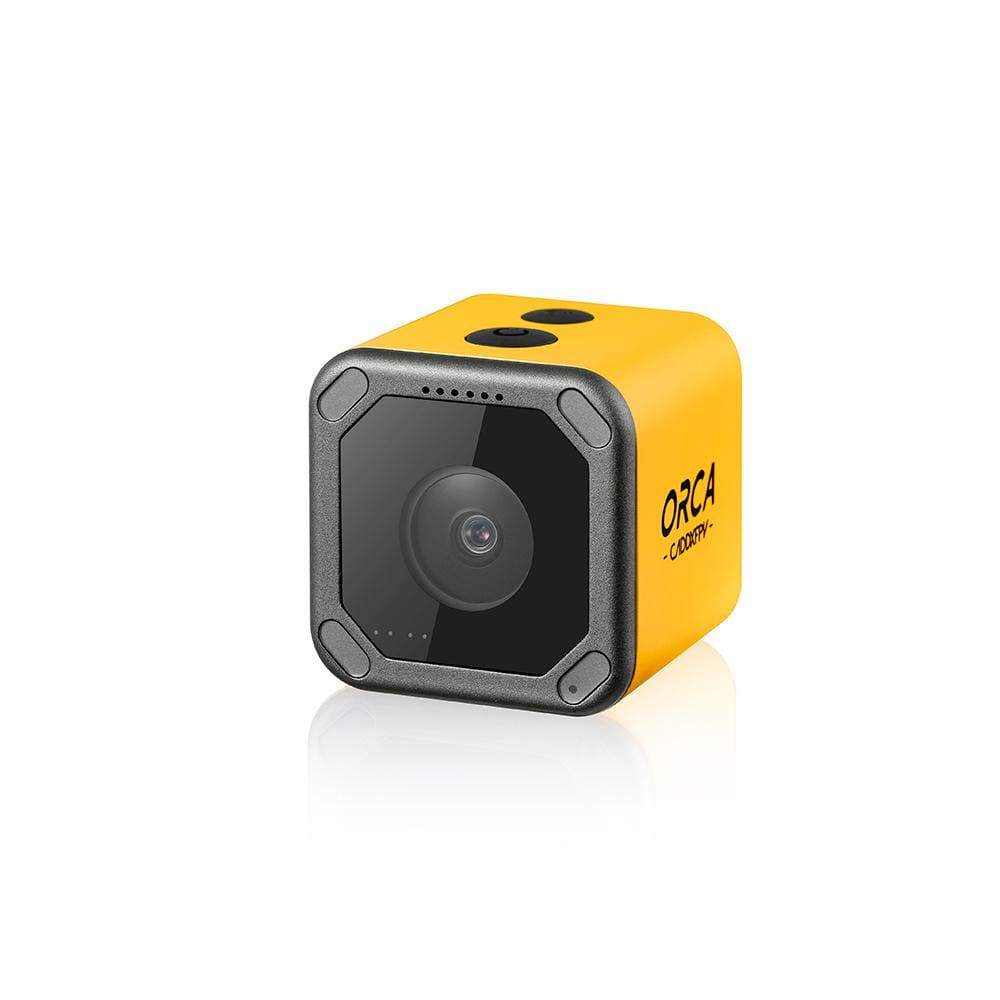
The Caddx Orca 4K is a discontinued cube-style FPV action camera that records to a microSD card and can be configured through Wi-Fi. It is intended as a recording camera, not as a replacement for the low-latency FPV camera used to fly the drone.
I bought a used Caddx Orca 4K and the seller’s bench test looked fine, but a full-length recording revealed the internal battery couldn’t sustain a complete flight before shutting down. Running one full continuous recording cycle before trusting a used action camera is now a habit.
The camera can still be useful when bought second-hand, but app availability, battery condition and replacement parts are now more important than the original specification sheet.
Caddx Orca 4K specifications
| Feature | Typical specification |
|---|---|
| Maximum recording | 4K at 30fps |
| Other modes | 2.7K at 60fps, 1440p at 60fps, 1080p up to 120fps |
| Sensor | 1/2.3-inch sensor |
| Field of view | About 160 degrees |
| Codec | H.264 or H.265 options |
| Body | About 38 × 38 × 36mm |
| Weight | About 58g |
| Storage | Class 10 microSD card, commonly up to 128GB |
| Protection | Basic splash resistance, not a diving camera |
Best recording mode for FPV
Use 4K when maximum detail matters and storage is not a concern. Use 2.7K or 1080p at a higher frame rate when motion smoothness is more important.
- 4K 30fps: highest detail, larger files and more heat.
- 2.7K 60fps: useful balance of detail and smooth motion.
- 1080p 60fps: easier editing and smaller files.
- 1080p 120fps: slow-motion option with more light required.
How to prepare the microSD card
- Use a genuine Class 10 or U3 card from a known brand.
- Back up any files already on the card.
- Insert the card while the camera is off.
- Use the camera menu or app to format the card when available.
- Record a short clip and play it back before mounting the camera.
A card can pass a computer copy test but still fail during high-bitrate recording. Repeated stopped recordings, zero-byte files or corrupted final clips usually point to the card, power loss or overheating.
Wi-Fi and app setup
The Orca can create a Wi-Fi network for configuration through the Caddx app. Turn on Wi-Fi from the camera, connect the phone to the camera network, then open the app.
Mobile phones may report that the camera network has no internet. Stay connected anyway because the phone is communicating directly with the camera.
Forgotten Wi-Fi password
Older Orca units do not always offer an obvious physical reset button. First try the default password shown in the original documentation or app instructions. If the password was changed and the camera cannot be accessed, use the button-based system reset option from the camera menu where available.
A firmware recovery should be the last step. Confirm the exact model, battery charge and card format before placing any update file on the card.
Common Orca recording problems
| Problem | Likely cause | Fix |
|---|---|---|
| Recording stops early | Slow card, full card or overheating | Test another high-speed card and increase airflow |
| Camera will not power on | Flat or aged battery | Charge fully, test USB power and inspect the port |
| Files are corrupted | Power removed before finalisation | Stop recording before disconnecting power |
| Phone cannot connect | Wrong password or phone switches networks | Forget the network, reconnect and disable mobile auto-switching |
| Video is shaky | Soft mount or frame vibration | Balance props and use a firm mount with vibration control |
Camera shuts down in flight
An old internal battery may fail under vibration or cold conditions. Test the camera for a full recording cycle on the bench, then repeat with airflow. Replace or retire a swollen battery.
Video has jello or rolling waves
Electronic stabilisation cannot fix severe mechanical vibration. Inspect damaged props, motor bearings, loose frame screws and the camera mount.
What to check when buying an Orca second-hand
The internal battery is the most important wear item. Ask the seller to record a continuous clip and report the real run time. A camera that powers on for a few minutes may still shut down early once recording and Wi-Fi increase the load.
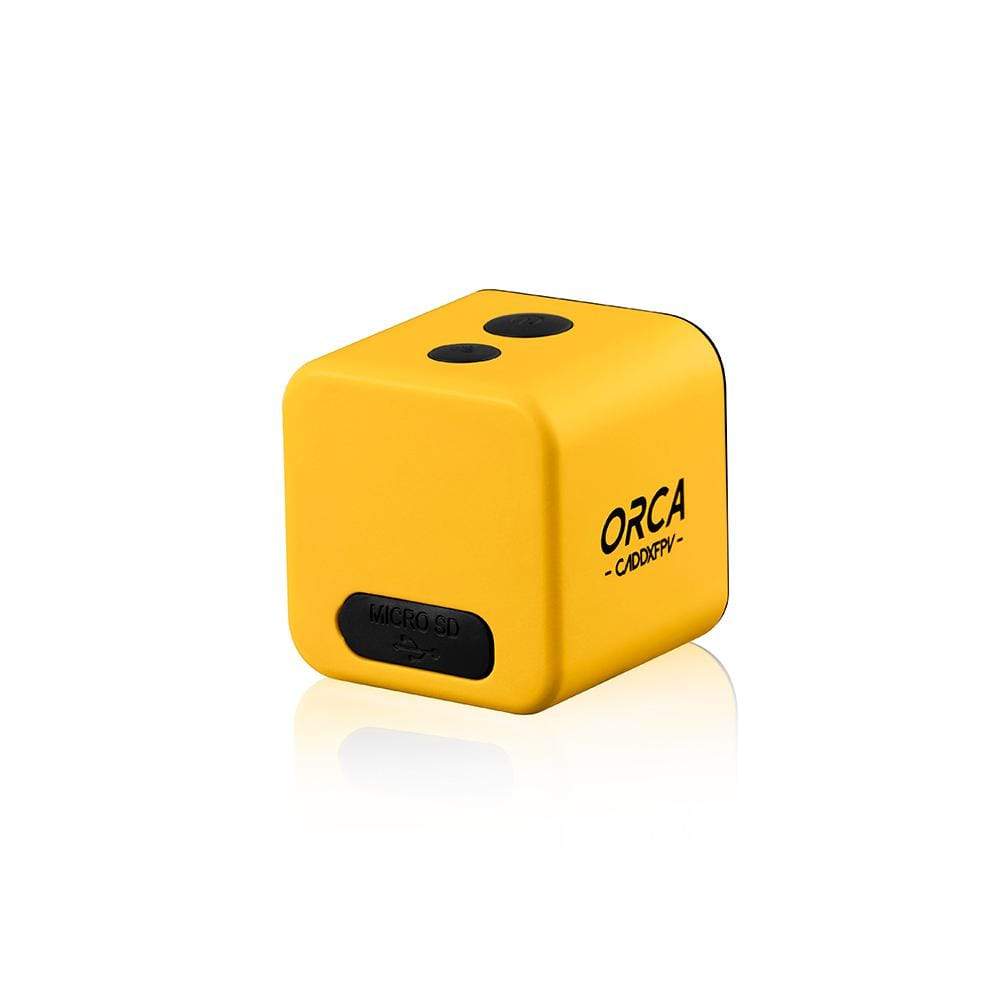
Inspect the USB port, lens protector and microSD slot. A loose USB port can prevent reliable charging, while a damaged lens cover can reduce image quality even when the sensor is fine. Check that the physical buttons respond because an unavailable app can make button control essential.
- Request a sample video recorded by the exact camera.
- Test the battery for a full recording cycle.
- Confirm the Wi-Fi password or reset procedure.
- Check that the camera accepts and formats a microSD card.
- Inspect the body for swelling, impact cracks or water marks.
- Confirm that the mount matches the frame.
After purchase, copy the working settings before experimenting with firmware. Older action cameras are often more useful when kept on a stable configuration than when updated with an uncertain file found on a mirror site.
Frequently Asked Questions
Can the Caddx Orca be used as a USB webcam?
It is mainly designed for recording and file transfer. Do not buy it specifically for webcam use unless your exact firmware documents that feature.
Does it provide the live FPV feed?
No. Use a separate low-latency FPV camera and VTX for flying.
Can it record while charging?
Some units can operate from external USB power, but test heat and file finalisation before relying on this in a drone.
Is it waterproof?
It has basic environmental protection, not full underwater protection. Avoid rain and wet crashes.
Conclusion
The Caddx Orca 4K can still produce useful FPV footage when the battery and microSD card are healthy. A careful recording test, stable mount and correct app connection are more important than chasing the highest resolution setting.
- Image 1: Caddx Orca 4K action camera for FPV drone recording — source page | open image
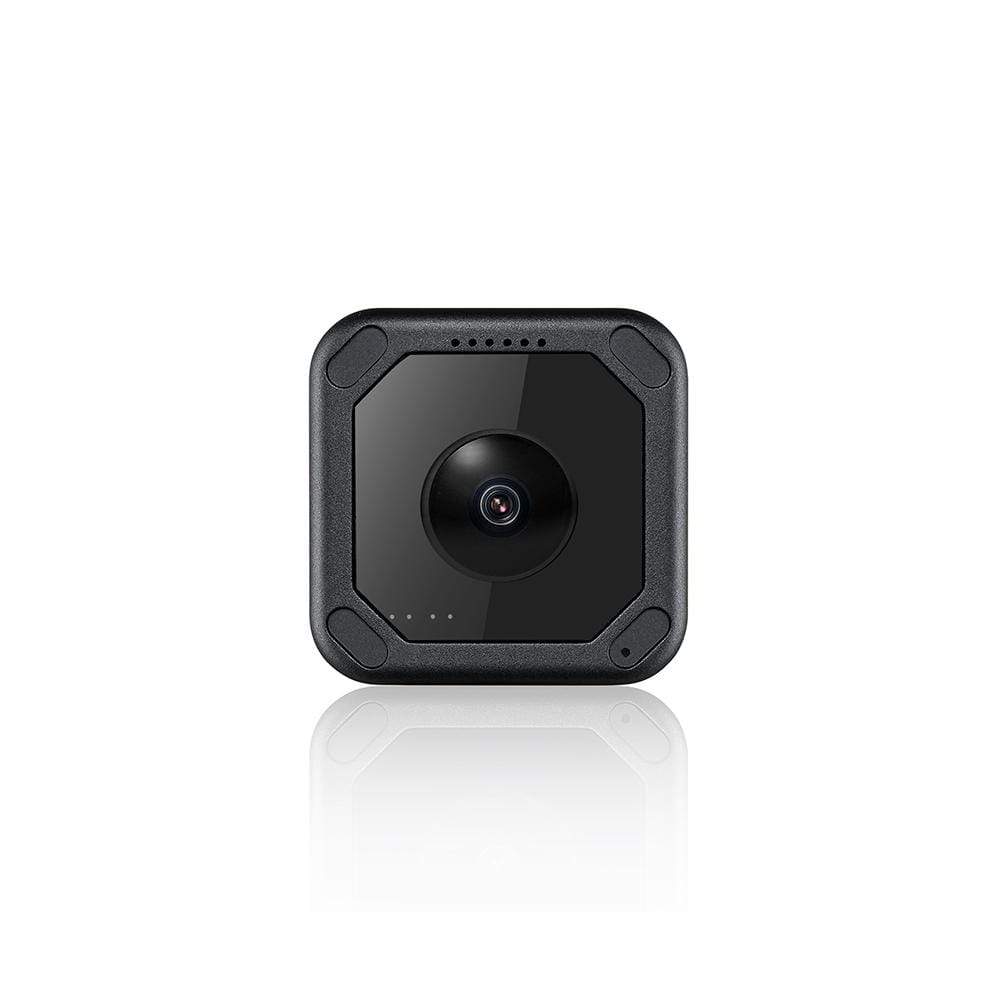
- Image 2: Caddx Orca recording mode comparison for FPV footage — source page | open image
- Image 3: Caddx Orca Wi-Fi connection and camera settings screen — source page | open image
Diagnostic timeline
Ryan has wired, updated and repaired FPV video systems on a range of frames, learning what actually causes intermittent faults. He documents these lessons at softwaredriverdownload.com.