The Haylou GT1 Plus has been around long enough that plenty of readers still have a pair sitting in a drawer, minus the printed manual that came in the box. I dug mine back out recently and walked through the full pairing and charging process again so this guide reflects exactly how it behaves today, not just what the original documentation said.

What Is The Haylou GT1 Plus
The GT1 Plus is a true wireless earbud built around the Qualcomm QCC3020 chipset and Bluetooth 5.0, supporting both AAC and aptX codecs. It uses a 7.2mm bio-diaphragm driver and a dual DSP noise-cancelling system for calls. It is worth noting this is a distinct model from the standard Haylou GT1 — the Plus version has a different chipset and slightly refined touch controls, so instructions for one do not always match the other exactly.
Charging The Case And Earbuds
- Connect the included USB cable to the charging case; a full charge takes about two hours
- Each earbud gets roughly 18 hours of combined battery life across charges
- The case LED indicates charging status — check it before assuming the earbuds are dead
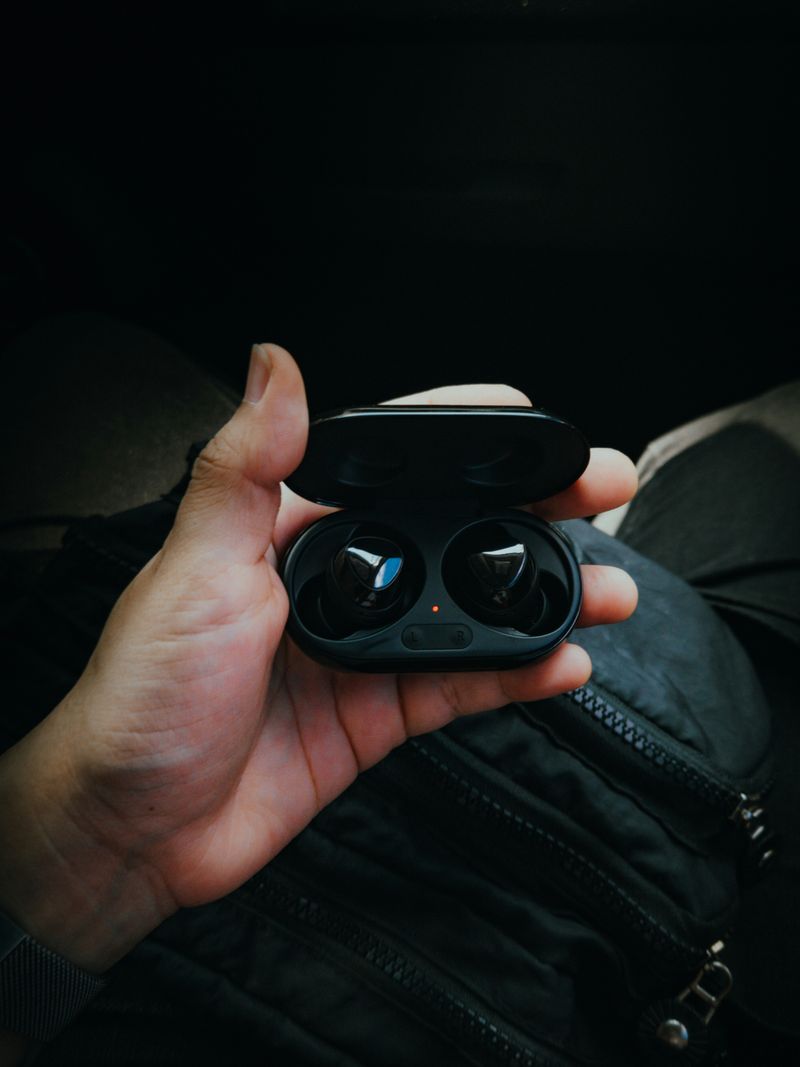
Pairing The GT1 Plus (Stereo Mode)
- Take both earbuds out of the charging case — they will automatically power on and pair to each other
- Open Bluetooth settings on your phone or laptop
- Select “Haylou GT1 Plus R” from the list of available devices
- If a passcode is requested, enter 0000
If the earbuds do not show up, put them back in the case, close the lid for five seconds, then take them back out to reset the pairing state.
Using Mono Mode (Single Earbud)
Take only one earbud out of the case and it will enter mono mode automatically. Search for “Haylou GT1 Plus R” or “Haylou GT1 Plus L” depending on which side you removed, connect, and enter 0000 if asked. This is handy for calls where you want to keep one ear free.

Pairing With Windows
On a Windows PC, open Settings, go to Bluetooth & other devices, click Add device, choose Bluetooth, take the earbuds out of the case so they broadcast, then select “Haylou GT1 Plus R” and confirm with 0000 if prompted. A detailed breakdown of this same process, along with touch control mapping, is available from ThePhoneTalks’ GT1 Plus manual walkthrough.
Touch Controls
- Single tap: play or pause
- Double tap right earbud: next track
- Double tap left earbud: previous track
- Triple tap either earbud: activate voice assistant
These gestures work independently on each earbud, so a double tap on the right side always triggers next track while the same gesture on the left triggers previous track. It took me a couple of days of accidental skips before the pattern became second nature, so do not be discouraged if you fumble it at first.
Resetting The GT1 Plus To Factory Settings
If pairing issues persist even after following the steps above, a full factory reset usually clears out corrupted Bluetooth memory. Place both earbuds in the case with the lid open, then press and hold the touch sensor on both earbuds simultaneously for about ten seconds until the LED flashes rapidly. Close the lid, wait ten seconds, then reopen it and start the pairing process again from step one. This process wipes any remembered devices, so you will need to re-pair with every phone or laptop you previously connected.
Understanding The LED Indicator Colors
The GT1 Plus uses its LED indicators to communicate status, and misreading them is a common source of confusion when troubleshooting. A slow white blink on the right earbud generally means it is discoverable and ready to pair. A solid or rapidly flashing light usually indicates an active connection or a charging state, depending on whether the earbud is in or out of the case. If the LED does not light up at all when removed from the case, that is typically a sign the earbud itself needs charging rather than a pairing problem, so it is worth ruling out a dead battery before assuming anything more complicated is wrong.
Common Audio Issues And Fixes
- One earbud is quieter than the other: unpair completely and re-pair from scratch; this usually resolves an imbalance caused by a partial Bluetooth sync
- Audio cuts out intermittently: move closer to your paired device, since Bluetooth 5.0 range can degrade through walls or in crowded wireless environments
- Static or crackling sound: check that both earbuds are fully seated and charged, since a low battery on either side can introduce audio artifacts before the earbud fully disconnects
Battery Health Tips
- Avoid leaving the case at 0% battery for extended periods, since deeply discharged lithium batteries degrade faster over time
- Store the case charged to roughly 50% if you are not planning to use the earbuds for several weeks
- Clean the charging contacts on both the earbuds and the case periodically with a dry cotton swab to maintain a reliable charging connection
None of this is unique to the GT1 Plus specifically, but it applies to nearly every true wireless earbud on the market, and it is easy to overlook until charging suddenly becomes unreliable a year or two into ownership.
Frequently Asked Questions
Why won’t my GT1 Plus reconnect automatically?
Bluetooth pairing memory can get corrupted if the earbuds were connected to multiple devices recently. Forget the device on your phone, then re-pair from scratch using the steps above.
Does the GT1 Plus support aptX on any phone?
Only devices whose Bluetooth chipset and OS support aptX will use it; most Android phones do, while iPhones default to AAC.
Is the GT1 Plus the same as the regular GT1?
No. They share a family resemblance and price bracket, but the GT1 Plus uses a different chipset (QCC3020 vs the original GT1’s Bluetooth 5.0 setup) and has its own separate pairing name.
Conclusion
The Haylou GT1 Plus is still a perfectly usable set of budget earbuds years after release, provided you know the correct pairing sequence and touch gestures. Keep the case charged, remember the 0000 passcode, and the earbuds should behave reliably for calls and everyday music listening.
As someone who has swapped through more than a dozen budget TWS earbuds over the years, I look at pairing quirks and battery claims with a skeptical eye before writing anything down.
\n