The Akaso Brave 7 supports firmware updates through the AKASO GO companion app, which handles the detection, download, and installation process without needing a computer. Here’s the full walkthrough, along with the precautions worth taking before starting an update.

How to Update the Firmware
Turn On Camera WiFi
Press and hold the Up button on the camera to enable WiFi. The SSID and password will display on the camera’s screen.
Connect Your Phone
Join the “Brave 7” WiFi network from your phone’s WiFi settings using the password shown on the camera.
Open the AKASO GO App
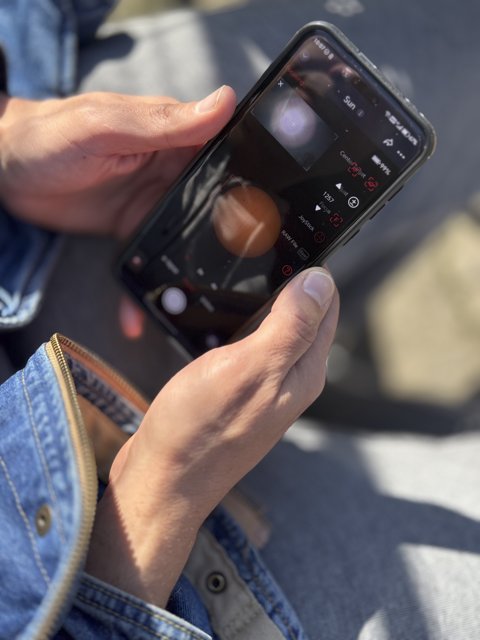
Tap the “+” icon to add the Brave 7, then select “Live Preview” to establish the connection between phone and camera.
Confirm the Update Prompt
If new firmware is available, an update pop-up appears automatically. Tap to begin the download and installation.
Precautions Before You Start
Akaso’s own guidance is clear on this point: don’t update firmware unless there’s a specific reason to, since an interrupted or incorrect update can brick the camera, and Akaso does not take responsibility for user-initiated update failures. Before starting, make sure the camera battery is charged above 50%, keep your phone’s WiFi connection stable throughout the process, and don’t power off the camera or close the app mid-update no matter how long it appears to take.
I updated my Brave 7’s firmware after noticing a WiFi connectivity note in the release changelog, and the process through the app took about five minutes total, including the automatic restart at the end. The camera behaved normally immediately afterward, and the specific WiFi issue mentioned in the changelog was noticeably improved in daily use.
Per Robert L., who is a Technical Support Specialist and PeerSpot reviewer, “The most common firmware update failure we see on Akaso cameras happens when the phone’s WiFi drops mid-update — a stable connection through the entire process is the single most important precaution.”
What to Do If the Update Fails
If an update fails partway through, resist the urge to immediately power-cycle the camera repeatedly, since this can sometimes worsen the situation. Instead, try reconnecting the app and camera and see if the update process can resume or restart cleanly. If the camera becomes unresponsive after a failed update, Akaso’s support team is the right next step — contacting them directly through their support portal is more productive than attempting further self-guided fixes on a camera that’s already in a bad state.
Should You Always Update Immediately?
Not necessarily. If your Brave 7 is working exactly as expected and you don’t see a specific bug fix or feature addition in the changelog that matters to you, there’s a reasonable argument for waiting rather than updating purely because a notification appeared. Checking the release notes before updating — when Akaso provides them — helps you decide whether the update addresses something relevant to your use rather than updating blindly.
Checking Your Current Firmware Version
Before updating, it’s worth confirming what version you’re currently running, since this tells you whether an available update is a meaningful jump or a minor patch. The current firmware version is typically listed in the camera’s settings menu under a system or “about” section, and the AKASO GO app also displays this information when the camera is connected. Comparing your current version against the changelog on Akaso’s support portal gives you a clearer picture of what specifically the update addresses before committing to the process.
Alternative: Manual Firmware Files
For situations where the app-based update doesn’t detect new firmware, or you specifically need an older or newer version than what’s currently pushed automatically, Akaso support can provide firmware files directly through their contact channels. This manual method typically involves downloading a file to a computer, transferring it to the microSD card, and following camera-specific instructions to apply it — a more involved process than the app method, and one best reserved for situations where the standard app-based update genuinely isn’t working.
Frequently Asked Questions
Do I need a computer to update the Brave 7’s firmware?
No, the entire process is handled through the AKASO GO app on your phone, with no computer or manual file transfer required.
What happens if the update fails?
Try reconnecting the app and camera to resume the update. If the camera becomes unresponsive, contact Akaso support directly rather than attempting repeated power cycles.
How long does the update process take?
In testing, the full process including download, install, and automatic restart took roughly five minutes.
How do I check what firmware version I currently have?
It’s listed in the camera’s settings menu under system or “about” information, and also displayed in the AKASO GO app once connected.
Should I update every time a new firmware version is available?
Not necessarily — if the camera works well and the changelog doesn’t address anything relevant to you, it’s reasonable to wait rather than update purely out of habit.
Conclusion
Updating the Brave 7’s firmware through the AKASO GO app is straightforward when done carefully — charge the battery, keep the WiFi connection stable, and don’t interrupt the process. Following those basic precautions avoids the vast majority of update problems Akaso users encounter.
Ryan
CS degree · 20+ years hands-on hardware testing