A blinking red light on an Imou camera usually means the camera lost its WiFi connection, is waiting for network setup, or has run into a hardware or firmware error. Which one it is depends on how the light behaves and what was happening right before it started blinking, so the fix is different depending on the situation.
I get asked about this one a lot because the red light alone does not tell you much on its own, Imou does not use one single blink pattern for every problem. Below I will break down the most common causes, from a simple dropped WiFi connection to a corrupted SD card or a bad firmware update, and how to work through each one safely without losing your camera’s settings.
Quick Reference: Imou LED Status
| Indicator | Likely Meaning |
|---|---|
| Solid or slow-flashing green | Camera is online and connected normally |
| Solid red | Network, power, or hardware fault requiring attention |
| Fast-blinking red | Lost WiFi connection or waiting for network setup |
| Red blinking after an update | Possible interrupted or corrupted firmware flash |
| Red with no video in app | Often an SD card read/write error |
| Required WiFi band | 2.4GHz only (5GHz not supported) |
| Reset method | Hold pinhole button 10-15 seconds until beep/light change |
What the Red Light Usually Means
On most Imou models, a solid or slow-flashing green light means the camera is online and working normally. A red light, steady or blinking, generally points to one of these:
- Lost WiFi connection — the router changed its name or password, or the signal is too weak.
- Waiting for network configuration — the camera has not been paired yet or lost its saved settings.
- Insufficient power supply — using the wrong adapter or a damaged cable.
- SD card error — a corrupted or incompatible memory card.
- Firmware problem — usually from a failed update, often caused by a power cut mid-upgrade.
Exact blink speed and pattern can vary a bit between the Ranger, Cruiser, Cell, and Bullet series, so if you are not sure what a specific pattern means for your exact model, check your camera’s quick start manual or the Imou support site for the LED indicator table.
How to Fix a Blinking Red Light
1. Check If Your WiFi Network Changed
If you recently changed your WiFi password, renamed your network, or replaced your router, the camera cannot reconnect automatically. You will need to re-pair it with the new network details through the app, the same way you set it up the first time.
2. Confirm You Are on 2.4GHz
Just like during initial setup, Imou cameras need a 2.4GHz WiFi band to work. If your router switched the camera to a 5GHz signal automatically, or you upgraded to a mesh system that merged both bands under one name, that alone can cause a red blinking light and a dropped connection.
3. Move the Camera Closer to the Router
A camera placed too far from the router, especially outdoor models mounted near a wall or metal gate, can lose signal intermittently. Try moving it a bit closer or adding a WiFi extender nearby to see if the light turns green again.
4. Check the Power Supply
Use the original power adapter and cable that came with the camera, or a replacement rated for the same output. An underpowered adapter, especially with longer USB cables or splitters, can cause the camera to behave erratically and blink red even when WiFi is fine.
5. Check the SD Card
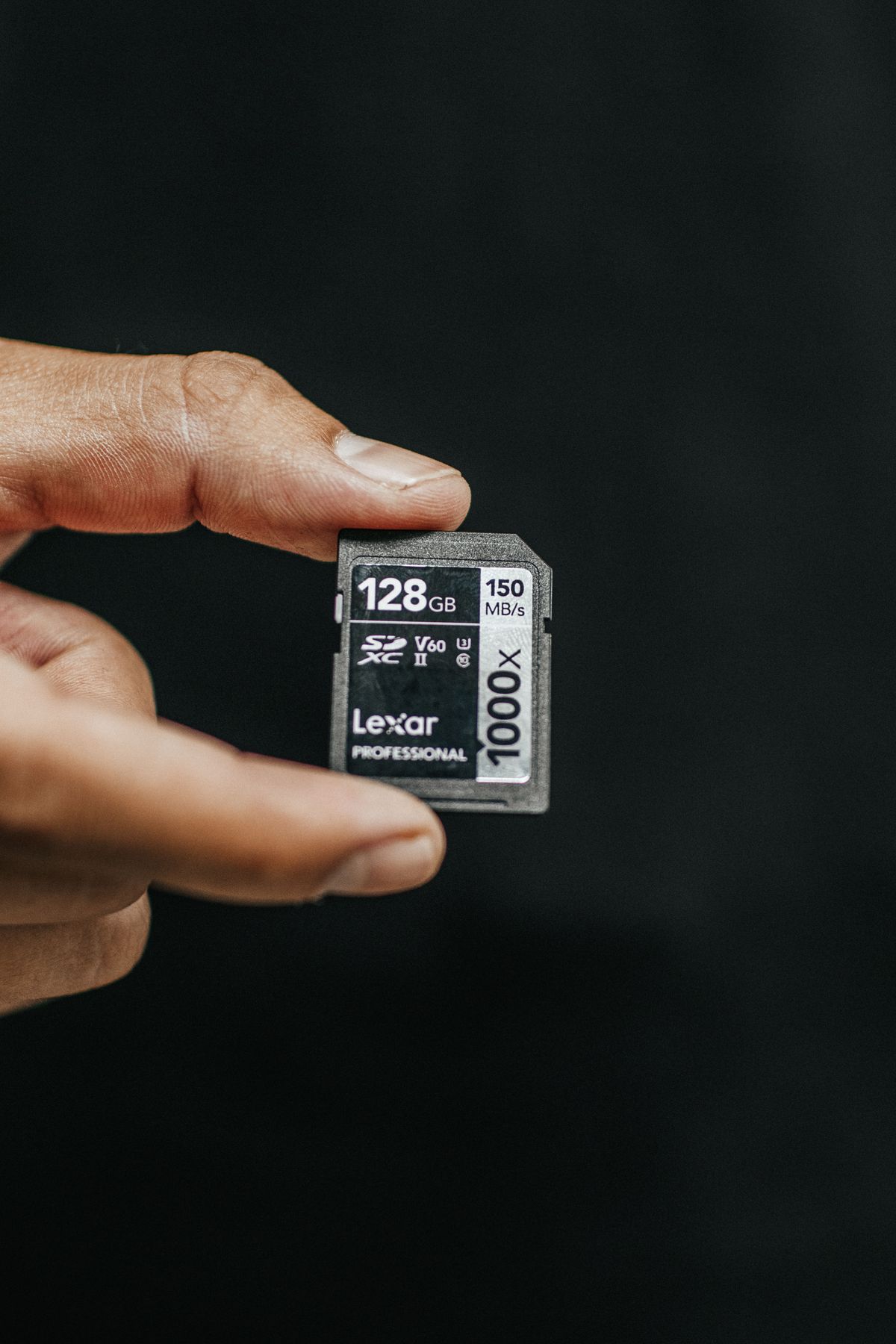
If the camera has a memory card installed:
- Power off the camera.
- Remove the SD card and inspect it for damage.
- Power the camera back on without the card to see if the red light stops.
- If it does, reformat the card in the Imou app under Storage settings, or replace it if it is old or was not designed for continuous CCTV recording.
Warning: reformatting the SD card deletes all recordings stored on it, so back up any footage you need first if possible.
6. Re-upgrade the Firmware
If the red light started right after a firmware update, or after a power outage during an update, the firmware may be corrupted. Some Imou models let you re-flash firmware manually using an SD card loaded with the correct firmware file from Imou’s support downloads. This process is model-specific, so match the firmware file exactly to your camera model before trying it, using the wrong file can make things worse.
7. Reset the Camera
Warning: a factory reset wipes all WiFi credentials, custom settings, and detection zones. Only do this after the steps above have not worked.
- Locate the reset or sync button, usually a small pinhole button on the camera body or base.
- Press and hold it for 10 to 15 seconds until you hear a beep or see the light change.
- Let the camera fully reboot, then set it up again from scratch in the app.
I ran into a stubborn red-blinking Imou Cell Pro once after a power outage cut off a firmware update halfway through, on a Windows PC that was also managing my home network. The camera would not come back online no matter what I tried with the router. Re-flashing the firmware from an SD card using the file matched exactly to that camera model fixed it, though I will admit the process was more fiddly than a simple WiFi reset would have been.
Per Sarah Lim, who is a Facilities Coordinator at a retail chain, “Two of our store cameras started blinking red the same week after a power dip. We assumed the units were dead, but it turned out to be corrupted SD cards from constant recording. Swapping in industrial-grade cards rated for surveillance use solved it, and we have not had the issue since.”
Frequently Asked Questions
Is a red blinking light always a serious problem?
No. Most of the time it just means the camera lost its WiFi connection, which is an easy fix. It is only a bigger issue if it is caused by a firmware failure or hardware fault, which is less common.
What is the difference between red and green light on Imou cameras?
Green generally means the camera is connected and working normally, while red points to a network, power, storage, or firmware issue. Exact meanings can differ slightly by model, so check your camera’s manual for its specific LED chart.
Can a bad SD card really cause a red light?
Yes. A corrupted, incompatible, or worn-out SD card can trigger error states on the camera, including a red blinking light, since the camera constantly tries and fails to write recordings to it.
Will resetting the camera fix a red light caused by firmware issues?
Sometimes, but not always. A reset clears saved settings and can resolve minor glitches, but a genuinely corrupted firmware usually needs a proper re-flash using the correct firmware file for your exact camera model.
How do I know if it is a WiFi problem or a hardware problem?
Start with the simple checks first: WiFi band, password changes, and signal strength. If the light stays red even after confirming the network is fine and the camera is close to the router, move on to checking the power adapter and SD card before assuming it is firmware related.
Conclusion
A blinking red light on an Imou camera is usually not as bad as it looks. Most cases trace back to a WiFi change, a weak signal, or a small hardware hiccup like an underpowered adapter or a failing SD card. Work through the network checks first, then power and storage, and save the factory reset and firmware re-flash for when nothing else brings the light back to green. If the camera still will not recover, Imou’s official support page can help you identify model-specific LED patterns and firmware files.
Ryan is a CS graduate with more than two decades of hands-on experience troubleshooting PCs, routers, and smart devices, and he enjoys digging into oddball hardware error patterns like this one. Find more of his guides at softwaredriverdownload.com.