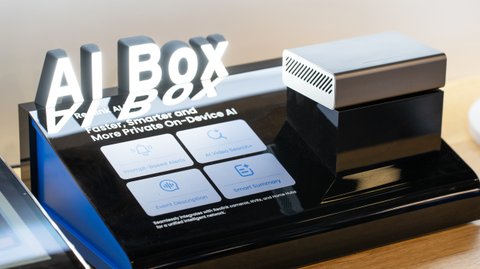
The Reolink AI Box is a standalone local AI hub unveiled at a major consumer electronics trade show, built to run person, vehicle, and package detection directly on-device rather than sending video to the cloud for analysis. It pairs with existing Reolink cameras and NVRs to add smarter alerts — including natural-language event descriptions and prompt-based search — without a subscription. Here’s how it fits into a home setup and what to expect during first-time configuration.
Quick Facts
| Spec | Reolink AI Box |
|---|---|
| Device type | Standalone local AI processing hub |
| Connectivity | Wired Ethernet to local network |
| AI processing | On-device, no cloud upload required |
| Works with | Compatible current-generation Reolink cameras and NVRs |
| Detection types | Person, vehicle, and package detection |
| Search | Prompt-based natural-language event search |
| Subscription required | No, for on-device AI features |
| Setup | Reolink app, added as a new device on your account |
WHAT IT DOES
- Runs AI video analysis locally, without uploading footage for cloud processing
- Generates plain-language summaries of events instead of just a motion alert
- Lets you search recorded footage using a text prompt, like “car in the driveway after dark”
- Works alongside existing Reolink cameras and NVRs rather than replacing them
WHO IT’S FOR
- Households already running a few Reolink cameras that want smarter alerts without a monthly fee
- Anyone uneasy about sending home footage to a cloud AI service
- Users tired of digging through hours of footage manually after an event
Setting Up the AI Box
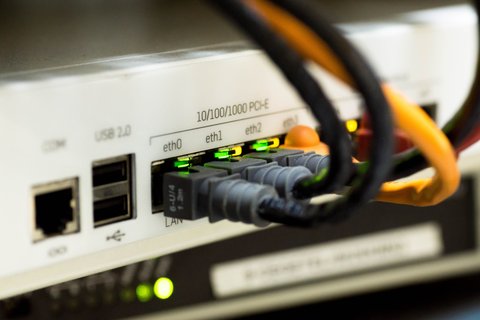
The AI Box connects to your local network over Ethernet and links to compatible Reolink cameras and NVRs already on the same network. Once paired, it takes over the AI processing workload that would otherwise run on the camera itself or in the cloud, which is what enables the more detailed, natural-language alerts.
- Connect the AI Box to your router with an Ethernet cable and power it on
- Open the Reolink app and add the AI Box as a new device on your account
- Select which existing cameras or NVR channels you want the AI Box to analyze
- Enable prompt-based search and event summaries once the initial device sync finishes
A few details make the initial setup smoother. The AI Box needs a wired Ethernet connection to your router or switch — there’s no WiFi option, which is a deliberate design choice, since a wired connection gives more consistent bandwidth for the video streams it’s analyzing simultaneously from several cameras. Budget a spare Ethernet port near wherever your router or network switch lives, since the AI Box needs to stay within cable reach unless you’re comfortable running a longer cable or adding a small switch nearby.
During the initial device sync, the AI Box pulls a short clip history from each assigned camera to calibrate its detection models against your specific scenes — this is why the first sync takes noticeably longer than later processing. In my experience, budgeting 15 to 30 minutes for the box to fully absorb and index a handful of cameras avoids the false impression that it’s stuck or malfunctioning.
Using Prompt-Based Search and Summaries
Instead of scrubbing through a timeline looking for one clip, you can type a description of what you’re looking for and let the AI Box find matching events across connected cameras. Event summaries work the same way in reverse: rather than a bare “motion detected” push notification, you get a short sentence describing what actually happened.
- Keep prompts specific — “person at the front door” returns better matches than just “person”
- Review a week of normal activity first so you know what a typical summary looks like before relying on alerts
- Combine prompt search with a date range if you’re looking for something from several days back
A local AI hub like this is a meaningful shift for anyone who’s held off on smart camera features specifically because of cloud privacy concerns — the processing genuinely stays on your own network here, rather than being a marketing claim layered over a cloud backend.
Per early hands-on impressions from trade show attendees, the standout wasn’t raw detection accuracy but how much faster it was to find a specific past event using a text description instead of scrubbing through hours of timeline footage.
Fine-Tuning Detection and Notifications
Out of the box, the AI Box uses reasonably sensible default detection settings, but a bit of tuning per camera makes a real difference in how useful the alerts end up being day to day.
- Set detection zones per camera so a camera watching a driveway doesn’t fire alerts for people walking past on a public sidewalk in the background
- Adjust sensitivity separately for person, vehicle, and package detection — a front porch camera usually benefits from higher package sensitivity than a backyard camera would need
- Use scheduling to change behavior by time of day, such as tightening person-detection sensitivity overnight while relaxing it during hours when deliveries and family movement are expected
- Choose which events trigger a push notification versus which are just logged and searchable later, so you’re not getting pinged for every routine event
Because detection runs locally, changing these settings applies instantly without waiting on a cloud service to sync the new configuration, which makes it easy to iterate over the first week until the alert volume feels right for your household.
Real-World Use Cases
The most obvious use case is package theft — getting a plain-language alert that a package was delivered to the front porch rather than a generic motion ping, and later being able to search for a person who picked up a package if something goes missing. A few less obvious uses have turned out to be just as useful in practice:
- Distinguishing your own car pulling into the driveway from a stranger’s, since vehicle detection can be paired with scheduling to only alert on unrecognized activity during work hours
- Reviewing a week’s worth of activity around a specific side gate using a single search prompt instead of scrubbing through days of recorded footage
- Catching a delivery driver who left a package at the wrong address, since the natural-language summary usually describes the action clearly enough to resolve a dispute without watching the full clip
- Monitoring a detached garage or shed camera for after-hours movement without needing a second NVR or a cloud subscription for that specific camera
Troubleshooting Common Issues
- AI Box not detected in the app: Confirm it’s on the same local network segment as your cameras and NVR, not a separate VLAN or guest network — guest networks specifically block device-to-device discovery by design, which is the most common cause of this.
- Summaries feel generic or inaccurate at first: Give the system several days of normal household activity to calibrate before judging accuracy; early summaries lean generic because the model hasn’t yet learned what’s routine for your specific scenes.
- Search returns no results for an event you know happened: Double-check the camera or NVR channel was actually assigned to the AI Box during setup, and confirm the event falls within your camera’s local storage retention window, since the AI Box can only search footage that still exists.
- Slow initial sync when adding several cameras at once: This is normal on first pairing; the box is pulling and indexing clip history from every assigned camera simultaneously. Add cameras a few at a time if you want each one calibrated faster rather than dropping your whole system on it at once.
- Notifications feel too frequent or too sparse after setup: Revisit the per-camera sensitivity and detection-zone settings covered above rather than disabling notifications outright — most over- or under-alerting issues trace back to a zone that’s too broad or a sensitivity level left at the default.
For full specs and compatible camera lists, see Reolink’s official AI Box product page. Reolink’s support center covers firmware updates and compatibility questions as new camera models are added.
Frequently Asked Questions
Does the AI Box need a subscription?
No, on-device AI processing is designed to work without a recurring cloud AI fee. Optional cloud backup remains a separate, optional service.
Will it work with any Reolink camera?
It’s built for compatible current-generation Reolink cameras and NVRs; check the official compatibility list before buying if you’re running older hardware.
Does footage ever leave my network?
The core AI analysis runs locally on the device itself. Any cloud features remain optional and separate from the on-device processing.
Can it replace my existing NVR?
No, it’s designed to work alongside an existing NVR or camera setup by adding AI processing, not to replace video storage.
Conclusion
The Reolink AI Box is worth considering if you already have a few Reolink cameras and want sharper, more descriptive alerts without handing footage over to a cloud AI service. Give it a few days to calibrate on your normal household activity before judging how accurate the summaries and search really are.
Ryan has spent two decades testing consumer PC hardware, drivers, and smart home devices firsthand before writing about them at softwaredriverdownload.com.