On this page
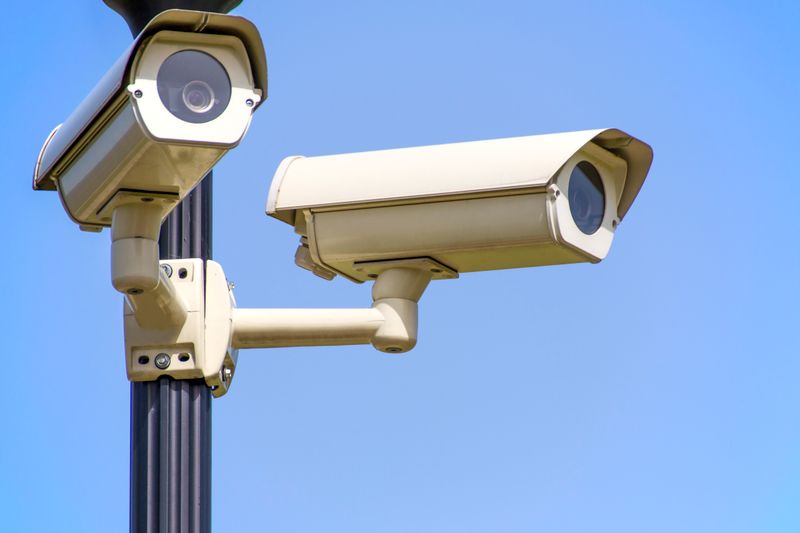
The EZVIZ C3TN is a plug-in outdoor Wi-Fi camera with a built-in spotlight and siren, aimed at active deterrence rather than just passive recording. Like other EZVIZ models, it skips a Windows driver entirely and is set up and controlled through the EZVIZ mobile app. Here is the setup process along with fixes for the most common issues.
Setting Up the EZVIZ C3TN
- Download the EZVIZ app from the official EZVIZ Download page or your phone’s app store, then create or sign in to your account.
- Mount the camera near a power outlet or run its cable to one, then plug it in and wait for the status light to blink, signaling pairing mode.
- In the app, tap “Add Device,” scan the QR code on the camera or its box, and connect it to your 2.4GHz Wi-Fi network.
- Once connected, test the live view, spotlight, and siren from the app before finalizing the camera’s mounting position.
Common Problems and Fixes
- Camera will not pair — make sure the status light is actively blinking and hold your phone about 20cm from the QR code in good lighting.
- Cannot join Wi-Fi — the C3TN only supports 2.4GHz networks, so connect to that band specifically if your router combines 2.4GHz and 5GHz under one name.
- Spotlight or siren does not trigger — check that the automatic trigger settings are enabled in the camera’s settings inside the app, or trigger them manually to confirm the hardware works.
- Weak Wi-Fi signal outdoors — consider a Wi-Fi extender near the mounting location, since outdoor cameras are often placed farther from the router than indoor ones.
Frequently Asked Questions
Does the EZVIZ C3TN need a Windows driver?
No, it is set up and managed through the EZVIZ mobile app or web client instead.
Is the C3TN weatherproof?
Yes, it is designed for outdoor use; check its official IP rating on EZVIZ’s product page before mounting it somewhere very exposed.
Can I view the camera on a PC?
Yes, sign in with the same account on the EZVIZ web client to view it from a browser.
Conclusion
Setting up the EZVIZ C3TN mainly comes down to a stable power connection, the EZVIZ app, and pairing over 2.4GHz Wi-Fi. Wi-Fi band mismatches and spotlight/siren trigger settings account for most follow-up issues, both covered above.
Ryan
CS degree · 15 years hardware troubleshooting