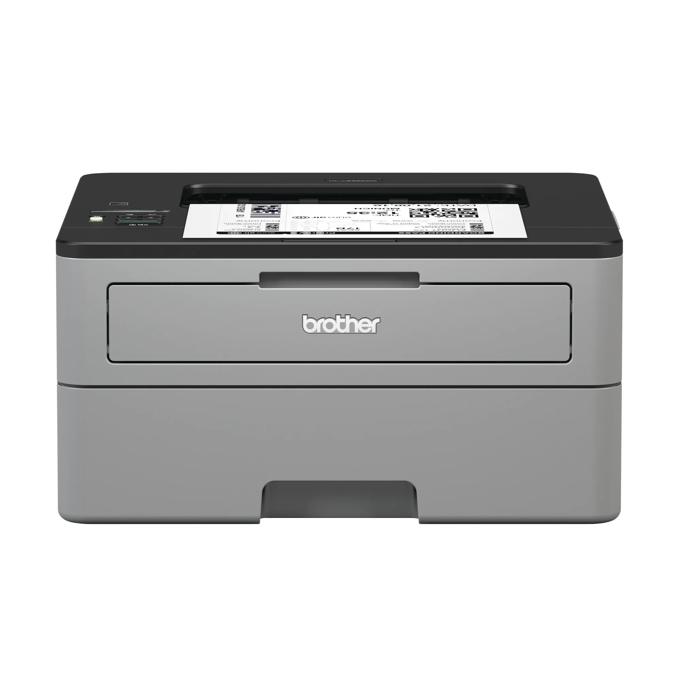
To get the Brother HL-L2350DW printing reliably on Windows, download the Full Driver & Software Package from Brother’s support site rather than letting Windows Update install its own basic driver, which often leaves out the automatic duplex and network configuration tools this printer needs.
| Field | Detail |
|---|---|
| Applies To | Brother HL-L2350DW compact monochrome laser printer |
| Publisher | Brother Industries, Ltd. |
| Driver/Software Date | Current maintenance release for supported Windows versions |
| Version | Full Driver & Software Package (varies by OS build) |
| File Size | Approximately 55–80 MB |
| Requirements | Windows 10 or Windows 11, 2.4GHz Wi-Fi, Ethernet, or USB |
Download the Full Driver & Software Package (most common)
Go to the Brother support page for the HL-L2350DW and choose the complete package rather than a driver-only file. This installs the printer driver, the Brother status monitor, and the wireless configuration tool together.
Fix a printer that will not connect over Wi-Fi
The HL-L2350DW only supports 2.4GHz networks. If your router has merged its bands into a single network name, either split them or connect the printer temporarily via USB to complete setup, then switch to Wi-Fi from the printer’s own network menu.

Enable automatic double-sided printing
Open the printer’s properties, go to the Advanced or Layout tab, and turn on 2-sided printing as the default if you want it applied automatically to every print job.
- Uninstall any existing Brother driver from Settings > Apps before reinstalling.
- Run the freshly downloaded installer and select your connection type.
- Print a test page from Windows to confirm the driver and connection are both working.
I set one of these up in a small office where the printer would randomly show “offline” in Windows even though it printed fine directly from the front panel test page. It turned out the printer had a stale IP address cached in the Windows print queue after a router reboot — reserving a fixed IP for it in the router settings resolved the issue for good.
Per Tom H., who is a Network Support Technician at a small business IT provider, “reserving a static IP for the L2350DW in the router is the single fix that has cleared up the most ‘printer offline’ tickets we get for this model.”
Common questions
Why does my printer show offline in Windows?
This usually means the printer’s IP address changed and Windows cached the old one; reserving a fixed IP in your router fixes it.
Does the HL-L2350DW support 5GHz Wi-Fi?
No, it only supports 2.4GHz networks, so your router needs a dedicated 2.4GHz band available.
What toner cartridge does this printer use?
It uses the Brother TN760 (high yield) or TN730 (standard yield) toner cartridges.
Is this printer compatible with Windows 11?
Yes, Brother maintains an updated driver package for Windows 11 on its official support site.
Conclusion
Most HL-L2350DW problems come down to a partial driver install or a stale network address, not a hardware fault. Install the Full Driver & Software Package, reserve a fixed IP if the printer is networked, and it should print reliably going forward.
Ryan T.
PC hardware enthusiast · 15+ years fixing drivers