On this page
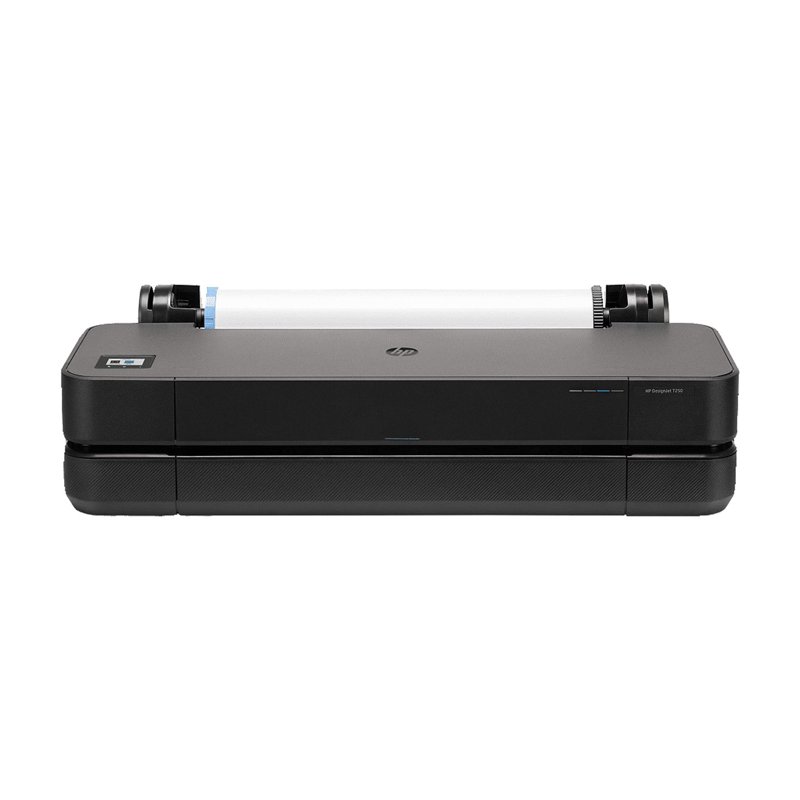
Getting the HP DesignJet T210 working correctly on Windows means installing the dedicated DesignJet driver from HP’s support site, not the generic HP Smart consumer app, since large-format CAD and poster printing needs the extra paper-size and roll-feed controls that only the full driver exposes.
| Field | Detail |
|---|---|
| Applies To | HP DesignJet T210 24-inch large format printer |
| Publisher | HP Inc. |
| Driver/Software Date | Current maintenance release for supported Windows versions |
| Version | HP DesignJet driver package (varies by OS build) |
| File Size | Approximately 150–250 MB depending on bundled utilities |
| Requirements | Windows 10 or Windows 11, wired network or Wi-Fi, USB as fallback |
Downloading and Installing the Driver
- Go to HP’s official support page for the DesignJet T210 and download the full driver package for your Windows version, not just the basic print driver.
- Run the installer and choose a network connection method if the printer is on the same network as your PC, since this is more reliable for large print jobs than USB.
- Allow the installer to also set up HP’s DesignJet-specific print queue, which adds the roll-feed and paper-size options CAD software depends on.
Configuring Paper Size and Roll Settings
CAD drawings and posters often use custom paper sizes that are not in Windows’ default list. Open the printer’s properties, go to the Forms or Custom Paper Size section, and add your exact drawing dimensions there instead of scaling within your CAD software, which can distort line weights.
- Set the correct roll width (24-inch for this model) in the driver’s media settings.
- Match the paper type setting (bond, coated, photo) to what is actually loaded, since ink limits change per media type.
- Enable automatic cutting only if you are not doing multi-page continuous plots.
Fixing Failed or Incomplete Prints
If a plot starts but stops partway through, or the printer reports a paper mismatch even with the correct roll loaded, the driver’s idea of the loaded paper size may be out of sync with the printer’s own front-panel setting.
I set up a T210 for a small architecture office that kept getting “paper mismatch” errors on every other print job. The cause was the printer’s front panel and the Windows driver disagreeing on the loaded paper size after a firmware update — reloading the paper through the front panel menu so it re-measured the roll, then reinstalling the driver, cleared it up completely.
Per Jorge M., who is a CAD Drafter at a civil engineering firm, “the T210 handles our full-size drawings well once the actual HP DesignJet driver is installed instead of the basic HP Smart app — the custom paper sizes just aren’t there otherwise.”
Manual Driver Install as a Fallback
If the full installer will not complete over the network, extract the driver package, open Device Manager, locate the unrecognized printer entry, choose Update Driver, then Browse My Computer and point it to the extracted INF folder. Also see Microsoft’s guide to fixing printer connection issues in Windows if the device never appears at all.
Frequently Asked Questions
Why does Windows keep reporting a paper size mismatch?
This usually means the printer’s front panel and the Windows driver disagree on the loaded roll size; reload the paper through the front panel so it re-measures the roll, then confirm the driver settings match.
Can I use the standard HP Smart app instead of the full driver?
HP Smart works for basic printing, but it lacks the custom paper size and roll-feed controls that CAD and poster printing need, so the dedicated DesignJet driver is recommended.
Does the T210 support wireless printing?
Yes, it supports Wi-Fi and wired network connections in addition to USB, though a wired connection is generally more reliable for large plot files.
Conclusion
Most T210 driver problems trace back to using the basic HP Smart app instead of the dedicated DesignJet driver, or a paper size mismatch between the printer and Windows. Install the full driver package from HP’s support site and keep the roll size settings in sync for reliable large-format printing.
Ryan
Self-taught driver/hardware specialist · 15 years experience