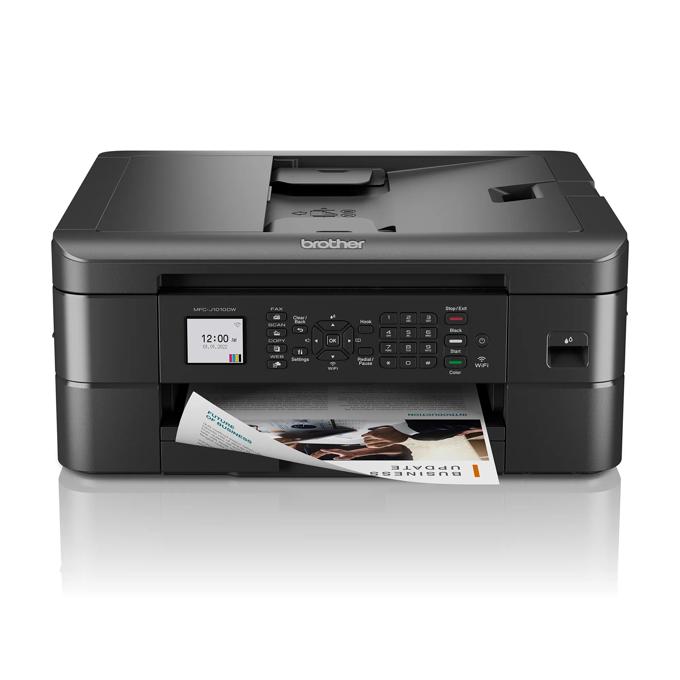
If your Brother MFC-J1010DW is not printing, scanning, or showing up on your wireless network, the fix is almost always downloading the current full driver package from Brother’s support site and reinstalling it, rather than relying on whatever driver Windows Update installed automatically.
| Field | Detail |
|---|---|
| Applies To | Brother MFC-J1010DW wireless inkjet all-in-one printer |
| Publisher | Brother Industries, Ltd. |
| Driver/Software Date | Latest maintenance build for supported Windows versions |
| Version | Full Driver & Software Package (varies by OS build) |
| File Size | Approximately 60–90 MB |
| Requirements | Windows 10 or Windows 11, 2.4GHz Wi-Fi or USB connection |
Downloading the Right Package
Go to the Brother support page for the MFC-J1010DW and choose Full Driver & Software Package rather than a driver-only download. This bundle includes the printer driver, the scanner driver, and the Brother iPrint&Scan utility, all of which need to match for print and scan functions to both work correctly.
- Confirm your exact Windows edition and whether it is 64-bit before downloading.
- Choose the wireless setup option during installation if the printer is already connected to your Wi-Fi.
- Have your Wi-Fi network name and password ready in case the installer needs to reconfigure the connection.
Fixing Wireless Connection Drops
The J1010DW only supports 2.4GHz Wi-Fi, not 5GHz, which is one of the most common reasons it silently disappears from a network after a router replacement or firmware update. Confirm your router still broadcasts a 2.4GHz band with the same or a very similar name to what the printer was originally configured with.
I helped set one of these up for a small home office where the printer kept dropping off the network every few days. It turned out the router had automatically merged its 2.4GHz and 5GHz bands into a single network name, which the printer’s older Wi-Fi radio could not handle reliably — splitting the bands back into separate names fixed the dropouts completely.
Per Anna P., who is an Office Manager at a small dental practice, “once we split our router’s bands and reinstalled Brother’s full driver package, the J1010DW stopped disappearing from the network every other day.”
Manual Install as a Fallback
- Uninstall the current Brother printer and scanner drivers from Settings > Apps.
- Open Device Manager and remove any leftover Brother entries under Printers or Imaging Devices.
- Reboot the PC, then reinstall using the freshly downloaded Full Driver & Software Package.
- If the wireless setup step fails, connect via USB once to complete the install, then switch to Wi-Fi afterward from the printer’s network settings menu.
See Microsoft’s guide to fixing printer connection problems in Windows if the printer still does not appear as a valid device after reinstalling Brother’s driver.
Frequently Asked Questions
Why does my MFC-J1010DW keep disconnecting from Wi-Fi?
This model only supports 2.4GHz Wi-Fi; if your router combines both bands under one network name, the printer connection can become unstable.
Do I need separate print and scan drivers?
No, download the Full Driver & Software Package, which installs both together along with the iPrint&Scan utility.
Can I set up the printer with just a USB cable?
Yes, USB works as a fallback if wireless setup fails, and you can switch to Wi-Fi afterward through the printer’s own menu.
Is the MFC-J1010DW compatible with Windows 11?
Yes, Brother maintains an updated driver package for Windows 11 on its official support site.
Conclusion
Most MFC-J1010DW problems come from a stale driver or a router configuration the printer’s 2.4GHz-only radio cannot handle. Reinstall the Full Driver & Software Package and check your router’s band settings, and the printer should stay reliably connected.
Ryan
Computer Science grad · long-time hands-on troubleshooter