To get the Canon CanoScan LiDE 300 working on Windows, download the CanoScan LiDE 300 driver and IJ Scan Utility from Canon’s official support page and install it before you plug the scanner in for the first time — doing it in that order avoids most of the detection problems people run into with this model.
Follow each step in order until the scanner is detected correctly.
| Field | Detail |
|---|---|
| Applies To | Canon CanoScan LiDE 300 flatbed scanner |
| Publisher | Canon Inc. |
| Driver/Software Date | Current maintenance release for supported Windows versions |
| Version | ScanGear/IJ Scan Utility driver package (varies by OS build) |
| File Size | Approximately 40–70 MB |
| Requirements | Windows 10 or Windows 11, USB port (no separate power adapter needed) |
Download the driver before connecting the scanner (most common fix)
Visit Canon’s official support page for the LiDE 300, select your Windows version, and download the full driver plus IJ Scan Utility package. Installing the software first lets Windows bind the correct Canon driver the moment the scanner is plugged in, instead of falling back to a generic driver.
Connect directly to a USB port on the PC
The LiDE 300 is USB-powered with no separate power brick, so it needs a stable USB connection to spin up the scan head motor. Plug it straight into a rear USB port on a desktop, or a native port on a laptop, rather than through an unpowered hub or a docking station.

Using the Four EZ Buttons
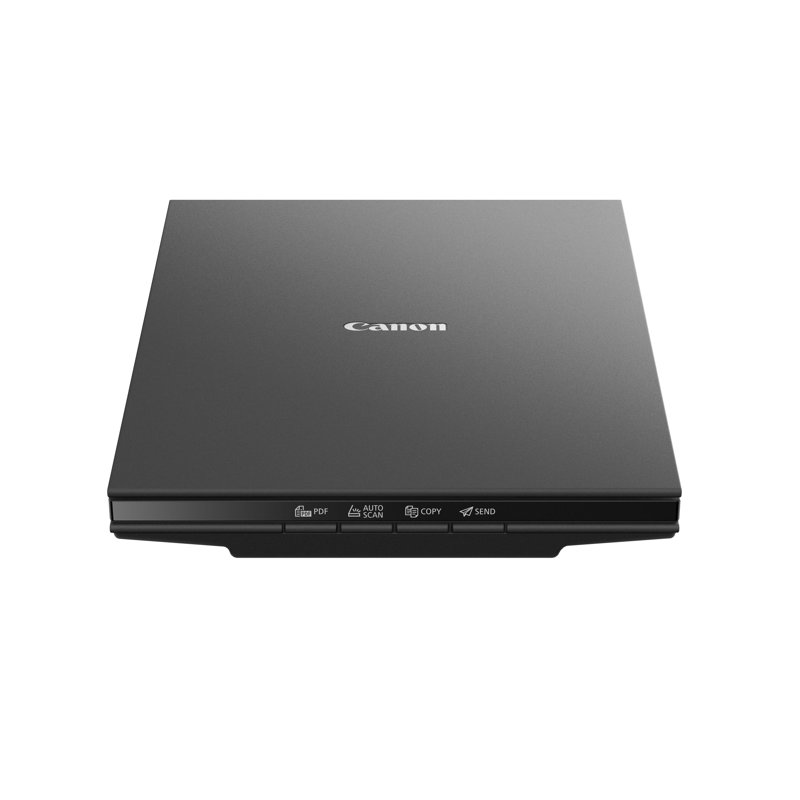
One of the LiDE 300’s standout features is the row of physical buttons on the front edge — PDF, Auto Scan, Copy, and Send. These only work once the IJ Scan Utility background service is running, so if pressing a button does nothing, check that the utility launched at startup.
- PDF button — scans directly to a searchable or image-only PDF file.
- Auto Scan button — automatically detects document type and saves in the most sensible format.
- Copy button — scans and sends the page straight to your default printer.
- Send button — scans and attaches the result to an email or a chosen application.
Fix a scanner that is detected but produces no image
If Device Manager shows the scanner with no warning icon but IJ Scan Utility cannot capture an image, reinstall ScanGear specifically, since Windows sometimes keeps the base USB driver but drops the imaging component during a Windows Update.
Manual install through Device Manager as a fallback
If the full installer refuses to run, extract the driver package, open Device Manager, right-click the unrecognized scanner entry, choose Update Driver, then Browse My Computer and select the extracted folder directly.

I set one of these up for a small home office that wanted to digitize years of paper invoices, and the biggest time-saver was going straight to the Auto Scan button once the driver was installed — it saved every batch as a clean PDF without any manual settings, which made the whole filing project go much faster than expected.
Per David K., who is an Office Administrator at a small accounting firm, “the LiDE 300 is small enough to store flat in a drawer, and once the Canon driver is installed properly the EZ buttons make daily scanning almost effortless.”
Frequently Asked Questions
Does the CanoScan LiDE 300 need a power adapter?
No, it is fully USB-powered, so it only needs a single USB cable connected to a port that can supply consistent power.
Why do the EZ buttons on the scanner not respond?
The buttons require the IJ Scan Utility background process to be running; check your system tray to confirm it launched, or restart it manually.
Is the LiDE 300 compatible with Windows 11?
Yes, Canon provides an updated driver and IJ Scan Utility package for Windows 11 on its official support site.
Can I scan directly to a searchable PDF?
Yes, the PDF button and IJ Scan Utility both support OCR-based searchable PDF output when that option is enabled in the scan settings.
Conclusion
Most LiDE 300 issues trace back to installing the driver after connecting the scanner, or a Windows Update quietly dropping the ScanGear imaging component. Install the driver first, connect directly to a stable USB port, and the four EZ buttons should work reliably for everyday scanning.
Ryan T.
PC hardware enthusiast · 15+ years fixing drivers