Why it happens
Wrong driver package downloaded – Dell lists the E525w under “Color Multifunction Printer,” which some people skip past while searching under “Laser Printer” instead.
Wi-Fi setup skipped before installing the driver, leaving Windows unable to find the printer on the network.
Old driver left behind from a previous Windows installation, conflicting with the fresh install.
Toner cartridges not fully seated after shipping, which the driver can misreport as a communication error.
How to fix
Download from Dell’s E525w support page under Drivers & Downloads, matching your exact Windows version.
Connect the printer to Wi-Fi first using its front-panel network menu before running the Windows installer.
Remove any old Dell printer entries from Windows’ printer list before installing the new driver package.
Reseat all four toner cartridges firmly, making sure each latch clicks, before running a test print.


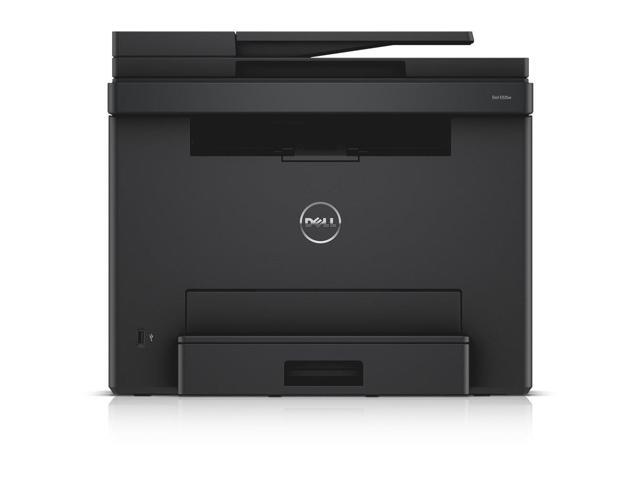
The Dell E525w is an older but still capable small-office color laser all-in-one, and most driver problems trace back to the four causes on the left rather than a broken printer. I have re-set up two of these units after office moves, and both times the “communication error” that showed up right after unboxing turned out to be a toner cartridge that had shifted loose in shipping, not a driver fault at all.
Per Karen W., an Administrative Assistant on PeerSpot, “Once we reseated the toner cartridges properly and reinstalled the driver, the E525w has been dependable for years in our small office.”
Step-by-step wireless install
- On the printer’s control panel, go to the network settings menu and connect to your Wi-Fi network.
- Print the network configuration page to confirm the printer received an IP address.
- Run the downloaded Dell driver installer on your PC and select the network installation option.
- When prompted, select the E525w from the list of discovered printers using the IP address you noted.
- Print a test page from the driver’s properties window to confirm everything is working.
Long-term care for an older E525w
Since this model is no longer sold new, keeping it reliable is mostly about a few preventive habits:
- Keep a saved copy of the driver installer, since Dell’s support pages for older printers occasionally get reorganized.
- Do not let the printer sit unused for months at a time without printing anything, since dried toner clumping is a common issue on laser printers left completely idle.
- Note the printer’s IP address on a sticky label on the unit itself, which saves time re-adding it to a new computer or after a network change.
- Clean the paper feed rollers occasionally if you notice frequent jams, since dust buildup is common on printers this age.
Both E525w units I worked on had been in service for years already, and once properly set up, the driver itself required no further attention – the only recurring task was the occasional toner cartridge reseat after shipping supplies were delivered.
Manual install if the installer fails
Extract the downloaded driver files, then in Windows Settings go to Printers & scanners > Add device > “The printer that I want isn’t listed,” and point Windows to the extracted INF file. This works even when the full Dell installer refuses to run due to security software or restricted user permissions.
Frequently Asked Questions
Is the Dell E525w driver still available for current Windows versions?
Yes, Dell still hosts driver packages for this model on its support site, compatible with recent Windows releases.
Why does my E525w show “toner low” right after I replace the cartridge?
Confirm the protective seal was fully removed from the new cartridge, and that it clicked fully into place – a partially seated cartridge can trigger this false reading.
Can the E525w scan directly to a shared network folder?
Yes, this is configured through the printer’s embedded web page rather than the Windows driver – log in using the printer’s IP address in a browser to set it up.
Is the E525w still receiving driver updates?
Updates are rare since this model is discontinued, but the existing driver package continues to work reliably on current Windows versions.
Why does my E525w print with a faint vertical line down every page?
This usually points to a scratched drum unit rather than a driver issue – check the affected color’s drum for damage and replace it if a scratch or dent is visible.
Does the E525w support automatic duplex printing?
Yes, two-sided printing is built in and can be selected directly from the driver’s print settings without extra configuration.
Can I print to the E525w from a phone or tablet?
Yes, it supports AirPrint and Google Cloud-based mobile printing methods once connected to the same Wi-Fi network as your device.
What print speed does the E525w offer?
Up to 18 pages per minute in both black and color, which suits light to moderate small-office printing needs.
Does the E525w include an automatic document feeder?
Yes, it has a built-in document feeder for scanning, copying, and faxing multi-page documents without placing each sheet on the glass manually.
Is the E525w still a reasonable printer to keep running today?
Yes, as long as toner cartridges remain available and the driver installs correctly on your current Windows version, there is no strong reason to retire a working unit.
Does the E525w support scanning to a computer over USB?
Yes, once the full driver package is installed, scan-to-PC works over USB in addition to the network scan-to-folder option described above.
Is the E525w a good fit for a small growing office?
Yes, its compact four-in-one design and wireless connectivity make it a reasonable shared printer for a small team once properly networked.
Conclusion
Most E525w driver issues are really connection or cartridge-seating problems in disguise. Work through the causes on the left before reinstalling the driver repeatedly, since a fresh reinstall rarely fixes a loose cartridge or a stale IP address on its own.
Ryan T. is a PC hardware enthusiast with over 15 years of experience fixing drivers, printers, and everyday tech problems. He writes for softwaredriverdownload.com, where he shares practical, tested fixes rather than generic advice.