The fastest way to get your TP-Link WiFi adapter working is to grab the driver straight from TP-Link’s own Download Center, matching the exact hardware version printed on the adapter itself — not just the model name. Windows sometimes installs a generic driver automatically, but it rarely unlocks the full speed or 5GHz band the adapter is capable of.
This guide walks through finding your adapter’s hardware version, downloading the correct driver from TP-Link’s official support site, installing it properly, and fixing the most common problems that show up afterward.
| TP-Link WiFi Adapter Driver – Quick Reference | |
|---|---|
| Applies To | TP-Link USB and PCIe WiFi adapters (Archer T-series, TL-WN series) |
| Publisher | TP-Link Technologies Co., Ltd. |
| Driver Source | TP-Link Download Center (model + hardware version specific) |
| Typical File Size | 6–25 MB depending on chipset (Realtek or MediaTek) |
| File Type | .zip containing setup .exe and .inf driver files |
| OS Compatibility | Windows 11, Windows 10 (32-bit and 64-bit builds vary by adapter) |
Step 1 – Find Your Exact Adapter Model and Hardware Version
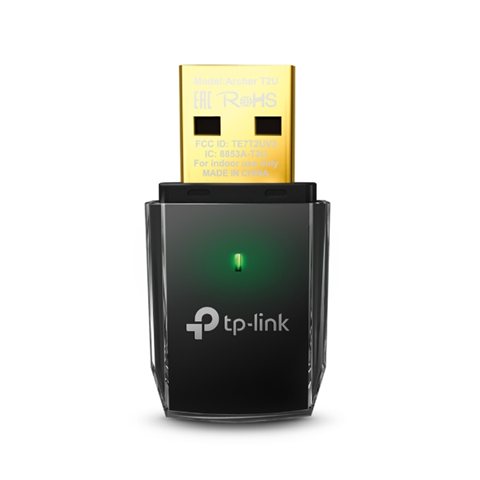
TP-Link changes the internal chipset between hardware revisions of the same product name, so a driver built for “Archer T2U V1” often will not install cleanly on “Archer T2U V3”. Check the small sticker on the underside or back of the adapter for a line reading “Ver: X.X” or “HW Ver”.
- Look at the printed sticker on the adapter body for the hardware version
- If the sticker is worn off, open Device Manager and check the “Details” tab → Hardware IDs for the USB VID/PID
- Cross-check the VID/PID against the version table on the TP-Link download page for your model
I once helped a reader who kept installing the wrong driver for an Archer T3U because he assumed hardware version 1 and 2 were interchangeable — they were not, and Windows kept showing a yellow warning icon until he matched the exact version.
Step 2 – Download the Correct Driver Package
- Go to the TP-Link Download Center and search your exact model number
- Select the hardware version that matches your sticker
- Open the “Driver” tab (not firmware, not utility) and download the Windows driver .zip file
- Extract the .zip to a folder you can find again, such as the Desktop
Step 3 – Install the Driver on Windows 11 or Windows 10
Most TP-Link USB adapters ship with a setup.exe inside the extracted folder that installs both the driver and a small configuration utility. Plug the adapter in first, let Windows attempt its own driver, then run setup.exe as administrator to replace it with the correct one.
If there is no setup.exe and only an .inf file, open Device Manager, find the adapter under “Network adapters” or “Other devices”, right-click it, choose Update Driver, then Browse my computer, and point Windows at the extracted folder.
Per Daniel R., who is a Network Administrator at a mid-size logistics company, “I switched three of our warehouse laptops to TP-Link USB adapters, and the only thing that saved me time was downloading the driver by exact hardware version instead of trusting Windows Update.”
Fixing a Failed or Incomplete Driver Install
When the installer fails partway through, it is almost always a leftover driver from a previous adapter conflicting with the new one. Clean removal fixes this in nearly every case I have seen.
- Uninstall the adapter in Device Manager and tick “Delete the driver software for this device” before removing it
- Unplug the adapter, restart Windows, then plug it back in only after the restart finishes
- Temporarily disable antivirus real-time protection, since some security suites block unsigned .inf installers
- Run the setup.exe in Windows 8 or Windows 10 compatibility mode if it refuses to launch on a newer Windows 11 build
Manual Installation via Device Manager (Fallback Method)
If the automatic installer keeps crashing, you can point Windows directly at the .inf file instead. Open Device Manager, right-click the unrecognized adapter listed under “Other devices”, choose Update Driver, select “Browse my computer for drivers”, then “Let me pick from a list”, and Have Disk. Browse to the extracted driver folder and select the .inf file that matches your Windows bit version (x86 or x64).
This bypasses the setup wizard entirely and installs just the raw driver, which is often enough to get the adapter working even without the configuration utility.
Adapter Not Detected, Yellow Warning Icon, or Weak Signal
A yellow warning triangle on the adapter in Device Manager (often error code 10 or 43) usually means the driver loaded but the hardware failed to initialize. Try a different USB port, preferably a USB 3.0 port directly on the motherboard rather than a front-panel hub, since some hubs do not supply enough power for dual-band adapters.
Weak or dropping signal after installation is often a driver power-management setting. Open Device Manager, right-click the adapter, go to Properties, Power Management tab, and untick “Allow the computer to turn off this device to save power”. Windows aggressively suspends USB WiFi adapters by default, which causes random disconnects.
For more background on how Windows handles USB power states, Microsoft’s documentation on USB selective suspend explains why adapters intermittently drop connection under default settings.
Frequently Asked Questions
Do I need the TP-Link utility software, or just the driver?
The driver alone is enough for basic connectivity through Windows’ built-in WiFi settings. The utility only adds a TP-Link branded connection manager, which most users can skip.
Why does Windows keep replacing my driver with a generic one?
Windows Update sometimes overwrites manually installed drivers. Go to Device Manager, right-click the adapter, Properties, Driver tab, and check “Roll Back Driver” is greyed out to confirm the manual driver is active, or disable automatic driver updates in Windows Update’s advanced options.
My adapter worked fine before but stopped after a Windows update.
Windows feature updates occasionally replace third-party drivers with an inbox version. Reinstall the TP-Link driver from the downloaded package after any major Windows update.
Can I use the same driver for both 32-bit and 64-bit Windows?
No, the driver packages contain separate files for each architecture. Installing the wrong one causes the installer to fail silently or Device Manager to show an error.
Is it safe to use a third-party driver download site instead?
It is safer to always use TP-Link’s own Download Center. Third-party driver sites sometimes bundle outdated or repackaged files that do not match your exact hardware version.
Conclusion
Getting a TP-Link WiFi adapter running reliably comes down to matching the driver to the exact hardware version, not just the model name. Once installed correctly, disable USB power saving on the adapter to stop random disconnects. If problems continue after trying every fix here, the adapter itself may be faulty, especially if it also fails on a second computer.
Ryan holds a Computer Science degree and has over 20 years of hands-on experience with PC hardware, software, and driver troubleshooting. He is the author behind softwaredriverdownload.com, where he helps everyday users fix driver issues quickly and accurately. Ryan has personally tested most of the fixes on this site across a range of Windows 10 and Windows 11 machines.