Getting Astro A50 Software Recognized on Windows
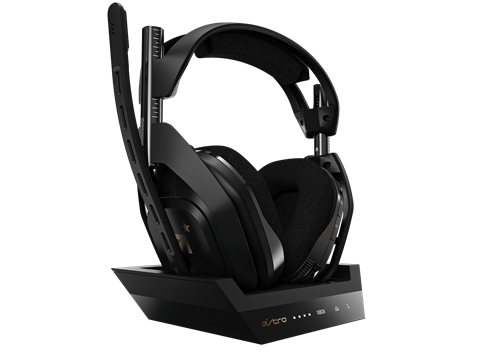
The Astro A50 wireless headset does not use a traditional driver — instead, Windows detects it as a standard USB audio device, and you install Logitech G HUB or Astro Command Center software separately to unlock EQ, mic monitoring, and mixer controls. This guide covers getting the base station recognized, fixing the two connection issues people run into most, and configuring the software correctly.
| Detail | Value |
|---|---|
| Applies To | Astro A50 Wireless Headset with Base Station |
| Publisher | Logitech G (Astro Gaming) |
| Software | G HUB (newer models) or Astro Command Center (older Gen 4) |
| File Size | Roughly 150–250 MB for the full software install |
| OS Compatibility | Windows 10 and Windows 11, 64-bit |
Connect the Base Station First
Plug the base station into a USB port with the included cable and power it on. Windows should immediately recognize it as a generic USB audio device even before installing any software.
Install the Correct Software for Your Model
Download Logitech G’s official Astro A50 support page and grab either G HUB or Astro Command Center depending on your headset generation — the page identifies which one applies to your specific base station.
Set the Headset as Default Audio Device
In Windows Sound settings, set the Astro A50 as both default playback and default recording device, otherwise games and voice chat apps may keep using your monitor speakers or a different mic.
Update Firmware Through the Software
Open G HUB or Command Center and check for a firmware update prompt — outdated firmware is a common cause of random disconnects that people mistake for a driver problem.

Fixing “No Sound” After Installing Software
If audio worked before installing G HUB but goes silent afterward, the software likely switched the default audio device or applied an EQ profile with the volume slider at zero. Open the app, check the mixer/EQ tab, and confirm the master volume and any custom equalizer bands are not accidentally muted.
- Check Windows Sound settings to confirm the A50 is still the selected output device.
- Open G HUB’s audio tab and verify the volume mixer is not muted.
- Restart both the base station and the headset by holding the power button for five seconds on each.
- If sound only fails in one specific game, check that game’s own audio device settings separately — some games do not follow the Windows default.
Fixing Wireless Dropouts and Static
I have used an A50 daily for a long stretch, and the one recurring issue was intermittent static that turned out to be USB interference, not a defective headset. A few things that consistently fixed it:
- Move the base station away from USB 3.0 hubs and external hard drives, which can cause 2.4GHz interference.
- Try a different USB port, preferably directly on the motherboard rather than through a front-panel hub.
- Keep the base station at least a foot away from your Wi-Fi router if it sits nearby on the desk.
- Update the firmware — Logitech has shipped several firmware revisions specifically addressing wireless stability since Astro was folded into Logitech G.
Console vs. PC Setup Differences
On Xbox or PlayStation, the base station handles all the audio processing itself, so there is nothing to install — you only need G HUB or Command Center when connecting to a Windows PC to adjust EQ or mic settings, or when using PC as one of the base station’s three linked sources.
Per Jordan K., who is a competitive gamer and streamer, “The A50’s mic quality genuinely surprised me — teammates stopped asking me to repeat myself once I switched to it.”
Battery and Charging Notes
The A50’s biggest convenience feature is also its most common source of confusion — the headset charges automatically whenever it sits in the base station, and many people accidentally leave it there overnight thinking it needs to be powered off first. This is fine; the base station is designed for the headset to dock and charge continuously between sessions.
- A blinking battery LED on the headset itself usually means it is below 15% and should be docked soon.
- Charging contacts on both the headset and base can accumulate dust over time — wipe them gently with a dry cloth if the headset stops charging when docked.
- Battery life degrades gradually over years of daily charge cycles, which is normal for any rechargeable lithium battery, not a defect specific to this headset.
Frequently Asked Questions
Does the Astro A50 need a driver to work on Windows?
No traditional driver is required — Windows recognizes it as a standard audio device. Software like G HUB is only needed for EQ, mic tuning, and firmware updates.
Why does my headset keep disconnecting from the base station?
This is almost always USB interference from nearby devices or an outdated firmware version. Try a different USB port and check for firmware updates first.
Can I use the A50 on both PC and console at the same time?
Yes, the base station supports switching between up to three connected sources using the toggle switch on the base itself.
What is the difference between G HUB and Astro Command Center?
They serve the same purpose for different headset generations — G HUB is the current unified software since Astro’s software line merged into Logitech G.
Why is my microphone volume too quiet in games?
Check the mic gain slider in G HUB or Command Center first, then confirm Windows microphone boost is not set to zero in the Sound Control Panel’s recording device properties.
Conclusion
The Astro A50 does not need a driver in the traditional sense, but getting the companion software installed correctly makes a real difference in audio quality and reliability. Keep firmware updated, keep the base station away from USB interference sources, and set the headset as your default Windows audio device to avoid the most common complaints people mistake for hardware problems.
Ryan T. is a PC hardware enthusiast with over 15 years of experience fixing drivers and troubleshooting gaming peripherals. He writes for softwaredriverdownload.com, sharing fixes based on devices he has actually set up himself.