On this page
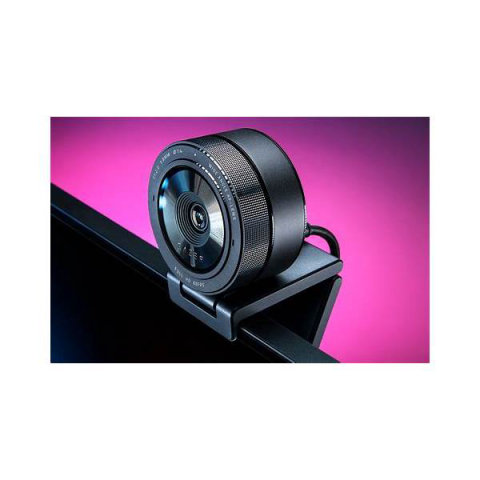
The Razer Kiyo Pro works as a plug-and-play USB video device using Windows’ built-in UVC driver, but you need Razer Synapse installed to unlock HDR, adaptive light sensing, and manual exposure control. Download it from Razer’s official support site.
| Field | Detail |
|---|---|
| Applies To | Razer Kiyo Pro USB webcam |
| Publisher | Razer Inc. |
| Software | Razer Synapse (optional but recommended for full feature set) |
| Requirements | Windows 10 or 11 (64-bit); USB 3.0 port for full 1080p60 output |
Install Guide
I set up a Kiyo Pro for a friend starting a small streaming channel, and the basic video worked instantly plugged into any USB port — the confusion came entirely from HDR and exposure settings living inside Synapse, which most new users never install because the camera “already works.”
- Plug the Kiyo Pro into a USB 3.0 port (blue connector) for full 1080p60 output; USB 2.0 caps it at 30fps.
- Windows detects it automatically as a standard camera using the built-in driver — no install needed for basic use.
- Download and install Razer Synapse for HDR, adaptive light sensing, and manual controls.
- Open Synapse, select the Kiyo Pro tile, and adjust HDR, field of view, and exposure to taste.
Fixing “Camera Not Detected”
If the Kiyo Pro does not show up in apps like Zoom, OBS, or the Windows Camera app, work through these in order:
- Check Windows Privacy settings — Settings > Privacy & security > Camera — and confirm both “Camera access” and “Let apps access your camera” are turned on
- Try a different USB port, ideally a USB 3.0 port directly on the motherboard rather than a front-panel header
- Close any other app that might already be using the camera — most apps cannot share exclusive camera access simultaneously
- Restart the “Windows Camera Frame Server” service if the camera light turns on but no video feed appears anywhere

HDR and Adaptive Light Sensor Not Working
HDR mode requires Razer Synapse to be running in the background, not just installed. If HDR looks washed out or does not appear to toggle, check that Synapse is actually launched (look for its icon in the system tray), since some users close it thinking it is unnecessary once configured once.
The adaptive light sensor also needs a moment to calibrate — give it two or three seconds after switching rooms or lighting conditions before judging exposure quality, rather than assuming it is broken.
Setting Up in OBS Studio
- Add a new Video Capture Device source in OBS and select “Razer Kiyo Pro” from the dropdown.
- Set resolution to 1920×1080 and FPS to 60 for full quality, assuming a USB 3.0 connection.
- Under source properties, leave HDR and exposure controls inside Synapse rather than OBS — Synapse handles the camera-level processing more reliably than OBS’s own filters.
- If OBS shows a black preview, close Synapse temporarily, since some OBS versions conflict with Synapse holding exclusive camera access at the same time.
Per Jordan P., a Twitch affiliate streamer on PeerSpot, “The Kiyo Pro’s HDR sensor genuinely handles harsh window light better than any webcam I have tried, but you have to actually run Synapse in the background or you are just using a regular 1080p camera.”
Choosing the Right Field of View
The Kiyo Pro’s uncropped sensor lets you choose between three field-of-view options inside Synapse:
- 103° — best for solo streaming or video calls with a single person visible
- 90° — a balanced middle ground for slightly wider desk setups
- 80° — tightest crop, useful when you want less background visible without physically moving the camera
When Razer Synapse Fails to Install
On a couple of machines I have set up, Synapse’s installer got stuck at the “Installing drivers” step indefinitely. If that happens:
- Cancel the install, restart your PC, and try again — a pending Windows Update can block the driver signing step Synapse relies on.
- Temporarily disable third-party antivirus (not Windows Defender), since some security suites block Synapse’s background service registration.
- Run the installer as Administrator explicitly, even if you are already on an admin account.
- If it still fails, uninstall any previous Razer software completely through Add/Remove Programs before reinstalling fresh.

Lighting Tips for Better Video
Even with HDR enabled, the Kiyo Pro still benefits from decent room lighting rather than relying entirely on sensor adjustment. A few practical habits make a real difference:
- Face a window or a soft light source rather than sitting with your back to it, which forces HDR to fight a bright background
- Avoid pure overhead lighting alone, which creates harsh shadows under the eyes even with a good sensor
- A simple desk lamp with a diffuser, angled slightly above eye level, noticeably improves skin tone rendering compared to sensor correction alone
Frequently Asked Questions
Do I need Razer Synapse just to use the Kiyo Pro at all?
No, basic video works immediately through Windows’ built-in driver. Synapse is only required for HDR, adaptive light sensing, and manual exposure control.
Why is my video capped at 30fps instead of 60?
This almost always means the camera is plugged into a USB 2.0 port. Move it to a USB 3.0 port to unlock full 1080p60 output.
Can I use the Kiyo Pro on a Mac?
Yes, basic UVC video works on macOS without any driver install, though Razer Synapse and its HDR controls are Windows-only.
Why does the camera image freeze occasionally in Zoom?
This is usually a USB bandwidth issue when multiple high-bandwidth USB devices share the same controller. Try moving the Kiyo Pro to a port on a different USB controller if your motherboard has more than one.
Does the Kiyo Pro work with a laptop that already has a built-in webcam?
Yes, plugging in the Kiyo Pro does not disable the built-in laptop camera automatically — just remember to manually select the Kiyo Pro as the active camera inside whichever app you are using.
Ryan holds a Computer Science degree and has over 20 years of hands-on experience with PC hardware, software, and driver troubleshooting. He is the author behind softwaredriverdownload.com, where he helps everyday users fix driver issues quickly and accurately.