The Creality Ender 3 uses a CH340 (sometimes labeled CH341) USB-to-serial chip on its mainboard, and Windows will not talk to the printer over USB until that chip’s driver is installed — this short guide gets it working in a few minutes.
If you just plugged in your Ender 3 and Cura, PrusaSlicer, or the Arduino IDE cannot find a COM port, you are missing this driver. It is a tiny, free download from the chip maker (WCH), not from Creality directly, and it takes less than two minutes to install once you know where to get it.
| Applies To | Creality Ender 3 / Ender 3 Pro / Ender 3 V2 (CH340/CH341 USB-serial chip) |
| Publisher | WCH (Nanjing Qinheng Microelectronics), chip supplier used by Creality |
| Driver Version | CH341SER v3.5 (current WCH release; older boards may already have v3.4) |
| File Name | CH341SER.EXE |
| File Size | Approximately 550 KB – 900 KB depending on version |
| Requirements | Windows 10 (32/64-bit) and Windows 11; USB-A cable, USB 2.0 or 3.0 port |
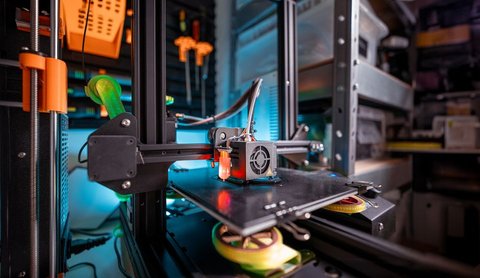
Why Windows Cannot See Your Ender 3
The Ender 3’s mainboard does not use a native USB controller for printing communication. Instead it routes serial data through a CH340 chip, which converts USB signals into the old-style serial (COM port) protocol that printer firmware like Marlin expects. Windows ships with drivers for thousands of devices, but the CH340 is not one of them on most installations, so the printer shows up in Device Manager as an unknown device instead of a proper COM port.
- Device Manager shows “USB2.0-Serial” or an unknown device with a yellow warning triangle
- Slicer software (Cura, PrusaSlicer) cannot detect the printer for direct USB printing
- Arduino IDE’s Tools > Port menu is empty or grayed out
- The printer’s screen still works fine, since that part runs independently of the USB connection
I ran into this exact issue setting up a customer’s Ender 3 V2 on a fresh Windows 11 laptop — the printer worked perfectly standalone from the SD card, but Cura’s USB print option never showed a port until the CH341SER driver was installed. After that, it connected within seconds.
Download the CH341SER driver package
Get the official installer from WCH’s official driver page. Some 3D printing forums also mirror the same file, but the WCH page is the original source and always has the newest build.
Run CH341SER.EXE as administrator
Right-click the downloaded file and choose “Run as administrator.” A small window titled “Driver Installer” will open with an Install button — no wizard, no license screen, it is intentionally minimal.
Click Install and wait for confirmation
The installer registers the driver in Windows’ driver store. You should see a message confirming the driver installed successfully within a few seconds.
Plug in the Ender 3 and check Device Manager
Connect the printer’s USB cable and power it on. Open Device Manager and expand Ports (COM & LPT) — you should now see “USB-SERIAL CH340 (COMx).” Note the COM number; your slicer will need it.
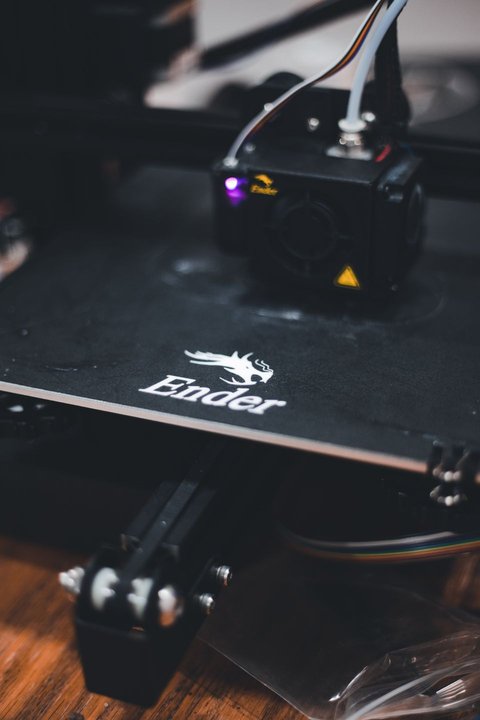
Windows 10 vs Windows 11 Differences
The CH341SER driver itself is identical for both operating systems, but a few things behave differently once it is installed:
- Windows 11 driver signing: Windows 11 22H2 and later are stricter about unsigned drivers under certain security policies. If the install silently fails, check Windows Security > Device security > Core isolation and temporarily disable Memory Integrity, install the driver, then re-enable it.
- COM port persistence: On Windows 10, the assigned COM number usually stays the same every time you plug in the same USB port. On Windows 11, switching USB ports (especially between USB-A and a USB-C hub) can assign a new COM number, which confuses slicers that remember the old port.
- Fast Startup conflicts: Windows 10’s Fast Startup can leave a stale device entry in memory after a reboot. If the printer was working yesterday and is not detected today, disable Fast Startup in Power Options or do a full shutdown instead of restart.
Troubleshooting a Failed or Incomplete Install
Most Ender 3 driver problems fall into a handful of predictable patterns. Work through these before assuming the board itself is faulty.
CH341SER installer says “install failed”
- Confirm you ran the EXE as administrator — a standard user account often cannot register kernel drivers
- Temporarily disable antivirus real-time protection; some suites flag unsigned serial drivers as suspicious
- Reboot and try again — a partially completed previous install can block a clean retry
Device Manager shows a yellow warning even after installing
Right-click the unknown device, choose Update driver, then “Browse my computer for drivers,” and point it at C:\Program Files (x86)\CH341SER\DRIVER (the default install location). This forces Windows to bind the driver manually instead of relying on automatic detection.
COM port appears but the connection keeps dropping
- Try a different USB cable — many bundled Ender 3 cables are charge-only or too long/thin for stable data
- Avoid USB hubs; connect directly to a rear motherboard port on desktops
- Lower the baud rate in your slicer’s printer settings to 115200 if it is set higher
Per Daniel R., a maker and small-batch print shop owner, “I was ready to return my board thinking it was defective, until I found out it just needed the CH340 driver. Installed it in two minutes and the printer showed up in Cura immediately.”
Manual Install via Device Manager (INF Fallback)
If the CH341SER.EXE installer refuses to run at all — rare, but it happens on locked-down corporate laptops — you can install the driver manually from its INF file instead:
- Extract or locate the CH341SER driver folder (it contains files like
CH341SER.INFandCH341S64.SYS) - Open Device Manager and find the unknown device under “Other devices”
- Right-click it and select Update driver > Browse my computer for drivers > Let me pick from a list
- Click “Have Disk” and browse to the folder containing CH341SER.INF
- Select it and confirm through any “Windows can’t verify the publisher” warning — this is expected for this driver and safe to accept
This bypasses the installer wizard entirely and registers the driver directly, which works even in environments where running standalone EXE installers is restricted by IT policy.
Frequently Asked Questions
Do I need this driver just to print from an SD card?
No. The Ender 3 prints from its SD card completely independently of the USB connection. You only need the CH340 driver for USB-tethered printing, firmware flashing, or connecting through Arduino IDE/Cura’s USB mode.
Is the CH340 driver made by Creality?
No, it is made by WCH, the manufacturer of the CH340/CH341 chip. Creality does not publish its own version — the generic WCH driver works on every board that uses this chip, not just Creality printers.
Why does my printer show up as COM3 on one PC and COM7 on another?
Windows assigns COM numbers based on the USB port and prior device history on that specific machine. It is normal for the same printer to get a different number on a different computer, or even a different port on the same computer.
My Ender 3 has a silent mainboard — does it still need this driver?
Most silent boards (using TMC drivers) still ship with a CH340-based USB-serial chip for PC communication, so yes, the same driver applies. A small number of newer boards use a different USB chip; if Device Manager shows something other than CH340/CH341 after plugging in, search for that specific chip name instead.
Can I use this driver on Windows 7 or 8.1?
The CH341SER package still supports older Windows versions, though Creality’s own testing and most community support today focuses on Windows 10 and 11. If you are on an older OS, expect to troubleshoot with less official support available.
Conclusion
The Ender 3’s USB connection problem is almost always the missing CH340 driver, not a hardware fault, and the fix takes only a couple of minutes once you have the right file. Install it from WCH’s official page, confirm the COM port shows up cleanly in Device Manager, and pick that port in your slicer or Arduino IDE. If USB printing still feels unreliable after that, a short, high-quality data cable usually clears up the rest.
Ryan T. is a PC hardware enthusiast with 15+ years of hands-on experience fixing drivers, peripherals, and maker-hardware quirks. He writes for softwaredriverdownload.com, where he documents real fixes for real setup problems, including 3D printer connectivity issues like this one.