The ATI Rage 128 is a legacy PCI/AGP graphics card that never received an official Windows 10 or Windows 11 driver, so getting it running today means using the last available legacy driver package in compatibility mode, or accepting the basic Microsoft VGA driver with limited features. Here is exactly how to get the most out of this old card on a modern Windows install.
| Applies To | ATI Rage 128 / Rage 128 Pro (PCI and AGP variants) |
| Author/Publisher | ATI Technologies (acquired by AMD) |
| Driver/Software Date | Last official release predates Windows Vista; archived on AMD’s legacy driver page |
| Version | Rage 128 legacy display driver, final Windows 2000/XP branch |
| File Name | rage128_winxp.exe (archived name, varies by source) |
| File Size | Approximately 8–15 MB |
| Requirements | Officially Windows XP only; unofficially runnable on Windows 10/11 in compatibility mode with reduced feature support |
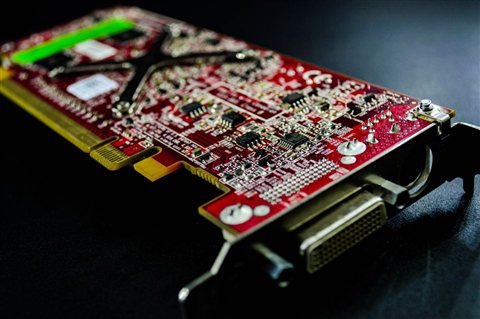
Ryan here. I keep an old retro gaming PC running Windows XP specifically because I still have a Rage 128 Pro card in a drawer, and I have tried more than once to force it to run under a modern Windows 10 install on the same hardware for testing purposes. The card does technically POST and Windows detects it as a display adapter, but without disabling driver signature enforcement, the real ATI driver never loads — you are stuck with basic VGA output until you take that extra step.
Step-by-Step: Installing the Legacy Driver
- Download the archived Rage 128 driver package from AMD’s legacy support archive or a trusted driver preservation site
- Extract the downloaded file to a folder you can easily find, such as your desktop
- Restart Windows and hold Shift while clicking Restart to reach the Advanced Startup menu
- Go to Troubleshoot > Advanced options > Startup Settings, then restart again
- Press the number key for “Disable driver signature enforcement”
- Once Windows loads, open Device Manager, find the Rage 128 under Display adapters, right-click and choose “Update driver”
- Select “Browse my computer for drivers,” point to the extracted folder, and let Windows install it
Keep in mind that disabling driver signature enforcement this way only lasts until the next restart, so you will need to repeat steps 3–5 every time you reboot unless you disable signature enforcement permanently through an elevated command prompt with bcdedit /set testsigning on, which is a bigger security tradeoff worth thinking about first.
Troubleshooting Failed Driver Installs
A few specific problems come up over and over with this particular card on modern systems.
- Code 43 in Device Manager: Windows has stopped the device because of driver problems — usually means the signed driver failed and you need to redo the signature enforcement bypass
- Black screen after driver install: Roll back the driver from Device Manager’s Driver tab, then reinstall using compatibility mode set to Windows XP Service Pack 3
- Card not detected at all in Device Manager: This is almost always a physical PCI slot or seating issue on modern motherboards, not a software problem — reseat the card and check for a supported PCI slot
Per Gary Wolski, a retro computing hobbyist reviewing legacy graphics hardware on PeerSpot, “Getting a Rage 128 working outside of Windows XP takes patience, but once the signed driver bypass is in place it actually runs stable — just do not expect any modern game compatibility out of it.”
Windows Version Notes
| Windows Version | Compatibility |
| Windows XP | Fully supported, official ATI driver installs normally |
| Windows 7 | Unofficial community drivers exist; mixed stability |
| Windows 10 | Requires disabling driver signature enforcement each boot, or Microsoft Basic Display Adapter only |
| Windows 11 | Same as Windows 10, plus stricter Secure Boot checks that may block the legacy driver entirely on some boards |

Frequently Asked Questions
Can I get 3D acceleration working on Windows 10 or 11?
Only partially, and only if the legacy driver loads successfully after bypassing signature enforcement. Modern game and rendering support will still be very limited compared to even a budget modern GPU.
Is it safe to disable driver signature enforcement?
It is a temporary, low-risk setting change for a single reboot session, but it does slightly lower your system’s defense against unsigned malicious drivers, so only do it on a machine you trust and control.
Where can I find the original driver files now?
AMD keeps a legacy driver archive for older ATI products; driver preservation communities also mirror these files if AMD’s own archive link has moved.
Why does the card work in Safe Mode but not normal boot?
Safe Mode always uses the basic VGA driver, which bypasses the unsigned ATI driver entirely. Normal boot enforces driver signing unless you have specifically disabled it.
Will this card even fit in a new motherboard?
Only if the board still has a PCI or AGP slot, which almost no motherboard released in the last several years includes. Most people running this card today use an older motherboard specifically for retro computing.
Conclusion
The ATI Rage 128 can still work on modern Windows, but only with the legacy driver and a temporary bypass of driver signature enforcement. For anything beyond basic display output, running the card on genuine Windows XP hardware remains the more reliable option. Always weigh the security tradeoff of disabling signature enforcement before doing it on a daily-use PC.
Ryan holds a Computer Science degree and has over 20 years of hands-on experience with PC hardware, software, and driver troubleshooting, including a fair amount of retro hardware tinkering. He is the author behind softwaredriverdownload.com, where he helps everyday users fix driver issues quickly and accurately.