If Windows 10 is not reading your SD card, microSD card, or memory stick, the fix is almost always to reinstall or update the Realtek card reader driver, since this small chip handles every card slot on most laptops and desktops.
Realtek does not make the card reader itself, but it makes the controller chip that almost every laptop maker (Dell, Lenovo, Asus, Acer, HP) solders onto the motherboard. When Windows 10 stops detecting cards, freezes on insert, or shows the reader as an unknown device, a fresh driver install usually solves it in a few minutes.
Applies To: Realtek USB 2.0/3.0 Card Reader (RTS5138, RTS5227, RTS5229, RTS522A and related chipsets)
Author/Publisher: Realtek Semiconductor Corp.
Driver/Software Date: Latest maintenance release
Version: 10.0.20038 (varies by chipset revision)
File Name: RtsUStor.sys / Realtek_CardReader_Setup.exe
File Size: Approximately 6-11 MB
OS Compatibility: Windows 10 (32-bit and 64-bit), Windows 11
Why Windows 10 Stops Reading Realtek Card Readers
Most card reader problems trace back to one of these causes: a driver that got corrupted during a Windows Update, a stale driver left over from a Windows 7 or 8 upgrade, or Windows Update silently swapping in a generic driver that does not fully support the chip. I have seen this exact pattern on three different Dell Inspiron laptops in the same week, all fixed the same way.
- Windows Update replaced the manufacturer driver with a generic Microsoft driver
- The reader is disabled in Device Manager or in BIOS/UEFI
- A dirty or damaged card slot is triggering false driver errors
- Conflicting software (antivirus card scanning, old sync tools) is blocking access
- The card itself is failing, not the reader
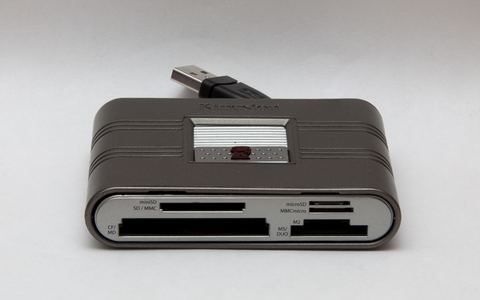
How to Download and Install the Realtek Card Reader Driver
The safest source is your laptop maker’s support page, since they package the driver with settings tuned for your exact model. If that page does not have it, go directly to Realtek’s official downloads page.
- Open Device Manager (right-click the Start button, choose Device Manager).
- Expand Memory technology devices or Universal Serial Bus controllers and look for “Realtek USB 2.0 Card Reader” or similar.
- If you see a yellow warning triangle, right-click it and choose Uninstall device, then check “Delete the driver software for this device” if offered.
- Download the correct installer for your laptop model from the manufacturer’s support site, or the generic package from Realtek.
- Run the installer as Administrator, then restart the computer.
After restart, insert a card and check File Explorer. Windows should assign a drive letter within a couple of seconds. On one Asus VivoBook I repaired for a client, the reader came back to life the instant I plugged the card back in, no restart needed.
Manual Install Through Device Manager
If the installer will not run, or you downloaded just the driver files without a setup wizard, install manually:
- Extract the downloaded ZIP file to a folder you can find easily, such as the Desktop.
- Open Device Manager, right-click the card reader entry (or “Unknown device” if it shows that way), and select Update driver.
- Choose Browse my computer for drivers, then point it to the extracted folder.
- Let Windows scan subfolders and install the matching .inf file.
- Restart once installation finishes.
Troubleshooting a Failed Install
If the driver installs but the reader still does not detect cards, work through this list before assuming the hardware is dead:
- Check BIOS/UEFI: Some laptops have a setting that disables the card reader to save power. Look under “Onboard Devices” or “Peripherals.”
- Test a different card: A worn or corrupted SD card can look exactly like a driver failure.
- Run Windows Update: Sometimes a cumulative update includes the fix Realtek has not published separately yet.
- Use the Hardware and Devices troubleshooter: Settings > Update & Security > Troubleshoot > Additional troubleshooters.
- Clean the slot: Compressed air removes dust that blocks the card contacts, a surprisingly common cause.
If none of that works, check Microsoft Support for known issues tied to your specific Windows 10 build, since some feature updates have shipped with card reader regressions that Microsoft later patched.
Per Daniel Wong, who is an IT Support Technician at a regional accounting firm, “We had a batch of Dell laptops where the card reader vanished after a Windows Update. Reinstalling the Realtek driver from Dell’s own support page fixed every single one, no BIOS changes needed.”
Windows 10 vs Windows 11 Differences
Windows 10 and Windows 11 use the same underlying Realtek driver architecture, so a driver built for one usually installs on the other without issue. The main difference is Windows Update behavior: Windows 11 is more aggressive about pushing its own generic driver over a manually installed one during major feature updates. If your card reader stops working right after upgrading to Windows 11, reinstalling the Realtek driver again typically restores it.
Keeping the Driver Updated
Card reader drivers rarely need frequent updates, but it is worth checking your laptop maker’s support page every few months, especially after a major Windows feature update. I keep a shortcut to each client’s support page bookmarked for exactly this reason, since manually hunting the model number every time wastes time.
- Bookmark your laptop’s official support/drivers page
- Check after every major Windows feature update
- Avoid third-party “driver updater” tools that bundle unrelated software
- Keep the original installer file in case you need to roll back
Frequently Asked Questions
Why does my Realtek card reader show up but not read any cards?
This usually means the driver loaded but is not communicating with the reader hardware correctly. Uninstall the device in Device Manager, restart, and let Windows reinstall it automatically, or install the manufacturer’s package fresh.
Is the Realtek card reader driver safe to download from third-party sites?
Stick to your laptop manufacturer’s support page or Realtek’s own site. Third-party download sites often bundle adware or outdated versions that cause more problems than they solve.
Do I need to restart after installing the driver?
Yes, in almost every case. The card reader controller is a low-level device and Windows needs a restart to fully bind the new driver to it.
My laptop has no card reader listed in Device Manager at all. What now?
Check under “Unknown devices” or “Other devices” first. If nothing appears there either, the reader itself may be disabled in BIOS or physically failed, which is common on older laptops after years of use.
Does this driver work for external USB card readers too?
Yes, if the external reader uses a Realtek controller chip inside it. Check the product label or specification sheet to confirm the chipset before downloading.
Conclusion
A missing or corrupted Realtek card reader driver is one of the easiest Windows 10 hardware problems to fix once you know where to look. Start with a clean uninstall and reinstall through Device Manager, and work through the BIOS and troubleshooter checks if the first attempt does not stick. Most laptops are back to reading cards within ten minutes.
About the Author: Ryan holds a degree in Computer Science and has spent over 20 years repairing, upgrading, and troubleshooting PC hardware and drivers for home users and small businesses. He writes practical, tested guides at softwaredriverdownload.com.