An external hard drive not recognized on Windows 10 usually means the drive is not getting enough power, the cable or port is bad, or the drive letter and partition are hidden from File Explorer even though Windows can see the hardware. Work through the checks below in order, from the fastest and most common fix down to the ones that only apply if the drive has a deeper problem.
I ran into a version of this with a Seagate 4TB portable drive that showed up in Device Manager but never appeared in File Explorer. Disk Management showed it as “Unallocated,” which meant Windows saw the hardware fine but the drive had no usable partition, not that the drive itself had failed. Assigning a new volume and formatting it brought it right back. That distinction, between a drive Windows cannot see at all and a drive Windows sees but cannot mount, is the key to fixing this quickly.
Common Causes
- Drive not getting enough power through the USB port, especially with USB hubs
- Damaged USB cable or a port that has stopped delivering data
- Missing drive letter or unallocated partition that Disk Management can fix
- Outdated or conflicting USB and storage controller drivers
- Drive formatted in a file system Windows does not read directly, like Linux ext4
- Drive itself failing mechanically or electronically after years of use
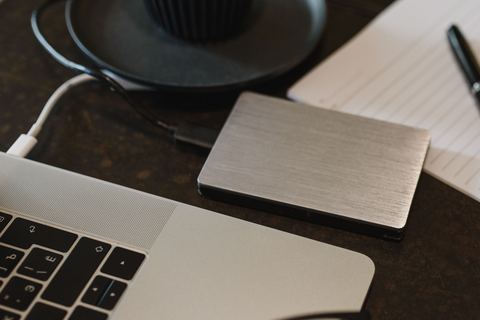
1Check Power and Connections First
Desktop-style external drives (the larger ones with their own power brick) need a wall outlet connection, not just USB power. Portable bus-powered drives pull power from the USB port itself, and a hub or a weak port can leave them underpowered.
- Plug the drive directly into a rear USB port on a desktop, not a front panel or a hub.
- If the drive has its own power adapter, confirm the light on the drive is on before checking Windows.
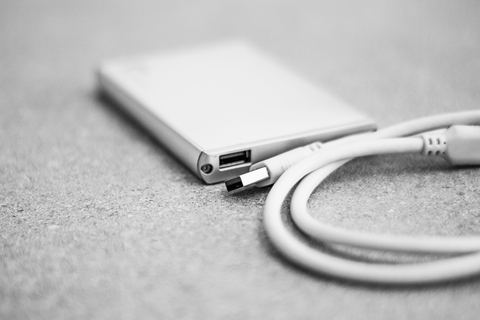
- Try a different USB cable. Many external drives ship with a cable that wears out at the connector after regular use.
2Look in Disk Management, Not Just File Explorer
A drive can be electrically connected and detected by Windows while still being invisible in File Explorer. Disk Management shows the raw hardware state, which tells you exactly what is wrong.
- Right-click the Start button and choose Disk Management.
- Look for your drive in the list at the bottom of the window. If it shows up here but not in File Explorer, the fix is in the next steps.
- If the drive shows “Unallocated” space, right-click it and choose “New Simple Volume” to create a partition and assign a drive letter.
- If the drive has a partition but no letter, right-click it and choose “Change Drive Letter and Paths,” then click Add.
If the drive does not appear in Disk Management at all, the problem is likely the cable, port, or power, not the file system. Go back to step 1.
3Update or Reinstall the Disk Drivers
A stuck or outdated storage driver stops Windows from mounting a drive it can technically see. This is separate from the USB controller driver and worth checking on its own.
- Open Device Manager and expand “Disk drives.”
- Right-click your external drive’s entry and choose “Update driver,” then “Search automatically for drivers.”
- If that does not help, right-click again and choose Uninstall device, then unplug and replug the drive so Windows reinstalls it fresh.
- Check for a yellow warning icon under “Disk drives” or “Other devices,” which points directly at a driver problem.
Microsoft’s own external USB device troubleshooting page covers this same driver reset process with additional detail for both desktops and laptops.
4Roll Back a Recent Windows Update
If the drive worked fine before a Windows Update and stopped afterward, that update likely changed a USB or storage driver. Go to Settings, then Windows Update, then Update History, and uninstall the most recent update to test whether that resolves the issue. This is a temporary step, since the update will likely reinstall itself later, but it confirms the cause.
Per Sarah Lindqvist, who is a Data Recovery Specialist at a regional computer repair shop, “The number one mistake people make is formatting a drive the moment it shows as unallocated in Disk Management, without checking if their files are still recoverable first. If the drive was working yesterday and suddenly shows unallocated, stop and back up what you can before creating a new volume.”
5When the Drive Might Actually Be Failing
If the drive is not detected in Disk Management on multiple computers, and it makes unusual clicking, grinding, or repeated spin-up sounds, the drive itself has likely failed mechanically. At that point, software fixes will not help.
- Stop trying to force it to mount repeatedly, since repeated power cycling can worsen physical damage.
- If the data matters, consider a professional data recovery service rather than DIY tools, especially for mechanical clicking noises.
- BleepingComputer has detailed forums where users walk through diagnosing drive failure symptoms with hardware experts if you want a second opinion before writing the drive off.
Frequently Asked Questions
Why does my external hard drive show up in Device Manager but not File Explorer?
This almost always means the drive has no assigned letter or its partition is unallocated. Open Disk Management to assign a letter or create a new volume, as covered in step 2 above.
Is it safe to use a USB hub with an external hard drive?
Only if the hub is powered separately. Unpowered hubs often cannot supply enough current for a spinning hard drive, which causes it to disconnect randomly or never mount at all.
Will formatting the drive delete my files?
Yes, formatting erases the file system. If the drive shows as unallocated and you have not backed up recently, try a data recovery tool or professional service first before creating a new volume.
Why does the drive work on one USB port but not another?
Different ports can be wired to different internal hubs, each with its own driver. If one hub’s driver is stuck while another works fine, you get exactly this pattern. Reinstalling the disk and USB drivers usually fixes it.
Can a laptop’s power saving settings affect external drives?
Yes. USB selective suspend can cut power to a port when Windows thinks it is idle, which can drop a drive mid-transfer. Disabling it in Power Options under advanced settings often resolves random disconnects.
Conclusion
Most external hard drive recognition problems in Windows 10 trace back to power, cabling, or a missing drive letter rather than actual drive failure. Check Disk Management before assuming the worst, since Windows often sees the hardware just fine and simply needs a partition or letter assigned. Only treat it as a hardware failure once the drive fails to appear anywhere, on any port, on more than one computer.
Ryan writes about PC hardware and driver troubleshooting for SoftwareDriverDownload.com, drawing on a Computer Science background and more than two decades of fixing storage, driver, and connectivity problems on Windows machines. More guides at SoftwareDriverDownload.com.