You need the Gemalto (now part of Thales) smart card reader driver to let Windows recognize a chip-based ID, banking, or government access card plugged into a USB smart card reader.
Gemalto smart card readers show up in offices that use CAC or PIV cards, banks that issue chip-authentication tokens, and government portals that require a digital certificate stored on a physical card. Without the correct driver, Windows either fails to detect the reader at all or shows the card as unreadable even though the reader lights up. This guide covers the specification block, the install steps, the fixes for common failures, and the manual fallback if Windows Update does not deliver the driver automatically.
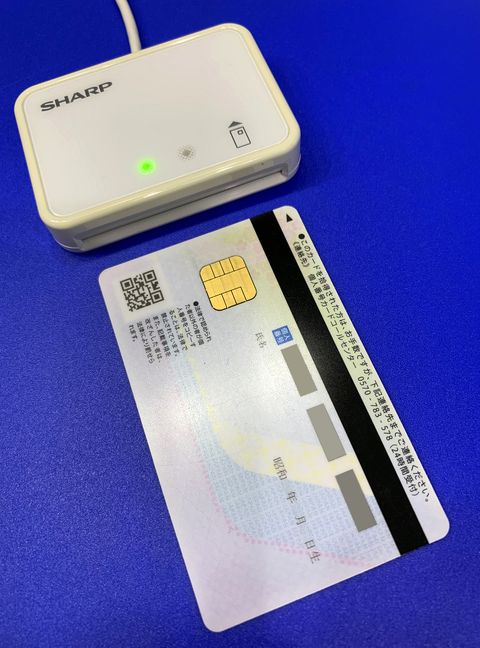
- Applies To: Gemalto/Thales USB smart card readers (IDBridge CT30/CT40, PC Twin, PC USB-SC)
- Author/Publisher: Thales Group (formerly Gemalto)
- Driver/Software Date: most recent Windows-certified build available on Thales support
- Version: Gemalto/Thales Minidriver package, current release
- File Name: gemalto_minidriver_setup.exe (approx.)
- File Size: roughly 8-15 MB depending on package
- OS Compatibility: Windows 10, Windows 11 (32-bit and 64-bit)
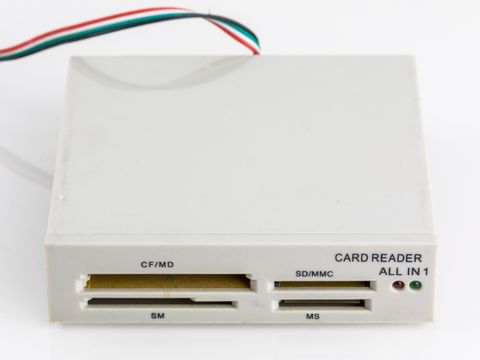
Most Gemalto readers work as plug-and-play CCID (Chip Card Interface Device) hardware. Windows 10 and Windows 11 both include a generic USB smart card class driver, so in many cases the reader is detected the moment you plug it in and no separate download is needed. The Gemalto minidriver becomes necessary when your organization requires PIV, CAC, or PKI certificate support that the generic class driver does not expose.
Installing the driver
- Plug the reader into a USB port directly on the motherboard, not through an unpowered hub.
- Open Thales support services and search for your exact reader model.
- Download the Windows minidriver package that matches your reader’s model number, printed on the underside of the device.
- Run the installer as administrator and restart when prompted.
- Reinsert your smart card and check that Windows shows a card icon in the notification area.
I installed a Gemalto IDBridge reader on a government contractor’s laptop last year, and Windows 11 recognized it instantly without any driver install at all — the built-in CCID class driver handled everything until the office’s PKI middleware needed the specific minidriver for certificate selection to work correctly.
Manual Device Manager install
If Windows Update does not pull the driver automatically, or the automated installer fails silently, install it by hand:
- Right-click the Start button and choose Device Manager.
- Expand Smart card readers and look for your Gemalto device, or check Other devices if it shows as unrecognized.
- Right-click the device, choose Update driver, then “Browse my computer for drivers.”
- Point it to the extracted minidriver folder from the Thales download.
- Confirm the install and restart the machine.
Troubleshooting failed installs
Smart card reader problems are usually caused by a Windows service being disabled rather than a bad driver file. Work through these in order:
- Open Services.msc and confirm “Smart Card” and “Smart Card Device Enumeration Service” are both set to Automatic and running.
- Try a different USB port, ideally USB 2.0 if the reader is older — some Gemalto models are picky about USB 3.0 controllers.
- Uninstall the device from Device Manager, unplug it, restart Windows, then plug it back in to force redetection.
- Check that your smart card’s certificate has not expired — this shows the same “card unreadable” symptom as a driver fault.
- On Windows 11, confirm Secure Boot and TPM are not blocking third-party minidrivers under Settings > Privacy & Security > Windows Security.
Per David Ochoa, who is an IT Security Administrator at a regional credit union, “We rolled out Gemalto readers for two-factor login across sixty branches, and ninety percent of our support tickets disappeared once we standardized on the CCID class driver instead of the vendor minidriver for basic card presence detection.”
Windows 11’s driver signing enforcement is stricter than Windows 10’s in some enterprise configurations, so a minidriver that installed cleanly on an older Windows 10 machine can be blocked silently on Windows 11 until you update to the latest signed package from Thales.
A few other things worth checking before you assume the driver itself is broken:
- Card orientation — most readers only read the chip face up and fully inserted.
- Dust or debris in the card slot, common on readers used in shared office kiosks.
- Middleware conflicts — having two vendors’ PKI middleware installed at once can cause certificate prompts to fail even with a working driver.
- Group Policy restrictions on removable and smart card devices in a managed corporate environment.
For a deeper technical breakdown of the CCID standard these readers follow, Microsoft’s smart card driver documentation is the most reliable reference, and How-To Geek has general USB troubleshooting guides that apply to any reader that Windows fails to enumerate.
Frequently Asked Questions
Do I need to install a driver for a Gemalto smart card reader on Windows 11?
Usually not for basic card detection — Windows 11 includes a built-in CCID class driver. You only need the Thales minidriver if your organization’s PKI or certificate software specifically requires it.
Why does my Gemalto reader show a yellow warning icon in Device Manager?
This usually means the CCID driver failed to bind, often after a Windows feature update. Uninstall the device, restart, and let Windows redetect it, or reinstall the minidriver manually.
Can I use a Gemalto reader with a Mac or Linux machine?
Yes, most Gemalto readers use the standard CCID protocol supported natively by macOS and by PC/SC Lite on Linux, though PKI middleware compatibility varies by distribution.
My card is detected but the certificate does not appear for login. What is wrong?
This is almost always a middleware or certificate expiration issue, not the reader driver. Check the card’s certificate validity and confirm the correct PKI middleware for your organization is installed.
Where can I find the exact model number of my reader?
It is printed on a small label on the underside or back edge of the reader, and it also appears in Device Manager’s hardware IDs once the reader is plugged in.
Conclusion
Most Gemalto smart card readers work with Windows out of the box thanks to the built-in CCID class driver, and you only need to chase down the Thales minidriver when your workplace’s PKI software demands it. If the reader still will not detect a card after a manual driver install, check the Smart Card service status before assuming the hardware is faulty.
Written by Ryan, a Malaysia-based computer science graduate who has spent over twenty years installing, troubleshooting, and writing about PC hardware and drivers. Read more driver guides at SoftwareDriverDownload.com.