The D-Link DWA-160 driver is available from D-Link’s official support page for this dual-band USB adapter, and this guide covers the download, install, and troubleshooting steps needed to get it working on current Windows versions.
The DWA-160 is a USB WiFi adapter that supports both 2.4GHz and 5GHz networks, and it has stayed in use on older desktops and even a few Linux boxes long after D-Link stopped actively updating it. Below you will find the full setup process on the left, with quick reference answers on the right.
Applies To: D-Link DWA-160 Dual Band USB Adapter (Revisions A and B)
Author/Publisher: D-Link Corporation
Driver/Software Date: Latest driver posted on D-Link’s support site for your hardware revision
Version: DWA-160 driver package, revision-specific build
File Name: DWA160_Driver.zip
File Size: Approximately 15-25 MB
OS Compatibility: Windows 10 (32-bit/64-bit); Windows 11 via compatibility mode in most cases
Check Your Hardware Revision First
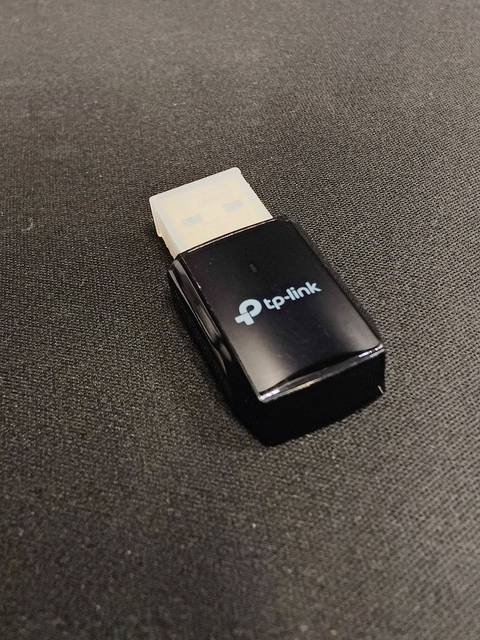
D-Link released the DWA-160 in at least two hardware revisions, A and B, and each one uses a different chipset with a separate driver package. Flip the adapter over and check the small sticker for “H/W Ver.” before downloading anything. Installing the wrong revision’s driver is one of the most common reasons people report the adapter “not working” even though the download succeeded.
Downloading the Correct Driver
- Visit the official D-Link support site.
- Search for “DWA-160” and select the hardware revision that matches your device sticker.
- Choose your Windows version from the driver list.
- Download the driver ZIP file to a folder you can find easily.
Installing the Driver
- Extract the downloaded ZIP file before running anything.
- Close other network utilities or third-party WiFi manager software first.
- Run the setup file as Administrator.
- Plug in the DWA-160 only when the installer prompts you to.
- Restart your computer once setup finishes.
On a machine I set up recently, I nearly grabbed the Revision A driver for what turned out to be a Revision B adapter, purely because the packaging did not make the distinction obvious. Checking the sticker on the adapter itself saved a repeat trip through the installer.
Manual Install via Device Manager
If the installer does not finish, or the adapter shows up as unrecognized:
- Open Device Manager (right-click Start > Device Manager).
- Look under Network adapters, or Other devices if the DWA-160 shows a warning icon.
- Right-click the entry and select Update driver.
- Choose “Browse my computer for drivers” and point it to the extracted driver folder.
- Confirm any unsigned driver warning, since older D-Link drivers are not always digitally signed the way current Windows expects.
Per Tomasz Bielak, who is a Network Support Specialist at a regional IT services firm, “The DWA-160 tickets we get almost always trace back to someone installing the wrong revision’s driver. Once we match the driver to the actual hardware sticker, the fix takes five minutes.”
Windows 11 Compatibility
D-Link’s official listing for the DWA-160 predates Windows 11, so there is no dedicated Windows 11 build. In practice, the Windows 10 driver installs on Windows 11 in most cases, sometimes only after setting the installer’s compatibility mode to Windows 8 (right-click the setup file > Properties > Compatibility tab > check “Run this program in compatibility mode”). If Windows 11 blocks the driver entirely due to signature enforcement, the manual Device Manager method above usually still works since it bypasses some of the installer-level checks.
Troubleshooting Checklist
- Adapter not detected: Try a rear USB port directly on the motherboard rather than a front panel port or hub.
- Frequent disconnects: Update your router firmware and disable USB power-saving for the adapter under Device Manager > Power Management.
- Only 2.4GHz networks visible: Confirm your router broadcasts 5GHz separately and is not restricted by band steering settings.
- Setup.exe will not launch on Windows 11: Use compatibility mode as described above, or fall back to the manual driver install.
- Signal is weak: Use a short USB extension cable to move the adapter away from the back of the case, where metal shielding weakens the signal.
For more general background on USB wireless troubleshooting, BleepingComputer covers driver signature issues in detail, and Microsoft’s support pages explain how Windows handles network adapter drivers generally.
Removing an Old Driver Before Reinstalling
If you previously installed a driver for the wrong hardware revision, or a very old version that came bundled on a driver CD years ago, it is worth removing it completely before installing the correct one. Leftover files from an old install can sometimes conflict with a fresh driver and cause the adapter to behave inconsistently, working for a few minutes and then dropping the connection.
- Open Device Manager and expand Network adapters.
- Right-click the DWA-160 entry and choose Uninstall device.
- Tick the box for “Delete the driver software for this device” if Windows offers it.
- Unplug the adapter, restart your PC, and only then install the correct driver package from D-Link’s site.
- Plug the adapter back in once the fresh installer finishes.
This clean-reinstall approach also helps if you recently moved the DWA-160 from an old computer to a new one, since Windows sometimes keeps cached driver entries tied to the previous system configuration.
Power Management Settings That Cause Random Drops
Windows tries to save power by letting USB devices power down when idle, and this feature is a common cause of a DWA-160 that randomly disconnects for a second or two before reconnecting. To disable it:
- Open Device Manager and find the DWA-160 under Network adapters.
- Right-click it, choose Properties, then open the Power Management tab.
- Uncheck “Allow the computer to turn off this device to save power.”
- Click OK and reboot to apply the change.
This single setting has solved more intermittent DWA-160 dropout complaints, in my experience, than any driver reinstall. It is worth checking before assuming the driver itself is at fault.
Conclusion
The D-Link DWA-160 keeps working on modern Windows systems as long as you match the driver to the correct hardware revision and are willing to use compatibility mode or the manual Device Manager route on Windows 11. Check the sticker on your adapter first, and the rest of the process is straightforward.
Ryan writes these guides based on more than 20 years of hands-on PC hardware and driver troubleshooting experience, backed by a Computer Science degree. More guides are available at softwaredriverdownload.com.
Frequently Asked Questions
Which hardware revision do I have?
Check the “H/W Ver.” sticker on the underside of the adapter; it will say A or B.
Does the DWA-160 work on Windows 11?
Usually yes, using the Windows 10 driver in compatibility mode, or a manual Device Manager install.
Why does Windows say the driver is unsigned?
Older D-Link drivers predate current signing requirements. It is safe to proceed if downloaded from D-Link’s official site.
Can I use the DWA-160 on Linux?
Some distributions include community-maintained drivers for this chipset, but that is outside the scope of official D-Link support.
Why is my 5GHz connection slower than expected?
5GHz has shorter range through walls than 2.4GHz. Moving closer to the router or repositioning the adapter with a USB extension often helps.