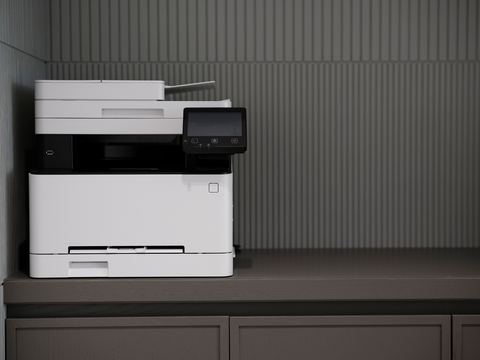
The HP LaserJet 3055 driver you need depends on whether you are printing over USB or through the network, and HP still hosts both versions even though this all-in-one printer is long discontinued. This guide walks through downloading the correct package, installing it step by step, and fixing the scan and fax functions when only printing works.
The LaserJet 3055 was HP’s mid-range office all-in-one for years, combining a laser printer, flatbed scanner, and fax modem in one unit. Plenty of small offices and home setups still run one because the print engine is durable. Getting it fully working on Windows 10 or 11 just takes the right driver package and a bit of patience with the older HP software installer.
Publisher: HP Inc. (Hewlett-Packard)
Driver/Software Date: Final driver release predates Windows 8, still functions on Windows 10/11 through the PCL6 universal driver path
Version: HP Universal Print Driver (PCL 6) recommended over the original bundled driver
File Name: LaserJet_3055_Full_Solution.exe or hpUPDx64.exe depending on which package you choose
File Size: Roughly 180-250 MB for the full software suite, around 60 MB for the print-driver-only package
OS Compatibility: Windows 11, Windows 10 (32-bit and 64-bit)
Step-by-Step: Getting the LaserJet 3055 Running
1. Choose the Right Driver Package
HP offers two realistic options for this printer on modern Windows:
- Full Feature Software Solution — includes print, scan, and fax utilities, but is a large, older-style installer that occasionally struggles on Windows 11.
- HP Universal Print Driver (PCL6) — print-only, smaller, and far more reliable on current Windows versions. Use this if you only need to print.
Get both from the official HP LaserJet 3055 support page.
2. Connect the Printer Correctly
For USB, plug the cable in only after the driver installer prompts you to. For network installs, make sure the printer already has a valid IP address by printing a configuration page from the printer’s own control panel first (menu button, then Reports, then Configuration Page).
3. Run the Installer as Administrator
- Right-click the downloaded .exe and select Run as Administrator.
- Choose USB or Network connection when prompted, matching how you actually connected it.
- Let the wizard search for the printer; on network installs this can take a minute or two.
- Skip any offers to install extra HP software you do not need, like marketing toolbars.
4. Print a Test Page
Once installed, open Settings > Bluetooth & devices > Printers & scanners, click the LaserJet 3055, and choose Print a test page. If that comes out clean, the core driver is working.
Per Marisol Tan, who is an office manager at a small accounting firm, “Our 3055 is nearly twenty years old at this point and it still prints faster and more reliably than the newer inkjet we bought to replace it. We just had to switch to the HP Universal driver when we moved to Windows 11 last year.”
Getting Scan and Fax Working
The scan function needs the Full Feature Software Solution installed, not just the print driver. After installing it, look for the HP Scan program in your Start Menu. On Windows 11, I have noticed the scan software sometimes installs but does not appear in the Windows search results right away, so check directly inside the HP folder in the Start Menu list instead of typing “scan” into search.
- Fax requires an active phone line plugged into the printer’s fax port, which trips people up since most home setups no longer have a landline.
- Network scanning needs the “HP Digital Send” service running, which the full installer sets up automatically.
- If scan shows a communication error, restart the “HP Ink Server” or “HP Digital Imaging Monitor” service from the Services app (services.msc).
Troubleshooting a Failed Install
Work through these fixes in order if the installer will not finish:
- Installer hangs on “Searching for printer.” Temporarily disable your firewall or antivirus network protection, since some security software blocks the discovery broadcast the installer sends out.
- “Printer not found” on USB. Try a different USB port and cable, and confirm the printer is fully powered on with no error lights flashing on the control panel.
- Install completes but printer shows offline. Right-click the printer in Settings, select Printer properties, Ports tab, and confirm it is pointed at the correct IP address or USB port.
- Driver installs but print jobs vanish. Clear the print spooler by stopping the “Print Spooler” service in services.msc, deleting files in C:\Windows\System32\spool\PRINTERS, then restarting the service.
Manual Install Through Device Manager
When the HP installer refuses to cooperate entirely, install manually instead:
- Download the driver package and extract it with 7-Zip rather than running the setup file.
- Open Device Manager and locate the printer, usually under Print queues or Other devices.
- Right-click it, choose Update driver, then Browse my computer for drivers.
- Point Windows at the extracted folder containing the .inf file and let it search subfolders.
- Add the printer manually afterward through Settings > Printers & scanners > Add device if it does not appear automatically.
Windows 10 vs Windows 11 Differences
Windows 10 generally accepts the older HP full installer without complaint. Windows 11 is pickier, and I have had better luck consistently by installing the HP Universal Print Driver first to get basic printing working, then layering the Full Feature Software Solution on top afterward if scan is also needed. Installing them in the reverse order sometimes leaves the scan utility half-configured.

Frequently Asked Questions
Is the HP LaserJet 3055 still supported on Windows 11?
HP does not actively update the driver, but the existing PCL6 Universal Print Driver works fine on current Windows 11 builds for printing. Scan and fax need the older Full Feature Software Solution installed separately.
Can I print over Wi-Fi with this printer?
The 3055 only has an Ethernet port for networking, no built-in Wi-Fi. You can connect it wirelessly by plugging it into a Wi-Fi print server or a router with an Ethernet port shared over the network.
Why does my printer show up twice in the printers list?
This usually happens after installing both the USB and network drivers for the same physical printer. Remove the duplicate under Settings > Printers & scanners, keeping only the connection type you actually use.
What replaces the fax modem line if I do not have a landline?
You need an actual analog phone line for the built-in fax feature to work; there is no workaround through the network port. Most people simply skip fax and use an online fax service instead.
The toner light is on but the cartridge looks half full. What now?
Remove the cartridge, gently rock it side to side to redistribute the toner, and reinsert it. If the light stays on afterward, the cartridge’s memory chip has likely reached its counted page limit even if toner remains.
Conclusion
The HP LaserJet 3055 remains a reliable workhorse printer, and getting it running on a modern PC mostly comes down to picking the right driver package for what you actually need. Start with the Universal Print Driver for basic printing, then add the full software suite only if you also need scanning or fax.