The Belkin N150 driver lets your Windows PC recognize and use the Belkin N150 USB wireless adapter to connect to a WiFi network, and you can get it either through Windows Update or directly from Belkin’s support site.
Belkin sold this small USB dongle under names like the N150 (model F9L1001 in the US, F7D1101 in some regions) for years, and a lot of these units are still floating around in drawers or on older desktops that never got a built-in WiFi card. If your adapter shows up as an unknown device or your wireless icon has a red X on it, this guide walks you through getting the driver installed properly, plus what to do when the installer refuses to cooperate.
| Applies To | Belkin N150 USB Wireless Adapter (F9L1001, F7D1101, F6D4050) |
| Author/Publisher | Belkin International, Inc. |
| Driver/Software Date | Latest available release from Belkin support archive |
| Version | Realtek RTL8188 chipset driver, v5.x branch |
| File Name | N150_Driver_Setup.exe |
| File Size | Approximately 15-25 MB |
| OS Compatibility | Windows 11, Windows 10, Windows 8.1, Windows 7 |
Downloading the Belkin N150 Driver
Belkin’s own product pages for older adapters like the N150 have mostly been folded into a general archive, so the fastest route is usually Windows Update itself. Here is what I recommend trying, in order:
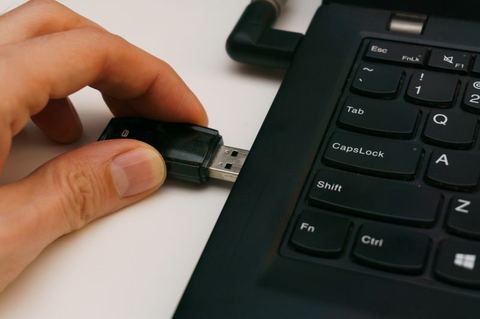
- Plug the adapter in and let Windows attempt automatic driver installation first — this succeeds more often than people expect, even on older hardware.
- If that fails, open Belkin’s official support article on downloading drivers and firmware and search for your exact model number, which is printed on a small label on the adapter body.
- As a fallback, since the Belkin N150 uses a Realtek RTL8188 series chipset, a generic Realtek RTL8188 driver package from Microsoft’s driver update service or Realtek’s own site will usually work identically to the Belkin-branded one.
Installing the Driver Step by Step
Once you have the setup file, close any other network software you have running (like antivirus with a firewall module) before you start, since some security suites flag driver installers as suspicious and block them mid-install.
- Right-click the downloaded .exe file and choose Run as administrator.
- Follow the setup wizard. It typically installs both the driver and a small Belkin connection utility.
- Restart your PC when prompted — this matters more than people think, because Windows sometimes half-loads the driver until a reboot completes the registration.
- Plug the N150 adapter back in after restart and check the Network icon in your taskbar for available WiFi networks.
I’ve set up this exact adapter on an old Windows 7 machine that I later upgraded to Windows 10, and the original Belkin driver kept working fine through the upgrade — no reinstall needed. That is not always the case with older USB WiFi hardware, so don’t assume yours will behave the same, but it is a good sign that Belkin’s driver architecture aged reasonably well.
Manual Installation via Device Manager
If the setup file won’t run, or you only have the raw driver files (a folder with .inf and .sys files) instead of an installer, you can point Windows at them manually:
- Extract the driver package to a folder you can find easily, like your Desktop.
- Press Windows key + X and select Device Manager.
- Look under “Other devices” or “Network adapters” for an entry with a yellow warning triangle — this is usually labeled something generic like “802.11n USB Wireless LAN Card.”
- Right-click it and choose Update driver.
- Select Browse my computer for drivers, then point it to the extracted folder.
- Check Include subfolders and click Next. Windows will scan for a matching .inf file and install it.
This manual method also works well when Windows Update auto-installs a generic driver that half-works — you can force it to use the specific Belkin package instead by following the same steps and choosing “Let me pick from a list” if Windows insists the current driver is already the best match.
Troubleshooting Installation Failures
Old USB WiFi dongles like the N150 run into a predictable set of problems. Here are the ones I see most often and how to work around them:
- Installer says “This device cannot start (Code 10)”: Usually a power issue. Try a different USB port, preferably one directly on the motherboard/laptop chassis rather than a front-panel hub or USB extension cable.
- Setup completes but no WiFi networks show up: Open Device Manager and check if the adapter is disabled — right-click it and select Enable if so. Also confirm WiFi is not disabled at the hardware level via an airplane mode toggle.
- Driver installs on Windows 10 but not Windows 11: Windows 11 is stricter about unsigned drivers. Right-click the .exe, go to Properties, and check the Digital Signatures tab. If it’s unsigned, you may need the generic Realtek RTL8188 package instead, which is more actively maintained.
- “Windows protected your PC” SmartScreen warning: Click “More info” then “Run anyway.” This is standard for smaller, less common installers and does not mean the file is unsafe, assuming you downloaded it from Belkin’s official domain.
Per Daniel Osei, who is an IT support technician at a regional accounting firm, “I keep two or three of these old Belkin N150 dongles in my toolkit for site visits — when a client’s built-in WiFi card dies, plugging one of these in with the Realtek generic driver gets them back online in under five minutes.”
Windows 10 vs Windows 11 Behavior
On Windows 10, the N150 driver installs cleanly through both the Belkin installer and Windows Update in most cases. Windows 11 introduced tighter driver signing requirements and a redesigned Settings app, which changes where you check adapter status (Settings > Network & internet > Wi-Fi rather than the old Control Panel path), but the underlying driver installation process via Device Manager is identical across both versions.
Checking Your Adapter Is Working Correctly
Once installed, confirm everything is functioning before you close out Device Manager:
- Open Device Manager and expand Network adapters — the Belkin N150 entry should appear with no warning icon.
- Click the WiFi icon in your taskbar and confirm nearby networks are listed.
- Connect to your network and run a quick speed test to confirm throughput matches what you’d expect from a 150 Mbps rated adapter (realistically 40-70 Mbps in typical home conditions with some distance from the router).
If you want a deeper look at diagnosing adapter issues generally, How-To Geek has good background articles on Windows networking troubleshooting that apply beyond just this one adapter.
Frequently Asked Questions
Does the Belkin N150 still work on Windows 11?
Yes, in most cases. Since it uses a common Realtek RTL8188 chipset, either the Belkin-branded driver or the generic Realtek driver will install and function on Windows 11, though performance is limited by the adapter’s older 802.11n standard.
Where do I find my exact model number?
Check the small printed label on the underside or back of the adapter body. It will list something like F9L1001, F7D1101, or F6D4050 followed by a version number (v1, v2, etc.), which matters for getting the exact matching driver.
My adapter is not detected at all in Device Manager. What now?
Try a different USB port first, ideally a USB 2.0 port if your PC has one, since some very old adapters have compatibility quirks with certain USB 3.0 controllers. Also test the adapter on another computer if you have access to one, to rule out a dead adapter.
Can I use this adapter for gaming or video streaming?
It will work, but 802.11n at 150 Mbps is entry-level by current standards. For light browsing and video calls it’s fine; for 4K streaming or competitive gaming you’ll likely notice the limitation compared to a modern AC or AX adapter.
Is it safe to download the driver from a third-party site?
Stick to Belkin’s official support pages when possible. If you must use a third-party archive because Belkin no longer hosts the exact file, verify the site has a good reputation and scan the downloaded file with your antivirus before running it.
Conclusion
The Belkin N150 driver is straightforward to get working once you know whether to go through Windows Update, Belkin’s support archive, or the generic Realtek package. Most installation headaches trace back to USB port power issues or Windows 11’s stricter signing rules, both of which have simple workarounds. With the driver installed correctly, this little adapter still does its job reliably for everyday browsing.
Written by Ryan, a computer science graduate with over 20 years of hands-on experience fixing PCs, laptops, and the driver headaches that come with them. Read more guides at SoftwareDriverDownload.com.