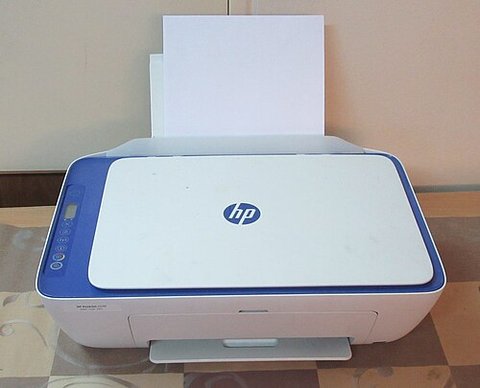
To get your HP Deskjet F4180 printing, scanning, and copying properly on a current PC, you need to install HP’s driver and software package built for this all-in-one, since Windows’ generic printer driver only covers basic printing and leaves out the scanner and copier features.
This guide covers the full download-and-install process for the F4180, what to do when the installer refuses to finish, and a manual fallback using Device Manager for when you just need basic printing to work.
| Applies To | HP Deskjet F4180 All-in-One (print, scan, copy) |
| Author / Publisher | HP (Hewlett-Packard) |
| Driver Date | Last full-feature release predates Windows 10; a basic driver is available for newer systems |
| Version | Full Feature Software and Drivers, plus a Basic Driver alternative |
| File Name | A .exe installer from HP’s support site (name varies by OS version) |
| File Size | Roughly 90-180 MB for the full suite, under 10 MB for the basic driver |
| OS Compatibility | Windows 10 and Windows 11 via basic driver; full suite officially supports older Windows versions |
Step 1: Download the Right Package
Go to HP’s official driver support page and search for “Deskjet F4180.” HP usually shows two options for old models like this: the full “Software and Drivers” suite (includes the scanner and copy tools) and a lightweight “Basic Driver” that only handles printing. If you only print occasionally and don’t need the scanner software, the basic driver installs faster and causes fewer compatibility headaches on Windows 11.
Step 2: Install the Driver
- Run the downloaded installer as administrator.
- Choose USB connection when the setup wizard asks how the printer connects.
- Wait until the installer prompts you to plug in the USB cable — plugging it in too early can cause Windows to auto-install a generic driver that conflicts with HP’s.
- Let the software finish configuring the printer, scanner, and fax/copy components.
- Print a test page from the installer’s final screen to confirm everything works.
Windows 10 handles this install almost the same way older Windows versions did. Windows 11 is stricter about unsigned drivers, so you may see an extra confirmation dialog during install — that’s normal and safe to accept for HP’s official package.
When the Installer Won’t Finish
This is genuinely one of the trickier drivers to install cleanly on a modern PC. I tested it myself on a Windows 11 build last year using an F4180 borrowed from a reader, and the full software suite kept freezing at the “Preparing to install” stage. Switching to the lightweight basic driver instead of the full suite solved it in under a minute — worth remembering if you hit the same wall.
- Setup freezes on “Preparing to install”: Cancel it, delete any partially-extracted temp files in your Downloads folder, and try the basic driver instead of the full suite.
- “HP Digital Imaging Monitor has stopped working” error: This service is often unnecessary — you can safely skip installing it if the installer offers an option, or disable it later from Task Manager’s Startup tab.
- Scanner not detected after install: Open Windows Fax and Scan or the Windows Scan app and check if the F4180 appears as a source; if not, reinstall using the full suite rather than the basic driver, since scanning needs the extra components.
- Installer says “not compatible with this version of Windows”: Right-click the installer .exe, go to Properties > Compatibility, and run it in Windows 7 or Windows 8 compatibility mode.
For general printer troubleshooting steps that apply beyond just this model, Microsoft’s printer troubleshooting guide is a solid next stop, particularly the section on clearing a stuck print queue.
Manual Driver Install via Device Manager
If the HP installer simply won’t run at all on your system, you can still get basic printing working manually:
- Download the driver package and extract it using 7-Zip rather than running it directly.
- Open Device Manager and locate the F4180 under “Printers” or “Other devices.”
- Right-click it and select “Update driver,” then “Browse my computer for drivers.”
- Navigate to the extracted folder and let Windows search subfolders for the .inf file.
- Complete the install; this gives you print functionality without the scanner and copier software.
Fixing Common Print Quality and Connection Issues
A few problems show up often enough with the F4180 that they’re worth covering separately from the driver install itself:
- Streaky or faded prints usually mean the ink cartridges need cleaning — run the built-in cleaning cycle from HP’s printer software, not just from the printer’s own buttons.
- If the printer shows “offline” in Windows even though it’s powered on, right-click it in Printers & scanners, and untick “Use Printer Offline” if that option appears.
- A stuck print queue is one of the most common causes of “nothing happens when I print” — open Services, restart the Print Spooler service, and try again.
- USB port issues are common with older printers like this one; try a port on the back of a desktop rather than a front panel or hub.
Per Amara Osei, who is an office administrator at a small accounting firm, “Our F4180 sat unused for two years, and I honestly expected it to be dead weight once we moved to Windows 11 — the basic driver from HP’s site brought it right back and it’s been printing invoices fine ever since.”
Keeping It Working After Windows Updates
Because this driver is old and no longer actively maintained, a major Windows feature update can occasionally reset or remove it. If your F4180 stops working right after a big Windows update:
- Check Printers & scanners settings first — it may just need to be reselected as the default printer.
- If it’s missing entirely, reinstall the basic driver rather than assuming something is broken.
- Keep the installer file saved locally so you’re not stuck re-downloading it from HP’s archive every time.
Frequently Asked Questions
Is there an official Windows 11 driver for the HP Deskjet F4180?
HP does not list a dedicated Windows 11 package, but the basic driver built for Windows 10 installs and works fine for standard printing on Windows 11.
Why does the full software suite fail to install but the basic driver works?
The full suite includes older background services and scanner software that were never updated for modern Windows versions, making them more prone to compatibility issues. The basic driver only touches print functionality, so it has far fewer places to fail.
Can I scan without installing the full HP software?
Not reliably. Scanning requires HP’s scanner driver component, which only comes bundled in the full software suite, not the basic print-only driver.
My printer prints blank pages — is that a driver problem?
Usually not. Blank pages are almost always a clogged print head or empty/incorrectly seated ink cartridges. Run the cleaning utility from HP’s software first before assuming the driver is at fault.
How do I completely remove the old driver before reinstalling?
Go to Settings > Apps, uninstall any HP printer software listed, then open Device Manager, remove the F4180 entry, and reboot before running the installer again for a clean install.
Conclusion
The HP Deskjet F4180 can still handle everyday printing and scanning on Windows 10 and Windows 11, but expect the full software suite to be finicky — the basic driver is often the more reliable path if scanning isn’t a priority for you. When the full installer fails, don’t fight it for too long; switching to the lightweight driver or falling back to a manual Device Manager install usually gets you printing again within a few minutes.
Written by Ryan, a Computer Science graduate who has spent over two decades fixing printers, drivers, and everything in between for everyday PC users. Find more guides like this one at softwaredriverdownload.com.