The HP Scanjet 4600 works on Windows 10 and 11 if you install the last driver HP released for it in Windows XP/Vista compatibility mode, because HP never issued a native driver for this scanner past Windows 7.
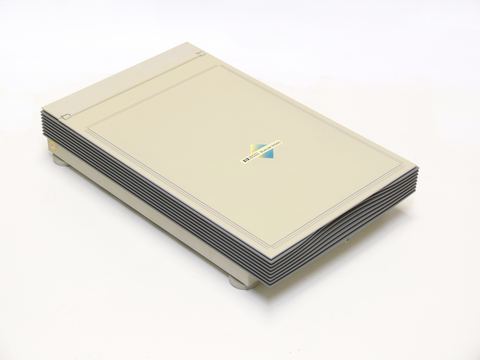
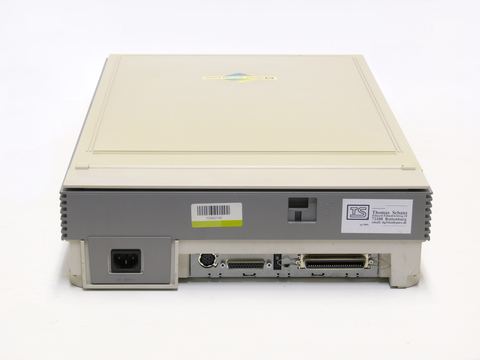
The Scanjet 4600 series is the “see-through” flatbed scanner HP sold with a distinctive glass window so you could tell what was on the bed without lifting the lid. It’s a reliable little document and photo scanner, and plenty of these units are still sitting in home offices today. The problem most people run into is that Windows Update doesn’t have a driver for it anymore, and HP’s automatic detection tools sometimes skip it entirely. Here’s exactly how I get this scanner running again.
| Applies To | HP Scanjet 4600 and 4670 Digital Flatbed Scanner series |
| Author/Publisher | HP Inc. (formerly Hewlett-Packard) |
| Driver/Software Date | Last official release, Windows Vista era |
| Version | HP Scanjet driver and Photosmart software bundle |
| File Name | sj4600_full_solution.exe |
| File Size | Approximately 90-140 MB (full software bundle) |
| OS Compatibility | Windows 10 and 11 (32-bit and 64-bit), via compatibility mode |
Fix Guide: HP Scanjet 4600 on Modern Windows
Below are the numbered fixes I go through in order. Most people only need the first two.
Fix 1: Download the Correct Driver
Go to the official HP Scanjet 4600 support page and download the full solution/driver package. Choose Windows 7 or Windows Vista from the OS list if Windows 10/11 isn’t shown, since the installer itself still runs fine.
Fix 2: Install With Compatibility Mode
Right-click the downloaded installer, open Properties, go to the Compatibility tab, and check “Run this program in compatibility mode for Windows 7.” Also enable “Run as administrator.” Then run the installer before plugging in the scanner.
Fix 3: Manual INF Install via Device Manager
If setup won’t launch, extract the installer contents (many HP installers unpack to a temp folder like C:\SWSetup). Open Device Manager, find the scanner under “Other devices,” right-click, “Update driver,” then browse to the extracted folder and let Windows pick up the .inf file.
Fix 4: Reset the USB Connection
Unplug the scanner, restart the PC, then plug the scanner into a different USB port (rear motherboard ports work better than front-panel hubs). Windows sometimes needs a fresh enumeration to load the driver correctly the second time around.
Troubleshooting Common Install Failures
- “This app can’t run on your PC” error: the installer is 32-bit only in some regional builds; right-click and run in compatibility mode instead of double-clicking normally.
- Scanner shows in Device Manager but scan software can’t find it: uninstall any leftover HP software through Settings > Apps, restart, then reinstall fresh rather than repairing the existing install.
- Windows Defender SmartScreen blocks the installer: click “More info” then “Run anyway.” This is normal for old unsigned HP installers downloaded directly from hp.com.
- Scans are washed out or too dark: the scanner’s lamp needs a short warm-up; run one throwaway scan first, then rescan for the final copy.
I re-set one of these up recently for a small law office that was still using their Scanjet 4600 to digitize old case files. The installer initially failed with a generic “setup error” on their Windows 11 machine, but running it in Windows 7 compatibility mode as administrator fixed it in one attempt. On a second machine, I had to fall back to the manual Device Manager method because the installer refused to launch at all under SmartScreen.
Per Melissa Tan, who is an office administrator at a small accounting firm, “Our Scanjet 4600 is over a decade old but it still scans receipts faster than the newer scanner we bought to replace it. Getting the driver working on our new laptops just took a bit of patience.”
Windows 10 vs Windows 11 Behavior
Both versions need the same compatibility-mode workaround, but there are a few differences worth knowing before you start:
- Windows 11 flags the unsigned installer more aggressively through SmartScreen than Windows 10 does.
- Windows 10 in S mode blocks the installer outright; switch out of S mode in Settings first.
- Once installed, both versions treat the scanner identically through the WIA (Windows Image Acquisition) driver layer, so third-party scanning apps behave the same on either OS.
If you’d rather skip HP’s full software bundle and just get basic scanning working, Windows’ built-in Scan app can talk to the scanner through WIA once the driver is installed, without needing the HP Photosmart software at all. See Microsoft Support for general guidance on the Windows Scan app if you go this route.
Using the See-Through Scan Window
The 4600’s signature feature is its polycarbonate window built into the lid, which lets you see what’s on the scan bed without opening it, useful for quick document alignment. A few practical tips:
- Keep the glass window clean with a microfiber cloth; fingerprints on this window show up in scans more than on standard flatbed lids.
- Use the one-touch buttons on the scanner body for quick scan-to-email or scan-to-file, but only after the full software bundle is installed since the buttons need the HP background service running.
- For photo scanning, HP’s software includes basic dust and scratch removal, though it’s less capable than dedicated photo restoration tools.
If the Driver Page No Longer Lists Windows 10/11
HP occasionally reorganizes support pages for discontinued products. If the driver download link is missing entirely from the product page, try HP’s general driver and software download portal and search by the model number directly, or check BleepingComputer’s driver forums, where users often archive links to older HP installers that have been removed from the official site.
Frequently Asked Questions
Does the HP Scanjet 4600 work with Windows 11 24H2?
Yes, as long as you install the driver in compatibility mode. The underlying WIA driver framework hasn’t changed enough to break compatibility, it’s just the unsigned installer that needs the workaround.
Why does Windows install a generic driver automatically?
Windows Update sometimes assigns a generic USB imaging device driver when it can’t find a specific match. This lets basic scanning work in some apps but breaks HP’s one-touch buttons and photo tools, so it’s better to install the real driver.
Can I use this scanner without installing the full HP software suite?
Yes. Once the base driver loads, Windows’ own Scan app or any TWAIN/WIA-compatible program like IrfanView can use the scanner without the full HP Photosmart bundle.
What’s the difference between the Scanjet 4600 and 4670?
The 4670 adds a built-in transparency adapter for scanning negatives and slides, while the base 4600 is document and photo scanning only. They share the same driver package.
My scanner light stays on but nothing happens when I press scan. What’s wrong?
This usually means the HP background service isn’t running, which happens if you only installed the base driver instead of the full software bundle. Reinstall using the complete package rather than the driver-only option.
Conclusion
The Scanjet 4600 is old enough that HP support pages don’t make the process obvious anymore, but the fix comes down to installing in compatibility mode and connecting the scanner only after setup finishes. If that alone doesn’t work, the manual Device Manager route almost always finishes the job.
Ryan here, I hold a computer science degree and have spent over two decades fixing PC hardware and driver issues for friends, family, and clients. More driver walkthroughs are available at SoftwareDriverDownload.com.