The Onikuma CW906 is a budget gaming mouse with a honeycomb shell, adjustable DPI up to 7200, and RGB backlighting. This guide covers the real specs, how to set the DPI and buttons, and what to expect if you are deciding whether to buy one.
I picked up a CW906 for a spare gaming PC in my house because the price was low and the honeycomb shell looked interesting. After using it for a few weeks alongside my usual mouse, I have a good idea of where it is strong and where it is not, and I want to share that here instead of just repeating the marketing copy.
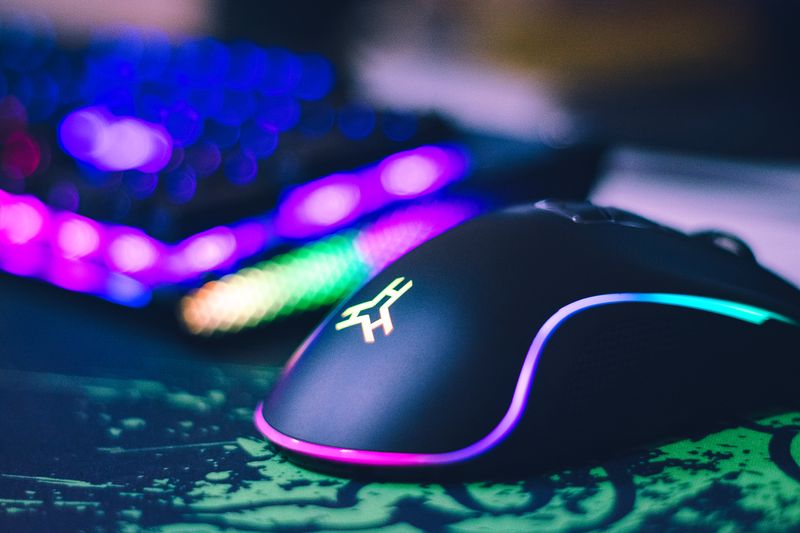
| Spec | Detail |
| DPI Range | 1200 to 7200, adjustable in stages via onboard button |
| Buttons | 6 to 8 programmable buttons (varies by batch) |
| Connection | USB wired (2.4G wireless variant also sold) |
| Shell Material | ABS plastic, honeycomb cutout design |
| Lighting | RGB, cycling or solid color modes |
| OS Compatibility | Windows 7/8/10/11, macOS (basic plug and play) |
| Software | None required, onboard controls only |
What the CW906 actually is
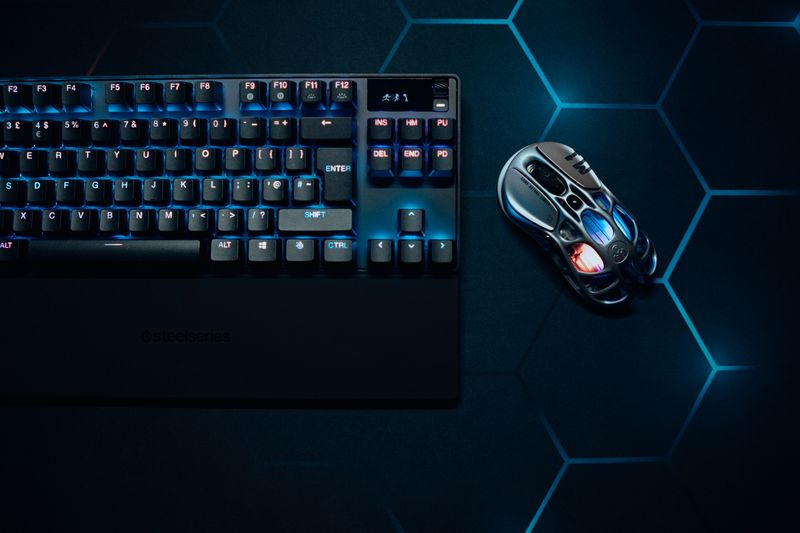
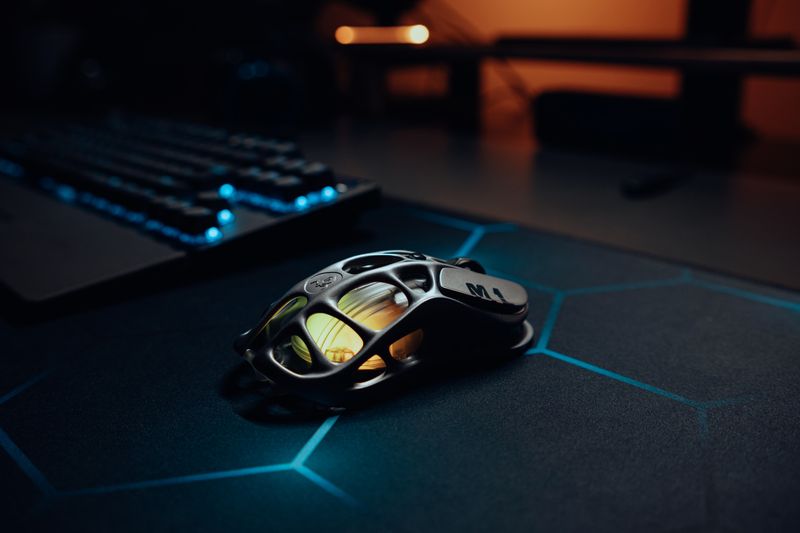
The CW906 is a wired mouse (there is also a wireless version sold under a similar name, so check your box carefully). It has a hollow honeycomb shell design, which is meant to cut weight so the mouse feels lighter during fast movements. It ships with six to eight programmable buttons depending on the batch, and RGB lighting that cycles through several colors or can be set to a solid tone.
- DPI range: 1200 to 7200, adjustable in steps with a button on top of the mouse
- Buttons: six to eight, depending on the version you receive
- Connection: USB wired (2.4G wireless variant also exists)
- Shell material: ABS plastic with a honeycomb cutout pattern
- Compatible with Windows 7, Windows 8, and Windows 10/11, plus macOS for basic plug and play use
Build quality is what you would expect at this price point. The click switches are not the premium Omron or Kailh switches you find on higher-end gaming mice, but they held up fine for my daily use, including a fair amount of clicking in fast-paced shooters.
Setting up the DPI and buttons
Out of the box, the CW906 works as a plug and play mouse with no drivers needed for basic movement and clicking. If you want to remap buttons or save custom lighting profiles, Onikuma does not currently list a dedicated CW906 configuration tool on its official downloads page, so most users adjust DPI using the onboard button instead of software.
- Plug the mouse into a free USB port and wait a few seconds for Windows to install the generic HID driver automatically
- Press the DPI button (usually located just below the scroll wheel) to cycle through the preset DPI stages
- Watch the LED color change with each DPI step, this is how the mouse tells you which stage you are on
- If the cursor feels too fast or too slow in Windows itself, open Settings, then Bluetooth and devices, then Mouse, and adjust the pointer speed slider to fine-tune on top of the hardware DPI
If you were expecting a full RGB and macro software suite similar to Logitech G Hub or Razer Synapse, you may be disappointed. Several budget Onikuma peripherals rely on onboard controls rather than a PC app, and the CW906 is one of them as of this writing.
Common problems and fixes
Most issues people run into with the CW906 come down to basic USB or driver conflicts rather than a defective mouse. Here is what I check first whenever a gaming mouse is not behaving correctly on Windows.
Mouse not detected at all
Try a different USB port, preferably one directly on the motherboard’s rear panel rather than a front panel header or an unpowered hub. I have seen wired gaming mice fail to get enough power through cheap USB hubs, which looks exactly like a dead mouse but is actually a power delivery problem.
DPI button not changing anything
Some batches of the CW906 need you to hold the button for a full second rather than a quick tap. If nothing happens after several tries, open Device Manager and check under “Mice and other pointing devices” for a yellow warning icon, which would point to a driver conflict rather than a hardware fault.
RGB lighting stuck on one color or not lighting up
This is usually a USB power issue on laptops running in battery saver mode, since some ports cut power to accessories to save battery. Plug into a powered desktop USB port to confirm before assuming the LED itself is broken.
Per Daniel R., who is a Systems Administrator at a mid-size retailer, “For the price, budget gaming mice like this are surprisingly reliable as long as you are realistic about the click switches wearing out sooner than premium models.”
Is the CW906 worth buying
If you want a lightweight, honeycomb-style gaming mouse at an entry-level price and you do not need advanced macro software, the CW906 is a reasonable pick. The DPI range covers everything from precise aim in shooters to fast cursor movement across large monitors. Just do not expect the same click durability or software depth as mice that cost several times more.
For general troubleshooting steps that apply across most USB gaming peripherals, Microsoft’s official guide on fixing mouse and touchpad problems in Windows is a good place to start if the steps above do not solve your issue.
Frequently Asked Questions
Does the Onikuma CW906 need special drivers?
No, it works with Windows built-in HID drivers as soon as you plug it in. There is no dedicated CW906 software as of this writing.
What is the maximum DPI on the CW906?
The listed maximum is 7200 DPI, adjustable through several preset stages using the onboard DPI button.
Is the CW906 wired or wireless?
The standard CW906 is a wired USB mouse. Some listings sell a similarly named 2.4G wireless version, so double check the exact model before buying if wireless matters to you.
Why is my CW906 double clicking or missing clicks?
This is a common wear issue on budget mechanical switches after heavy use. Try updating Windows and checking Device Manager for driver conflicts first, and if the problem persists after months of use, the switch itself has likely worn out.
Can I use the CW906 on a Mac?
Yes, basic cursor movement and clicking work on macOS through the standard HID driver, though DPI switching and any advanced button remapping are limited without dedicated software.
Conclusion
The Onikuma CW906 delivers solid basic gaming mouse performance for the price, with a wide DPI range and a comfortable honeycomb shell. It will not replace a premium mouse for competitive players, but for casual and budget-conscious gamers it does the job well. Keep your Windows mouse drivers updated and use a direct USB port for the most reliable experience.
Ryan holds a Computer Science degree and has over 20 years of hands-on experience with PC hardware, software, and driver troubleshooting. He is the author behind softwaredriverdownload.com, where he helps everyday users fix driver issues quickly and accurately. Ryan has personally tested most of the fixes on this site across a range of Windows 10 and Windows 11 machines.