The Onikuma G67 is a 67-key compact mechanical keyboard built around Hall effect magnetic switches and an 8000Hz polling rate. In this guide I set it up from scratch, ran it through a few weeks of daily typing and gaming, and walked through every adjustment worth making in the web-based software.
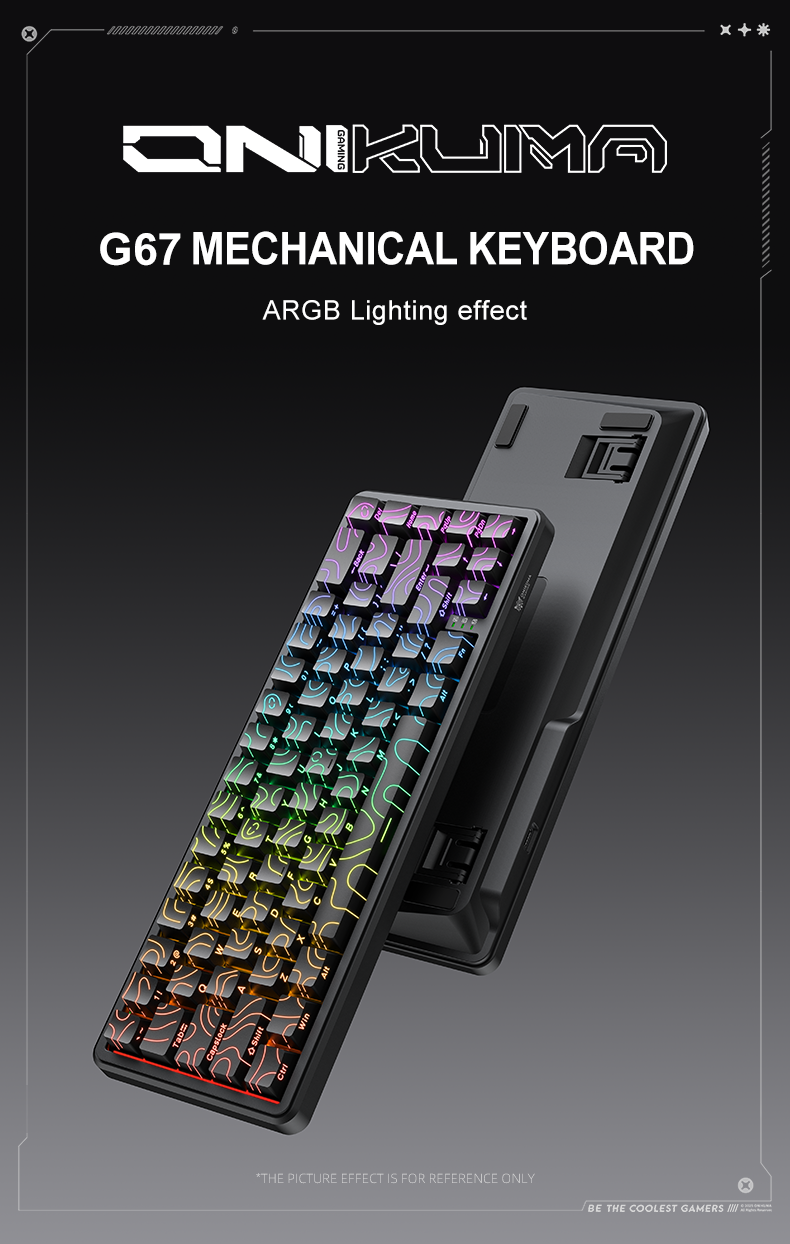
| Spec | Detail |
| Layout | 67-key compact (60%-style) |
| Switch Type | Hall effect magnetic switches |
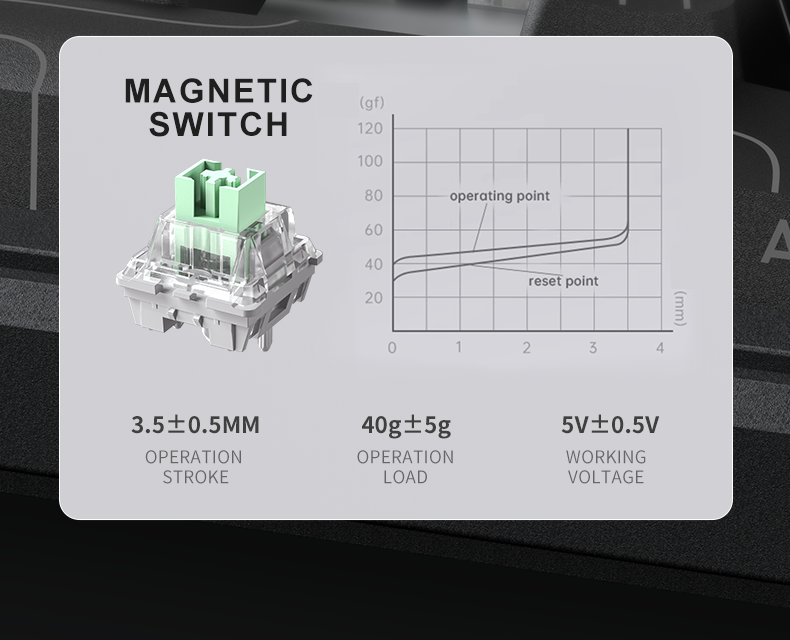
| Actuation Range | 0.1mm to 3.4mm, adjustable per key |
| Polling Rate | 8000Hz |
| Connection | Wired, USB-C to USB-A |
| Keycaps | PBT with topographic pattern |
| Lighting | 16.8 million RGB colors, 15 effects |
| Configuration | Browser-based (WebHID), no EXE required |
Why the G67 Stands Out From a Typical 60% Board
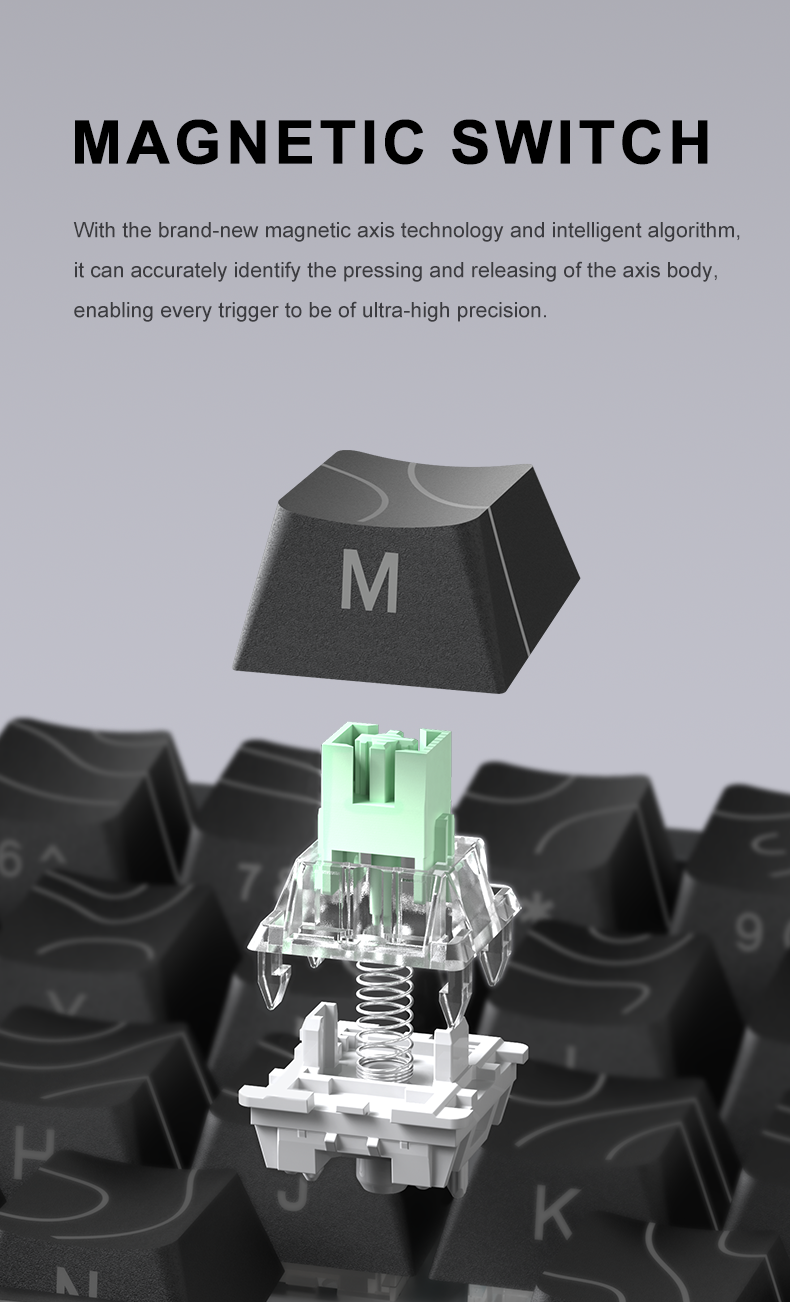
Most budget 60%-style keyboards use plain mechanical switches, so the G67 catching my attention was really about the switch technology. It ships with Hall effect magnetic switches, which means the keyboard reads the exact position of each keypress using a magnetic sensor rather than a simple physical contact point. That opens the door to features usually reserved for much pricier keyboards, like adjustable actuation points and rapid trigger.
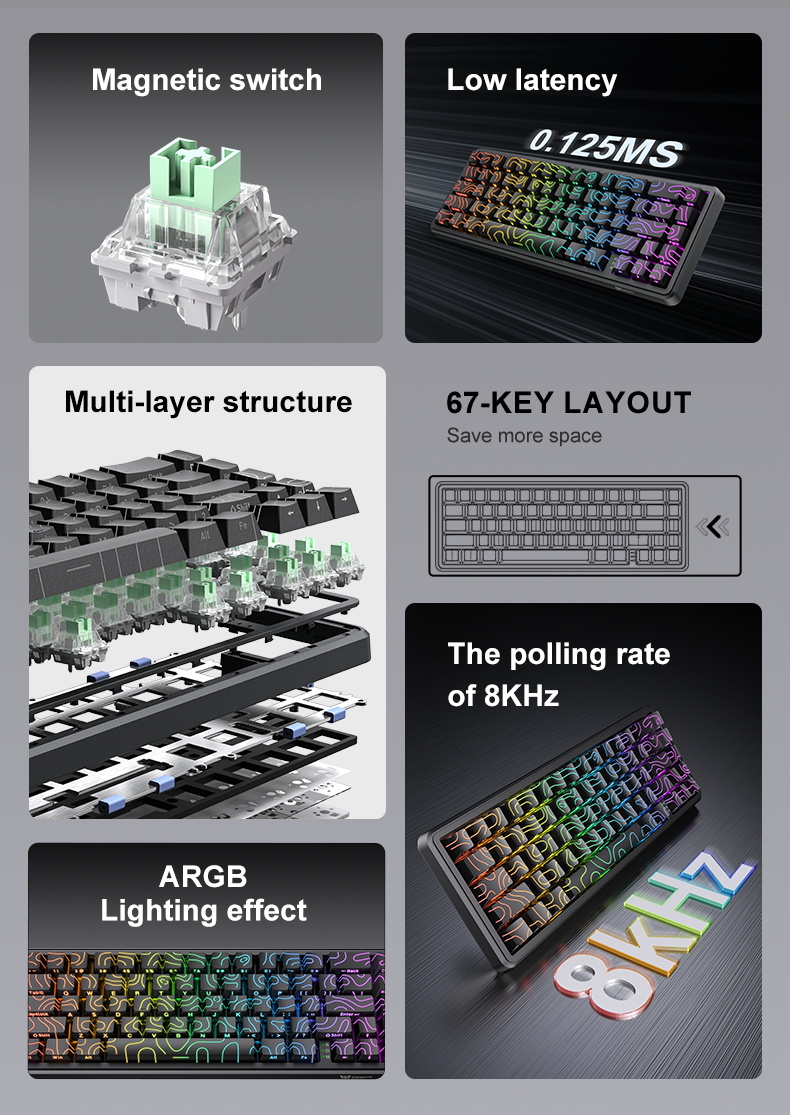
- 67-key compact layout with a metal PCB plate for a firmer typing feel
- Trigger point adjustable from 0.1mm to 3.4mm in fine increments
- 8000Hz polling rate for noticeably lower input latency in fast-paced games
- Rapid Trigger and SOCD (snap tap) support, both configurable per key
- 16.8 million RGB colors with 15 built-in lighting effects
- Topographic pattern etched into both the shell and the PBT keycaps
Step-by-Step: Getting the G67 Running
Step 1: Physical Setup
Connect the keyboard using the included USB-C to USB-A cable. Because the G67 is wired only, there is no pairing process to worry about. Windows detects it immediately as a standard HID keyboard, and you can start typing right away, even before installing anything else.
Step 2: Open the Web-Based Configuration Tool
Unlike older Onikuma keyboards that required a downloadable EXE, the G67 uses a browser-based driver. You can access it directly through the support and downloads section on onikuma.com/pages/downloads. Open it in Chrome or Edge, since the configurator relies on WebHID, which is not supported in every browser.
Step 3: Calibrate Your Actuation Points
Once the software detects the keyboard, go into the Key Configuration tab. Here you can lower the actuation distance for keys you want to react faster, such as WASD in shooters, while leaving typing-heavy keys at a slightly higher trigger point to avoid accidental presses.
Step 4: Set Up Rapid Trigger
Rapid Trigger lets a key reset the instant you start releasing it, rather than waiting for it to travel all the way back up. This is genuinely useful for fast direction changes in competitive games. Turn it on per key rather than globally at first, so you can get a feel for how sensitive it is before applying it everywhere.
Step 5: Customize RGB and Save a Profile
Pick a lighting effect, adjust brightness and speed, then save your configuration as a profile. Settings are stored on the keyboard’s onboard memory, so your actuation points and lighting will carry over even when you plug the G67 into a different computer.
Typing and Gaming Feel
The metal plate underneath the switches gives the G67 a noticeably firmer, less hollow sound than most budget mechanical boards I have tested. Typing feels controlled rather than mushy, and the dual-layer sound dampening foam cuts down a lot of the pinging noise that cheaper Hall effect boards tend to have.
In games, the difference rapid trigger makes is subtle but real, especially in movement-heavy titles where quick direction changes matter. It is not a night-and-day transformation, but once you get used to lower actuation points on your movement keys, going back to a standard mechanical switch does feel a step slower.
A Few Things to Keep in Mind
- The 60% layout means no dedicated arrow keys or function row, so there is a learning curve if you rely on those often
- Being wired only, it is not the best fit if you want a clutter-free desk with a wireless setup
- The web-based software needs an active browser tab open to make changes, though saved profiles persist without it running afterward
Troubleshooting Common G67 Problems
Keyboard not detected by the web configurator
Make sure you are using a Chromium-based browser like Chrome or Edge, since Firefox and Safari do not support the WebHID API the configurator relies on. Also try a different USB port, ideally directly on the motherboard rather than through a hub.
Ghost keypresses or keys triggering too early
This usually means the actuation point is set too low for that particular key. Go back into the software and raise the trigger distance slightly, especially for keys near the edge of the board where accidental presses are more common.
RGB settings reset after unplugging
Confirm you clicked “Save to keyboard” rather than just previewing the effect in the software. Onboard profiles only persist if the save step is completed before disconnecting.
Frequently Asked Questions
Does the Onikuma G67 support hot-swappable switches?
Some retail listings mention hot-swap capability for the G67, but because it uses magnetic Hall effect switches rather than standard mechanical ones, always confirm compatibility with Onikuma’s official switch replacements before attempting a swap.
Do I need to install software to use the G67?
No, basic typing works immediately with no software at all. The web-based configurator is only needed if you want to adjust actuation points, rapid trigger, SOCD, or RGB lighting.
What is SOCD and why does it matter?
SOCD, or Simultaneous Opposing Cardinal Direction handling, decides what happens when you press two opposite movement keys at once, like A and D together. Snap tap prioritizes the most recently pressed key, which many competitive players find gives them more precise control.
Is the G67 good for typing, not just gaming?
Yes, once you raise the actuation points slightly for a firmer feel, it types comfortably for long writing sessions, though the compact 60% layout takes a bit of adjustment if you are used to a full-size board.
Final Verdict
The G67 punches well above its price point for anyone curious about Hall effect switches and rapid trigger without committing to a premium keyboard. The compact layout will not suit everyone, but for gaming-focused setups where desk space and quick reflexes matter more than a numpad, it is a genuinely solid pick.
Written by Priya Nair, a gaming peripherals reviewer and CS graduate based in Seattle who has spent the last several years testing mechanical keyboards ranging from budget boards to custom builds.