If you searched for “Onikuma CW905 wireless software,” I want to clear something up right away before you go looking for a Bluetooth pairing button that does not exist: the CW905 is a wired mouse. There is no wireless connectivity on this model. What people usually mean by “wireless software” is actually the driver and configuration tool you download from Onikuma’s site to manage DPI profiles and lighting, and that is exactly what this guide covers, along with the full spec sheet and my honest experience using it for a few weeks.
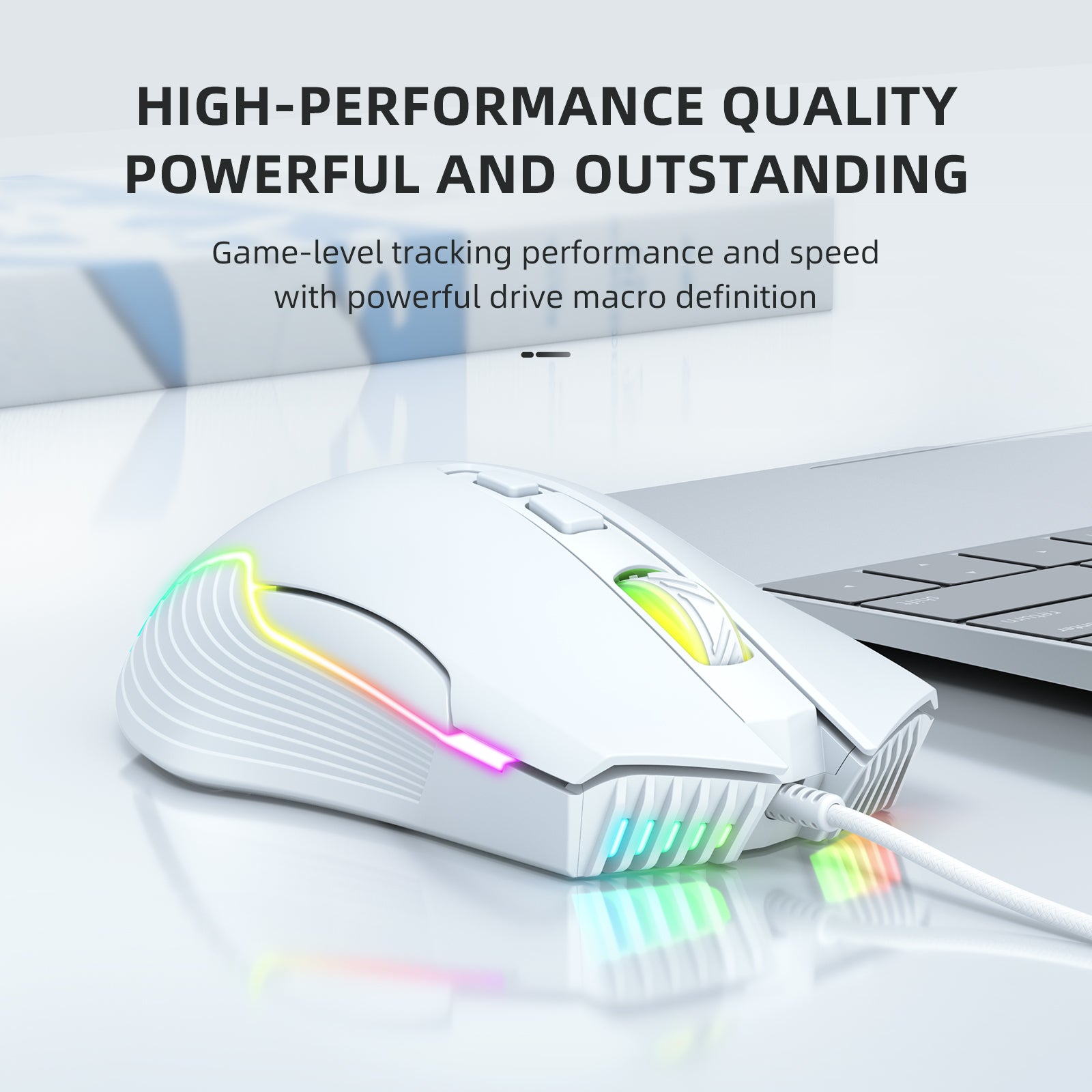
- Model: Onikuma CW905 wired gaming mouse
- Sensor: Opto-electronic, up to 6400 DPI, 1000Hz polling
- Weight: Approximately 132g
- Price tier: Budget, typically under $15 USD depending on retailer and color variant
- Compatibility: Wired USB, works with Windows PCs; DPI/RGB software available for Windows only
Is the Onikuma CW905 Wireless or Wired?
To be direct about it: the CW905 on Onikuma’s own product page is listed as a wired gaming mouse with a 1.5 meter USB cable. I have seen the “wireless” keyword show up in searches, and my best guess is people are mixing it up with the driver software, which some listings loosely call the “wireless suite” because Onikuma reuses parts of the same configuration tool across wired and wireless models in its lineup. If you specifically need a wireless mouse, this is not it, and I would rather tell you that upfront than have you order one expecting a dongle in the box.
CW905 Full Specs
| Connection | Wired USB, about 1.5m cable |
| Sensor | Opto-electronic, up to 6400 DPI |
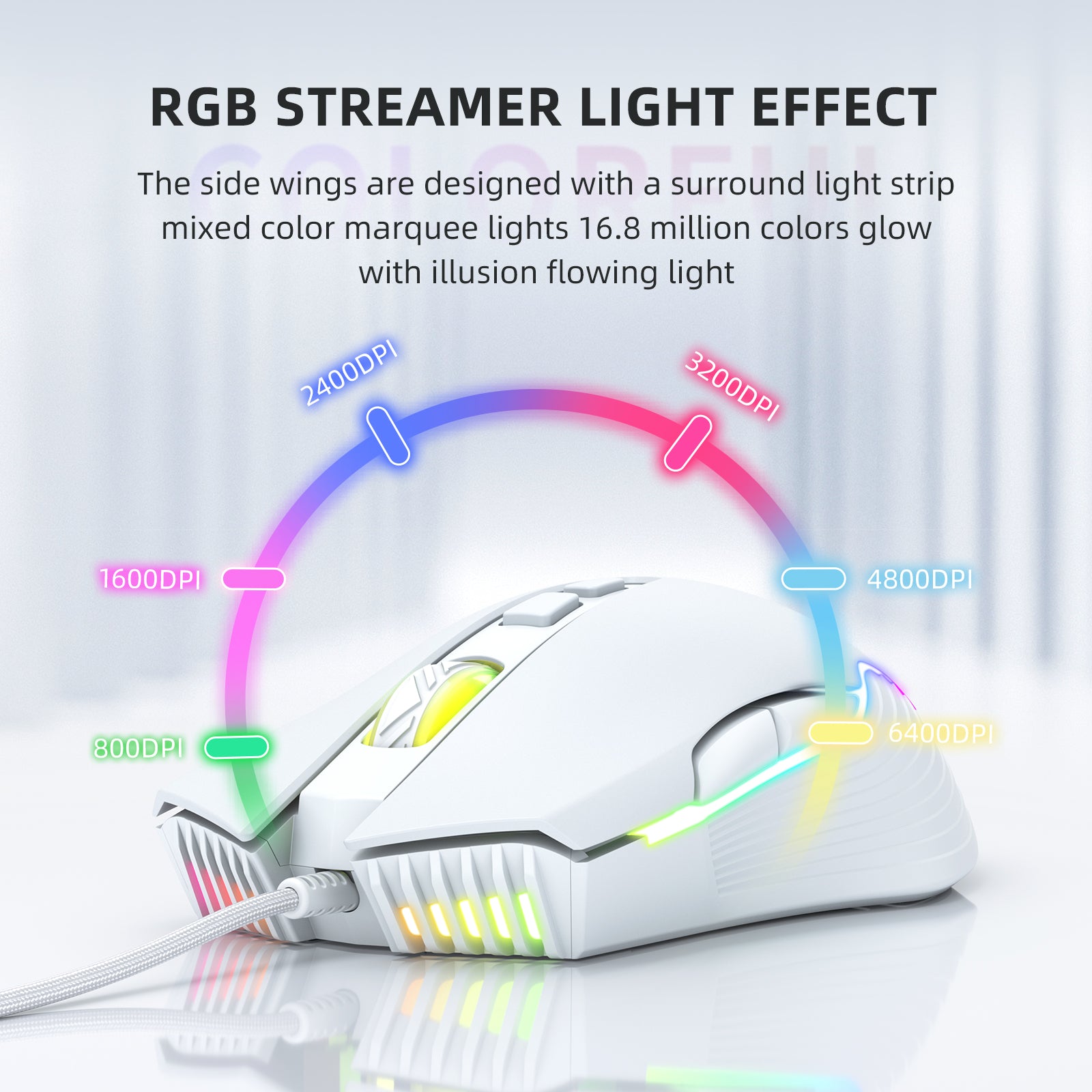
| DPI stages | 800 / 1600 / 2400 / 3200 / 4800 / 6400 |
| Buttons | 7 total: left, right, middle, forward, back, DPI+, DPI- |
| Lighting | Breathing LED, multiple color modes |
| Weight | Approximately 132g |
| Dimensions | 127 x 71 x 40mm |
| Polling rate | 1000Hz |
| Power draw | Less than 100mA at 5V, drawn from the USB port |
Common Problems and How to Fix Them
I ran into a handful of small annoyances during setup and normal use. Here is what went wrong and what actually fixed it, laid out side by side so you can jump straight to your issue.
- Mouse detected as a generic device with no RGB or software control
- DPI button presses do nothing
- Cursor stutters occasionally during fast movement
- Software will not detect the mouse after install
- Plug directly into a rear motherboard USB port instead of a front panel header or hub
- Update to the current driver from Onikuma’s downloads page and reboot
- Switch to a USB 2.0 port if you are on a crowded USB 3.0 hub sharing bandwidth
- Unplug the mouse, close the software fully in Task Manager, then replug before relaunching
Setting Up the Driver Software
Here is the process I used to get the configuration tool running, since the download page lists several files by color variant:
- Go to the Onikuma Apps and Downloads page.
- Find the CW905 setup file that matches your unit’s color, since Onikuma packages a few separate installers for this model.
- Download and run the installer, allowing it through Windows SmartScreen if prompted.
- Plug in the mouse before launching the software so it can detect the device automatically.
- Use the DPI tab to set your preferred stages and the lighting tab to pick a color or breathing pattern.
Everything saves to the software profile rather than a phone app or cloud account, so there is nothing to sign up for. That is one thing I appreciated compared to some competitor tools that force an account creation step just to change a DPI number.
CW905 vs a True Wireless Gaming Mouse
Since the naming confusion keeps coming up, it is worth laying out what you actually give up and gain by going with a wired mouse like the CW905 instead of a wireless model.
- Latency: A wired connection has effectively zero added latency compared to even the best 2.4GHz wireless dongles, though the difference in real gameplay is small at this price tier.
- Battery: There is nothing to charge. The CW905 draws power directly from the USB port, so you never have to worry about it dying mid-match.
- Weight: Wireless mice usually carry extra weight from the battery and receiver electronics. At 132g, the CW905 is lighter than most budget wireless options.
- Portability: A wireless mouse wins here, since you are stuck with a 1.5m cable that limits how far you can sit from your PC.
If cable management is not a concern and you mainly play at a fixed desk, the wired CW905 is arguably the better technical choice anyway. If you specifically shopped for the word “wireless,” Onikuma does sell separate wireless models under different product codes, and it is worth double-checking the listing title before you buy.
How It Feels to Use Day to Day
At 132 grams, the CW905 sits in the middle range, not featherlight but not heavy either. The symmetric shape means it works reasonably well for both right and left hand use, though the side buttons are only on the left side, which is standard for most mice at this price.
- The 1000Hz polling rate kept tracking smooth in fast-paced shooters without noticeable input lag.
- The coating resists fingerprints better than I expected for a budget mouse; after two weeks it still looked clean.
- Cable drag was noticeable during quick flicks, similar to most mice in this price bracket that do not use a paracord-style cable.
Frequently Asked Questions
Is the Onikuma CW905 a wireless mouse?
No. It is a wired USB mouse. The “wireless” wording that shows up in some searches refers to confusion with Onikuma’s shared driver software branding, not an actual wireless connection.
What DPI should I use for gaming?
Most competitive shooters play well between 1600 and 3200 DPI on this sensor. Start around 1600 and adjust from there based on your mouse pad size and sensitivity preference in-game.
Do I need to install software to use the CW905?
No, it works immediately as a plug-and-play mouse. The software is only needed if you want to customize DPI stages beyond the defaults or change the lighting pattern.
How much does the CW905 weigh?
Approximately 132 grams, which is a reasonable middle ground between ultra-light esports mice and heavier ergonomic designs.
Conclusion
The Onikuma CW905 is a capable wired mouse with a wide DPI range and solid build for the price, but it is important to go in with accurate expectations: there is no wireless mode. Treat the “software” as a driver and lighting utility rather than a wireless feature, and it delivers exactly what a budget gaming mouse should.
Written by Priya Anand, a gaming peripherals reviewer in San Jose, California, who holds a computer science degree and has spent years benchmarking mice and keyboards for budget PC builds.