A factory reset is the fix that solves more true wireless earbud problems than any other single troubleshooting step, and the QCY ArcBuds Lite is no exception. If your left or right earbud has gone silent, if the two sides refuse to sync with each other, or if the case simply will not enter pairing mode anymore, walking through a proper reset almost always clears it. I ran into two of these exact symptoms with my own pair and worked out the reliable sequence below.
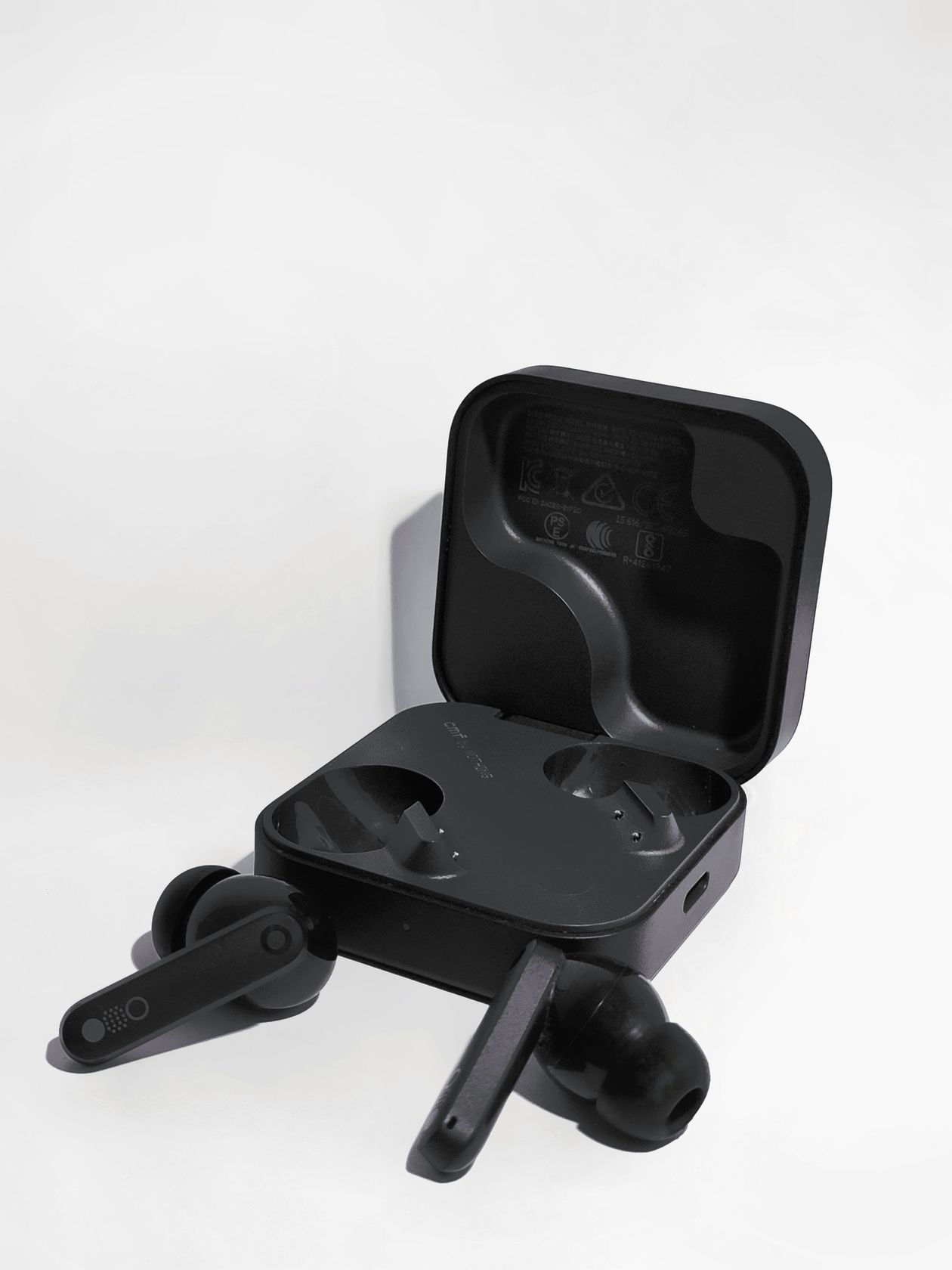
What the QCY ArcBuds Lite Is
The ArcBuds Lite (sold under the internal model code QT27) is a budget-tier true wireless pair from QCY’s ArcBuds family, sitting below the standard ArcBuds in price and feature set. It skips active noise cancellation in favor of a simpler passive fit, keeping the cost down while still offering touch controls, IPX rated splash resistance, and a compact charging case. Because it is positioned as an entry model, QCY does not bundle a companion app requirement for basic use, which is convenient, but it also means there is no software-side reset option — everything has to be done with hardware gestures on the case and earbuds themselves.
The Standard Reset Method
This is the method QCY documents for most connectivity hiccups, and it worked for me the first time:
- Place both earbuds into the charging case.
- Leave the lid open.
- Touch and hold both touch panels simultaneously for about 8-10 seconds.
- Watch for the LED indicators to flash white five times, which confirms the reset has completed.
- Close the lid, wait 5 seconds, then reopen it and take the earbuds out.
Once removed, the two earbuds should automatically re-pair with each other and enter Bluetooth discovery mode, ready to show up on your phone as a new device.
A Simpler Reset for Minor Glitches
If your issue is something small, like audio cutting out on one side or a stuck touch gesture, you do not always need the full factory reset above. Placing both earbuds back into the case and letting them sit for 10 full seconds before removing them again forces a soft restart of the internal Bluetooth chip. I use this as my first troubleshooting step before escalating to the full reset, since it is faster and does not wipe any paired device history.

Clearing Old Bluetooth Pairings First
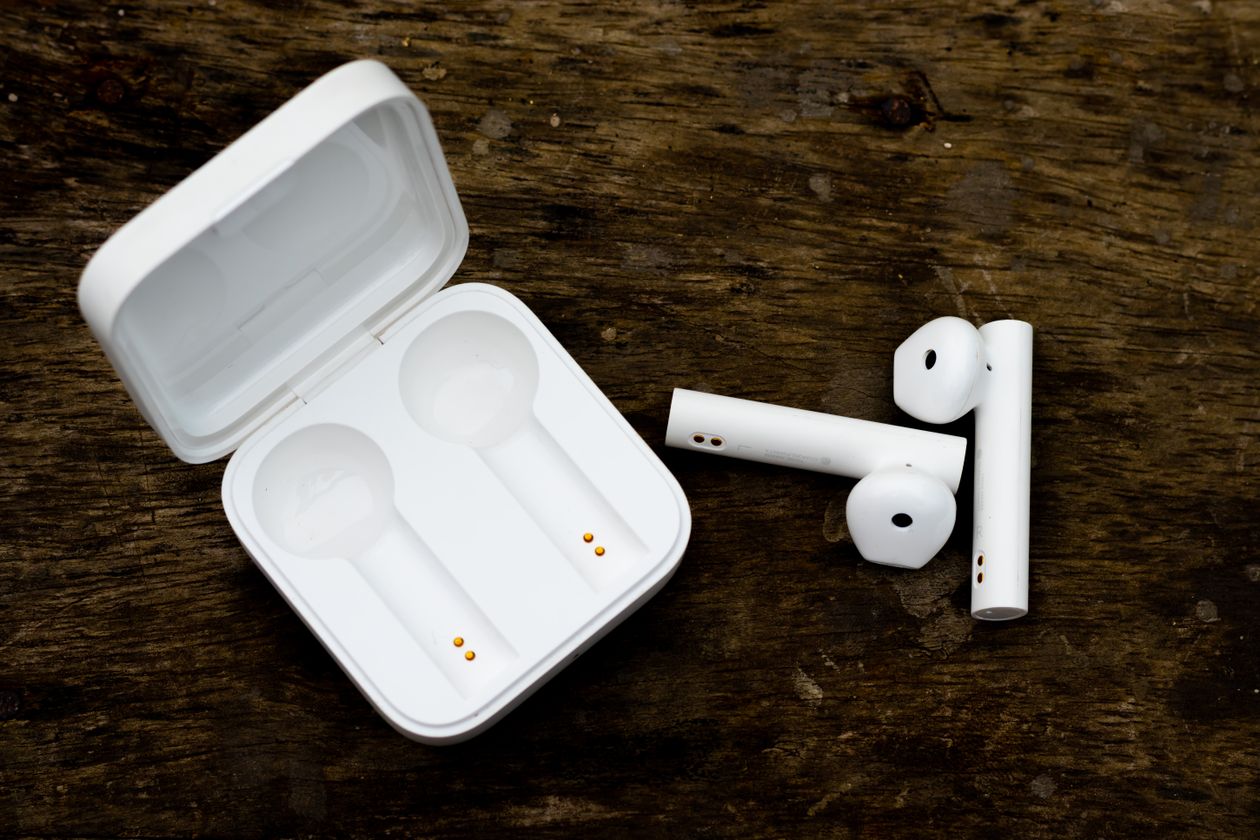
Before you reset the earbuds themselves, it is worth checking your phone’s Bluetooth menu. A common cause of one-sided audio or failed reconnection is a stale pairing entry left over from a previous session. On both Android and iOS, open Bluetooth settings, find the ArcBuds Lite listing, and choose “forget this device” before starting the reset sequence above. Doing the phone-side and earbud-side reset together clears out mismatched pairing data on both ends, which is usually what causes buds to connect to the case but not to your phone.
QCY maintains a dedicated support page for the ArcBuds Lite with video walkthroughs that mirror what is described here, and it is worth bookmarking if you own the earbuds long term, since QCY’s official ArcBuds support center gets updated as new firmware or troubleshooting steps roll out.
When a Reset Does Not Fix the Problem
If you have gone through the full reset twice and one earbud still will not connect or charge, the issue is more likely hardware-related than software-related. A few things worth checking before assuming the earbud is dead:
- Clean the charging contacts on both the earbud and the case with a dry cotton swab — oxidation or ear wax buildup is a surprisingly common cause of charging failure.
- Confirm the case itself has charge; a depleted case cannot properly reset or charge the earbuds inside it.
- Try the earbud in the opposite slot of the case if that is mechanically possible, to rule out a bad contact pin on one side.
If none of that resolves it, the earbud has likely suffered internal battery or Bluetooth chip failure, and a warranty claim or replacement purchase becomes the more practical path forward, especially given how inexpensive this tier of earbuds is to begin with.
Preventing the Need for Future Resets
A handful of habits reduce how often you will need to touch the reset sequence at all. Charging the case fully before long trips avoids the mid-charge disconnects that sometimes confuse the Bluetooth chip. Keeping the earbuds paired to only one or two devices at a time, rather than hopping between three or four different phones and laptops, reduces the odds of a stale pairing entry causing conflicts. And storing the earbuds in the case rather than loose in a bag protects the charging contacts from the dust and lint buildup that is the single most common physical cause of connection trouble in this price tier.
It also helps to keep firmware current where QCY offers it. Not every ArcBuds Lite unit supports over-the-air updates, since the model skips a dedicated companion app, but if yours came bundled with app support, checking for a firmware update after any persistent issue is worth the extra minute before resetting.
Frequently Asked Questions
Will resetting the QCY ArcBuds Lite delete my touch control customizations?
Since the ArcBuds Lite does not use an app for gesture customization, there are no saved settings to lose during a reset — touch gestures return to their factory default mapping.
How do I know the reset actually worked?
Watch for five white LED flashes on both earbuds. If you only see this on one side, repeat the hold-and-touch step, making sure both panels are pressed at the same time rather than one after another.
Can I reset just one earbud instead of both?
QCY’s documented process resets both earbuds together. Resetting only one can cause a mismatch between the two, so it is best to always reset the pair as a unit.
Conclusion
The QCY ArcBuds Lite reset process is quick once you know the exact hold duration and LED pattern to look for, and it resolves the overwhelming majority of connectivity complaints people run into with this model. Start with the soft case-cycle reset for minor glitches, escalate to the full touch-and-hold reset for anything more stubborn, and check your phone’s stored Bluetooth pairings before assuming the earbuds themselves are at fault.
Written by Ryan, who has spent years troubleshooting budget Bluetooth audio gear and writes these guides after personally working through each fix.