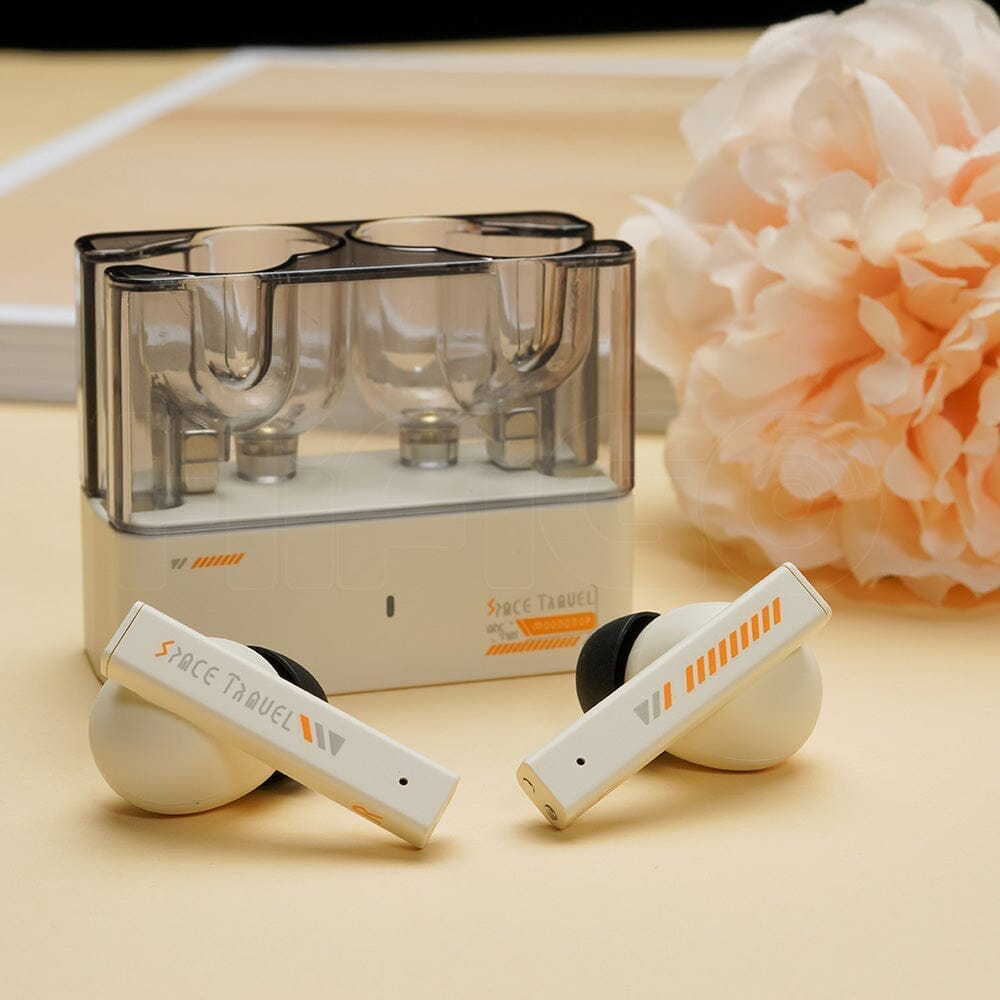
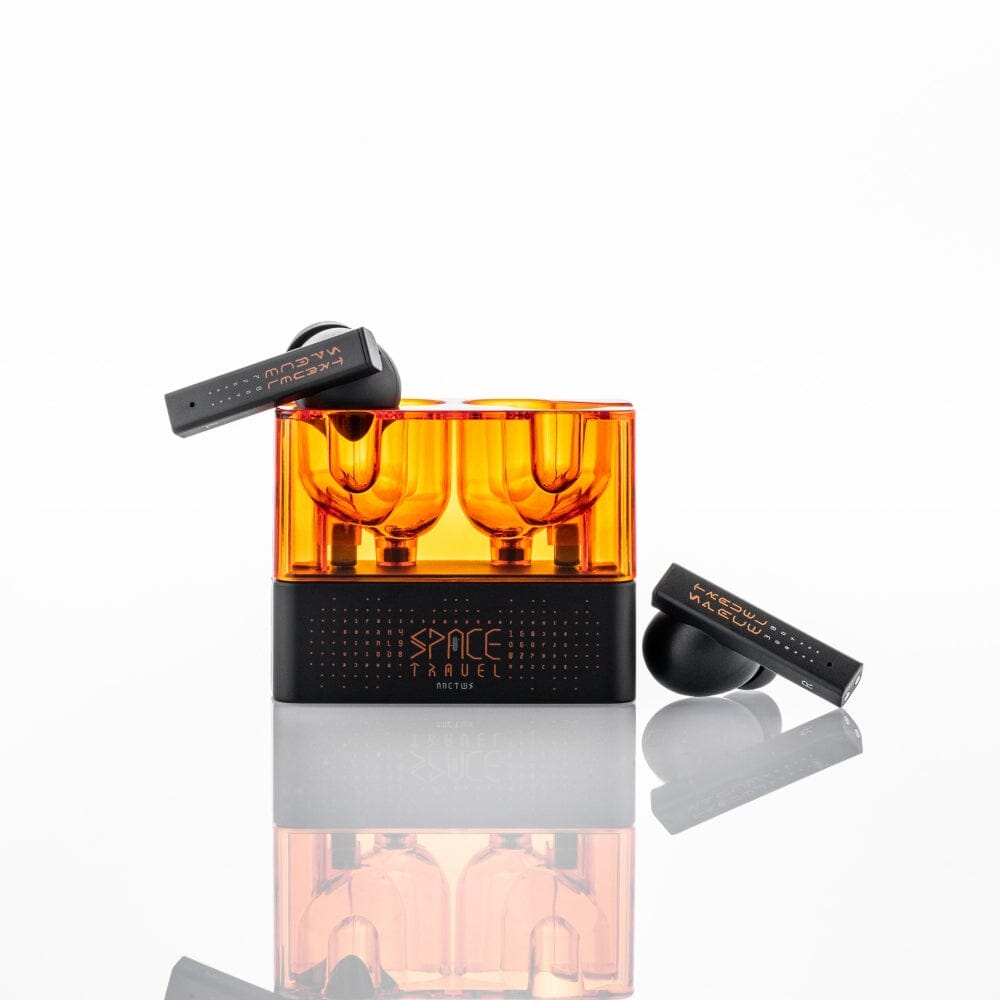
The Moondrop Space Travel is a real pair of true wireless earbuds from Moondrop, built around a 13mm dynamic driver and active noise cancellation, and priced well below most of the brand’s wired in-ear monitor lineup. If you just unboxed one and are staring at the case wondering how to get it talking to your phone, the process is standard Bluetooth pairing with a couple of Moondrop-specific quirks worth knowing before you start.
I paired a review unit with both an Android phone and a laptop over the course of a week, and while the process itself only takes about thirty seconds once you know the steps, there are two mistakes that trip up first-time buyers: opening the case lid before the earbuds have settled into their charging pins, and trying to pair before the case has any charge at all.
| Spec | Detail |
| Driver | 13mm dynamic driver |
| ANC | Active noise cancellation, adjustable via app |
| Low-Latency Mode | 55ms game mode |
| EQ Tunings | Monitor, Reference, Basshead (via MOONDROP Link app) |
| Companion App | MOONDROP Link, iOS and Android |
Step-by-Step: Pairing the Space Travel for the First Time
- Charge the case first. Give it at least twenty to thirty minutes on the included USB-C cable before your first pairing attempt, since a completely dead case will not power the earbuds enough to enter pairing mode.
- Open the case lid with both earbuds inside. On first use, opening the lid automatically puts the Space Travel into pairing mode, and you will typically see the LED indicator inside the case flash to confirm this.
- Open Bluetooth settings on your phone. Go to Settings, then Bluetooth, and make sure Bluetooth is turned on and the phone is actively scanning for new devices.
- Look for “Moondrop Space Travel” in the device list. It usually appears within a few seconds. Tap it to connect.
- Wait for the connected confirmation. Your phone should show “Connected” next to the device name, and you may hear a short tone in the earbuds themselves once the link is established.
- Remove the earbuds from the case and insert them. They should already be connected at this point, so music or calls should route to them immediately.
For any pairing after the first time, you generally do not need to repeat all of these steps. Simply opening the case near your phone with Bluetooth already enabled should reconnect automatically, since the earbuds remember previously paired devices.
Pairing With a Second Device
The Space Travel supports multipoint-style switching between devices, but to add a brand-new second device (say, a laptop after you already paired to a phone) you need to force pairing mode manually rather than relying on the automatic first-use trigger:
- With the earbuds seated in the case and the lid closed, press and hold the touch panel on both earbuds simultaneously for several seconds, or check the small physical reset pinhole on the case if your unit has one.
- Open the lid once you see or hear the pairing indicator repeat.
- Go into Bluetooth settings on the new device and select “Moondrop Space Travel” from the list, exactly as in the first pairing.
If the earbuds keep reconnecting to your phone automatically while you are trying to pair a laptop, turn off Bluetooth on the phone temporarily, complete the laptop pairing, then re-enable Bluetooth on the phone afterward.
A small detail that surprised me the first time: the touch panel on each earbud is genuinely sensitive, so once they are connected and seated in your ears, brushing a stray hair or adjusting your hood can accidentally trigger a play/pause or track skip. It is not a pairing issue, but it is worth knowing about early so you do not mistake it for a connection glitch when a song randomly pauses mid-walk.
Using the MOONDROP Link App After Pairing
Once paired, install the MOONDROP Link app to unlock the extra features baked into the Space Travel, including the three selectable bass tunings (Monitor, Reference, and Basshead), touch control customization, and a 55ms low-latency game mode for reducing audio lag in mobile games. None of this is required to simply listen to music, but it is where most of the earbud’s day-to-day personality comes from, so it is worth the five-minute setup.
Common Pairing Problems and Fixes
- Earbuds not showing up in the Bluetooth list: Close the case lid, wait five seconds, and reopen it to retrigger pairing mode.
- Connects but no sound: Check that your phone has not accidentally routed audio to a different Bluetooth device or to the phone’s own speaker.
- One earbud won’t connect: Reseat both earbuds fully in the charging case for about ten seconds, then remove them again; this usually resyncs the pair.
- Case shows no light at all: The case battery is likely depleted. Charge for at least fifteen minutes before trying again.
- Audio cuts out intermittently after pairing successfully: This is often caused by Bluetooth interference from other nearby devices; forgetting the device and re-pairing from scratch, or moving away from crowded WiFi routers, usually resolves it.
Frequently Asked Questions
Do I need the MOONDROP Link app to pair the Space Travel?
No. Basic Bluetooth pairing works entirely through your phone’s system Bluetooth settings. The app adds EQ and touch-control features but is not required for pairing.
Why won’t my Space Travel enter pairing mode?
The most common cause is a low or dead case battery. Charge the case for at least fifteen to thirty minutes and try again.
Can I connect the Space Travel to two devices at once?
The earbuds remember multiple previously paired devices and can switch between them, though only one active connection is used for audio playback at a time.
Does the Space Travel work with iPhone and Android equally well?
Yes, standard Bluetooth pairing works the same way on both platforms, and the MOONDROP Link companion app is available for both iOS and Android.
Conclusion
Pairing the Moondrop Space Travel is a normal Bluetooth process once you know that the first pairing is triggered automatically by opening the case lid, and that a charged case is the number one prerequisite people overlook. If you run into trouble, a battery top-up and a lid close-and-reopen cycle solves the vast majority of connection issues I have run into with this earbud and with true wireless earbuds in general.
Guide by Ryan, who has paired more wireless earbud models than he can count over the years testing audio gear for this site.