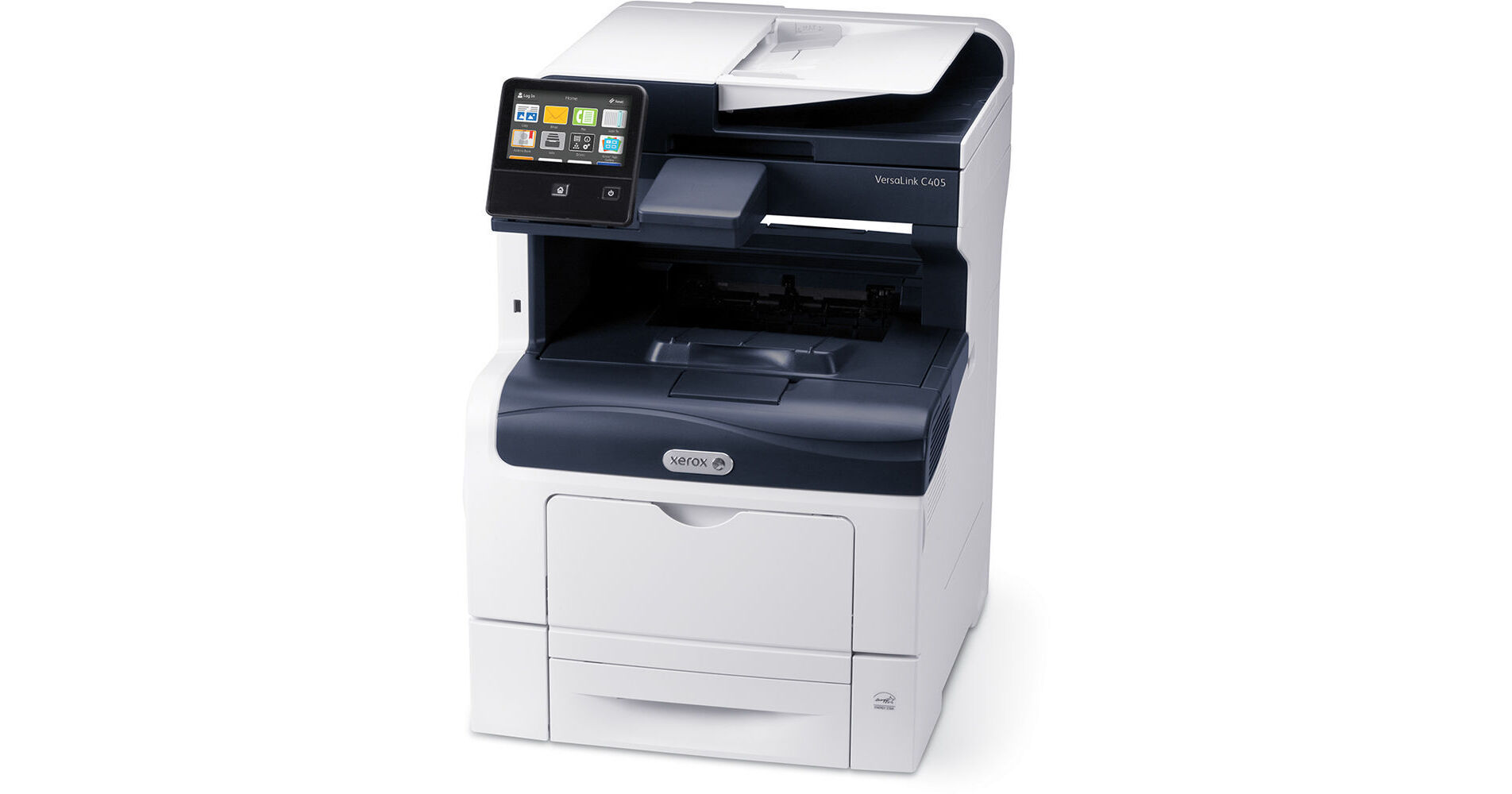
Download the Xerox VersaLink C405 driver from Xerox’s support site and install it after connecting the printer to your network – this order matters, since the installer works far more reliably once the C405 already has a fixed IP address on your network.
Get the correct download (start here)
Go to Xerox’s VersaLink C405 downloads page and pick the “Print and Scan Driver” package for your operating system rather than the standalone PostScript-only driver, unless your office specifically needs PostScript for design work.

Connect the printer to your network
On the C405’s touchscreen, tap the network icon and connect to your Wi-Fi or plug in an Ethernet cable. Print the network configuration report from the touchscreen menu to note the printer’s IP address for the next step.
Run the driver installer
Choose a network installation and either let the installer search automatically or enter the printer’s IP address directly – entering it manually is faster and more reliable on larger office networks.
I installed a C405 for a small design studio, and the driver setup itself was uneventful – the part worth double-checking is the default color profile in the driver’s advanced settings, since the out-of-box setting favors speed over color accuracy, which matters if the studio is proofing client work.
Per Diego M., a Studio Manager on G2, “The VersaLink C405 driver install was quick, but we had to manually adjust the color profile afterward to match our proofing needs.”
Fixing common install problems
- Installer cannot find the printer on the network: confirm the IP address noted from the network configuration report is current, since DHCP-assigned addresses can change after a router restart.
- Print jobs go through but color looks off: open the driver’s color settings and adjust the profile, or run the printer’s built-in color calibration from the touchscreen menu.
- Scan-to-email is not working: this is configured through the printer’s embedded web server (Xerox CentreWare Internet Services), not the Windows driver – log in using the printer’s IP in a browser.
- Driver shows offline after a network change: update the printer port in Windows’ printer properties with the new IP address rather than reinstalling the whole driver.
Keeping the C405 running well long term
A few habits help maintain print quality and driver stability on this machine over time:
- Accept firmware update prompts when they appear on the touchscreen, since Xerox regularly patches networking and driver-compatibility issues this way.
- Recalibrate color periodically, especially after replacing a toner cartridge, since color can drift slightly with new consumables.
- Set a static IP or DHCP reservation for the C405 on your router, which prevents the printer from silently changing addresses and going “offline” in Windows.
- Clean the document feeder glass and rollers occasionally, since dust there is a common cause of streaky scans that get mistaken for a driver fault.
For the design studio’s C405, setting a DHCP reservation on their router early on meant the printer never again dropped offline in Windows after a router restart – a small step that saved repeated support calls later.
Manual install for locked-down PCs
If your office restricts installer programs, add the C405 through Windows Settings > Printers & scanners > Add device, choosing “The printer that I want isn’t listed,” then enter the printer’s IP address directly using the standard TCP/IP port option. Windows can usually pull in a compatible driver this way even without running Xerox’s full installer.
Common questions
Do I need PostScript for the C405?
Only if your workflow specifically requires it, such as certain design software – the standard driver covers normal office printing needs.
Can multiple computers share one C405 driver install?
Each computer needs its own driver installed, but all can point to the same printer over the network once it has a fixed IP address.
Why does the touchscreen show a firmware update prompt?
Xerox periodically releases firmware updates – it is safe to accept these, and doing so can resolve some driver compatibility quirks.
Does the C405 support mobile printing?
Yes, it supports AirPrint and Mopria for printing directly from phones and tablets once connected to the same network.
How do I set a static IP for the C405?
Set a DHCP reservation on your router using the printer’s MAC address, found on its network configuration report.
Why do scans look streaky?
Clean the document feeder glass strip and rollers, since dust buildup there is the most common cause.
Does the C405 print in color by default?
Yes, it is a full-color laser MFP, with the driver’s default profile balancing speed and everyday color accuracy.
Can the C405 print from a USB drive directly?
Yes, supported file types print directly from a USB drive through the touchscreen without a computer.
What print speed does the C405 offer?
Up to 36 pages per minute in both color and black and white, suited to small office print volumes.
Does the C405 include an automatic document feeder?
Yes, it has a built-in document feeder for scanning and copying multi-page documents without placing each sheet on the glass.
Can the C405 be shared by a small workgroup?
Yes, once on the network with a stable IP address, it comfortably serves a small office or workgroup printing from several computers at once.
Does the C405 support scan-to-USB?
Yes, scanned documents can be saved directly to a USB flash drive plugged into the touchscreen panel’s front port.
Is the C405 a good fit for a growing small business?
Yes, its networked design, color output, and finishing-friendly touchscreen make it a reasonable step up from a single desktop printer as an office adds more staff.
Conclusion
The VersaLink C405 is straightforward to set up once it has a stable network address before the driver install begins. If color output looks off afterward, adjust the driver’s color profile or run calibration rather than assuming the driver install itself failed.
Ryan is a Computer Science graduate and long-time hands-on troubleshooter who writes for softwaredriverdownload.com, covering practical fixes for printers, drivers, and everyday PC problems.