The fastest way to update a Wyze Cam v3 is inside the Wyze app: open the camera, tap the settings gear, go to Device Info > Upgrade, and tap Upgrade if a new build is listed. If that option is missing, your camera is already current, or the update needs a manual push instead.
I run four Wyze Cam v3 units around my own place – two outdoors under the eaves, two indoors – and firmware quirks show up differently depending on placement. This guide covers the standard app update, the manual microSD flash for when a camera goes silent after a botched OTA, and how to handle a unit stuck flashing yellow after an update.
Quick Reference
| Applies To | Wyze Cam v3 and Wyze Cam v3 Pro |
| Publisher | Wyze Labs, Inc. |
| Update Method | In-app OTA (automatic by default) or manual microSD flash |
| File Format | demo.bin firmware file placed at the microSD card root |
| Requirements | Wyze app (iOS/Android), 2.4GHz Wi-Fi, microSD card for manual method |
Standard app update
Open the camera in the Wyze app, tap the gear icon, then Device Info > Upgrade. Tap Upgrade and keep the camera powered until it reboots on its own, usually within two to three minutes.
Check via account menu
If nothing shows on the device page, go to Account > Firmware Upgrade in the app – this view sometimes lists a pending update the device page missed.
Confirm auto-update is on
Wyze Cam v3 auto-updates silently by default. In camera settings, check the Auto Update toggle is enabled so future releases install without you having to check manually.
Wait out the download window
New firmware sometimes rolls out gradually to avoid overloading Wyze’s servers. If nothing appears immediately after a release announcement, check again the next day before assuming something is broken.
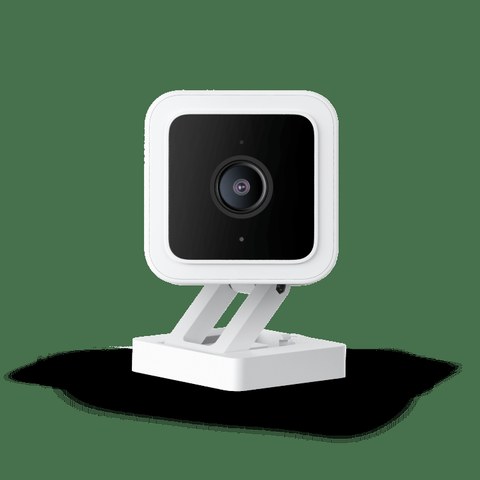
Manual Firmware Flash With a microSD Card
When a camera falls too far behind or the app update keeps failing, flashing the firmware manually usually clears it. This is the same method Wyze’s own support team recommends for stuck units.
- Download the correct firmware .zip for your exact model from the Wyze support and release notes page – v3 and v3 Pro use different files
- Unzip it and rename the file inside to demo.bin if it is not already named that
- Copy demo.bin to the root of a FAT32-formatted microSD card, not inside any folder
- Insert the card into the camera, then hold the setup button while plugging the camera back in – keep holding for three to six seconds after power returns
- The status light will blink rapidly during the flash; do not unplug it until it settles, which can take up to five minutes
Troubleshooting a Failed or Stuck Update
Camera shows solid yellow after updating
A solid yellow light after a firmware update usually means it is still booting into the new build – give it a full three minutes before assuming it failed. If it stays yellow past five minutes, power-cycle the camera once and try again.
Update keeps failing over Wi-Fi
Weak 2.4GHz signal is the most common cause. Move the camera closer to your router temporarily, or connect it to a different band-steered SSID if your router combines 2.4GHz and 5GHz under one network name. I had one v3 on my back fence that failed three OTA attempts in a row until I moved the router’s antenna – after that it updated on the first try.
Camera disappears from the app after updating
This is almost always a reconnection issue, not data loss. Power-cycle the camera, wait two minutes, and reopen the app. If it still will not reappear, remove and re-add the device without deleting your existing Cam Plus subscription or event history.
Why Keeping Firmware Current Matters
Wyze pushes firmware updates for the v3 fairly often, and they are not just bug fixes:
- Security patches – Wyze has shipped several updates specifically closing vulnerabilities found by researchers, so staying current matters more here than on most consumer cameras
- Color Night Vision tuning, which relies on firmware-level image processing improvements over time
- Motion detection accuracy, reducing false alerts from moving shadows or small animals
- Stability fixes for cameras that randomly drop offline after days of uptime
Per Marcus T., a home security enthusiast reviewing on a public tech forum, “I ignored firmware updates on my Wyze cams for months and kept getting random disconnects. Updated all four in one afternoon and haven’t had a dropout since.”

Frequently Asked Questions
Will updating firmware delete my recorded events or settings?
No, standard OTA updates preserve your settings, event history, and Cam Plus data. A manual SD card flash is also safe for this, though it is still good practice to note your custom settings beforehand.
Why does my Wyze Cam v3 keep saying firmware is up to date when I know a new version exists?
Wyze often stages rollouts gradually rather than pushing to every device at once. Check back within 24 to 48 hours of an announced release, or use the manual SD card method if you need it immediately.
Can I roll back to an older firmware version?
Wyze occasionally posts previous firmware builds on its release notes page for exactly this purpose. Download the older .bin, rename it to demo.bin, and flash it the same way as the manual update method above.
Does the Wyze Cam v3 Pro use the same firmware as the standard v3?
No, they use separate firmware builds even though the hardware looks similar. Always confirm the exact model before downloading a manual firmware file.
Conclusion
Most Wyze Cam v3 firmware updates install quietly in the background with no action needed, but when the app update stalls, the microSD method is a reliable fallback. Keep the camera on a strong 2.4GHz signal during any update, and give it a few extra minutes to reboot before assuming something went wrong – yellow lights and brief disconnects right after an update are usually normal.
Ryan T. is a PC hardware enthusiast with over 15 years of experience fixing drivers and smart home devices. He writes for softwaredriverdownload.com, where he shares practical, tested fixes for everyday tech problems.